Source
Data
The source data comes from the metadata describing the source tables and the entire mapping done in Studio. The metadata is imported into Studio and serves as the basis for the Source Map, the Source Engine will assure that the Staging database contains a corresponding table for each structure in the metadata.
Loading data in the Portal Operations is done in 2 steps:
- The data are reformatted from one of the know formats to a common load format.
- The reformatted data are loaded into the corresponding table in the Staging database.
Once these steps have been completed then the Data panel will show a list of all the tables in the Staging Database, as below.
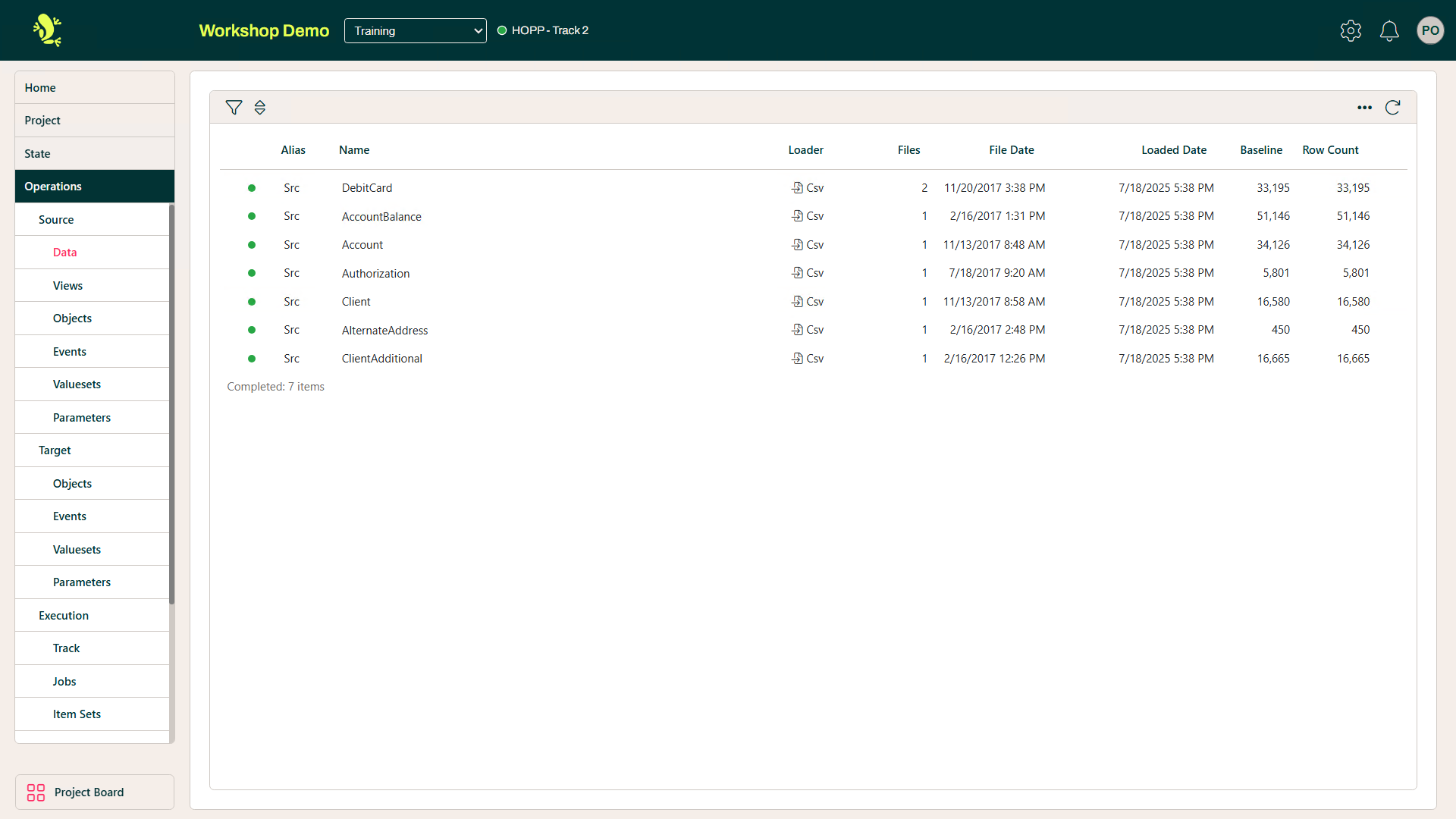
Most tables are marked green, as they have already been loaded as part of earlier iterations of Business Objects Customer and Account.
Apart from the obvious like Alias and Name, the meaning of the columns in the list is:
- Files
- The number of files to load. For instance.
- Reformat
- The reformatter to run on the received file to reformat it to the common format used to load data into the Staging database
- Received file date
- The date of the received file. If this file is newer than the Formatted file, it will be marked orange
- Formatted file date
- The date of the formatted file. If this file is newer than the loaded file, it will be marked orange
- Date of loaded file
- The date of the formatted file that was loaded into the Staging database. If this file is newer than the date the file was loaded, it will be marked orange.
- Loaded date
- The date of the formatted file was loaded into the Staging database.
- Baseline
- A saved baseline of rows loaded into the Staging table
- Loaded
- The actual number of rows loaded into the Staging table
 Refresh is not automatic
In most of the panels in the Client Area of the Portal Operations, you will see this Refresh button in the upper right corner.
Using Portal Operations, you are really working in a client application sending instructions to the Runtime running on a server.
Action Context Menu
 Within the Portal Operations you may notice three little dots when hovering above a record/Business Objects.
We refer to this as a Action Context Menu.
The Action Context Menu may vary from page to page but it provides an additional way to navigate/validate a Business Object.
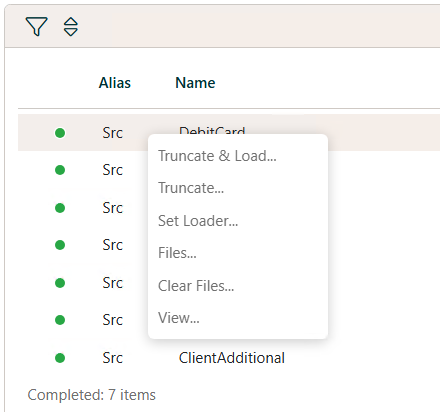
The details for the context menu for this page are as below:
- Truncate & Load
- This enables all values to be deleted leaving the table structure to be loaded
- Truncate
- Delete all values of a table, leaving the table intact
- Set Loader
- This gives the option to change the format of the loaded file, the default is set to DB2 but for most projects we use Csv
- Files
- Opens the selected file
- Clear Files
- Clear the file from the migration
- View
- Allows the file to be viewed
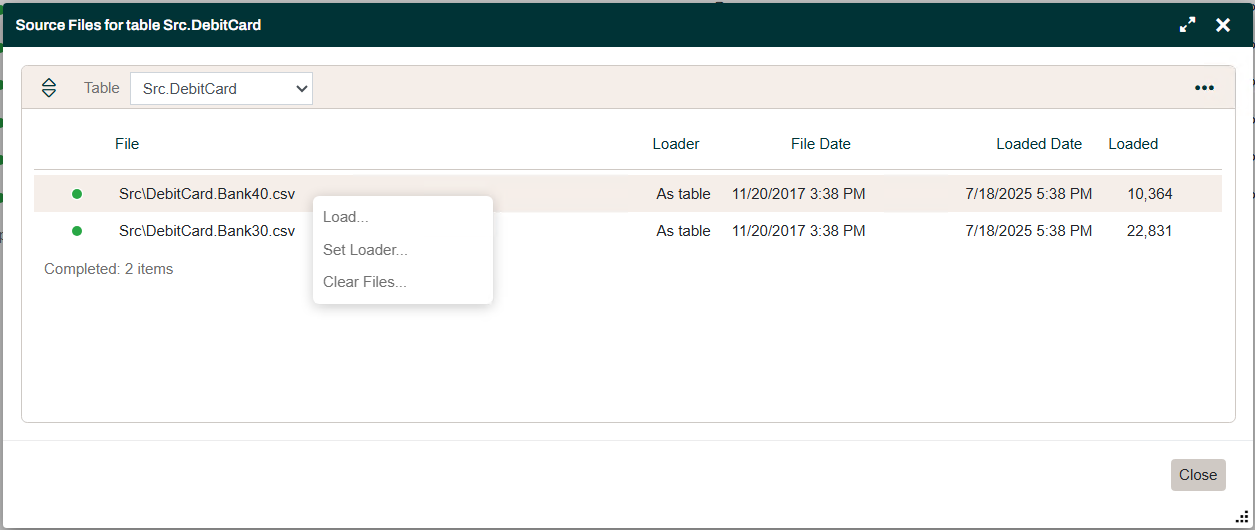
We can load data by selecting a Business Object and selecting the "File" option in the menu above which gives you the below popup dialog.
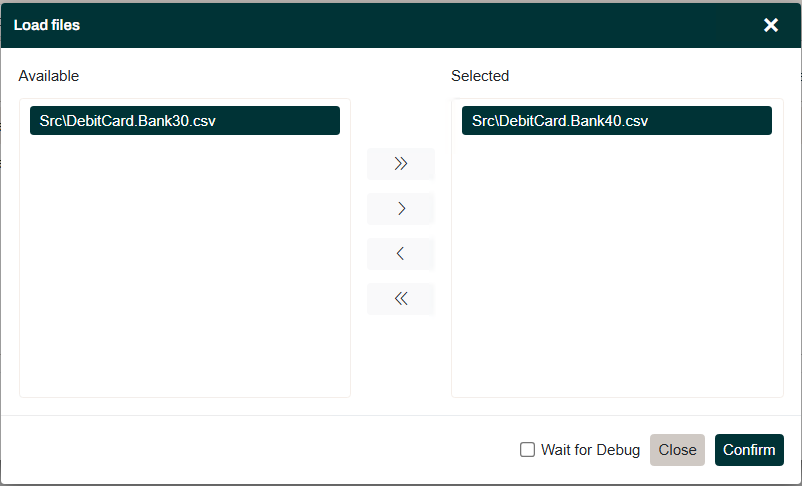
Next, in the above dialog you can, among other actions (like Set Loader, Clear Files..), offload a Business Object to a file.
Views
As outlined in the Operations Overview, the Source System metadata imported into the Source Map will eventually result in corresponding tables being created and maintained by the generated Source Engine in the Staging database. The Source Engine will then load the data received from the Source System into these tables.
A View is simply an SQL query that you can define on top of these staging tables. The Source Engine will then execute this query and store the result in yet another table in the Staging database. In addition to the staging tables corresponding to the Source metadata, the view query can also use the staging tables for other Views and indeed also for Valuesets.
Views are very powerful in the Source Map. They can be used to clean, transform and aggregate data received from the Source System.
A View consists of 3 main parts:
- A list of columns (name and data type) exposed by the View, usable elsewhere in the Source Map
- A SQL query that results in these columns - in correct order and matching data types
- Possibly some Named Values to pass parameters to the View
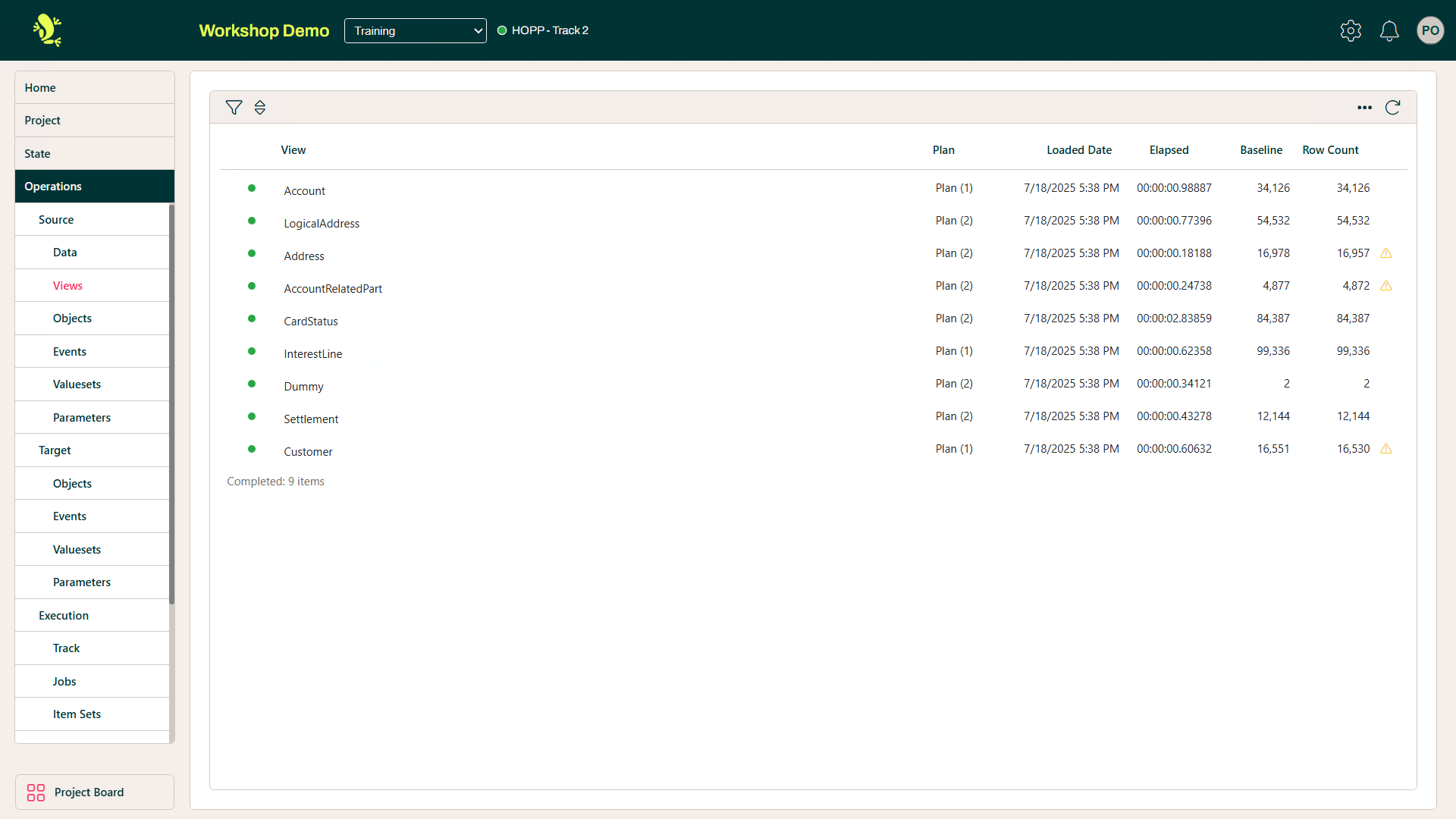
The meaning of the columns are as follows:
- View
- Hopp analyzes the view query and builds indexes to help it run. The number indicates how many iterations Hopp did, before it decided that the query could not be optimized any further. If interested, you can click the blue link to see the query plan (takes a little while as it launches SQL Server Management Studio to visualize the query plan).
- Loaded Date
- The exact time the data for the view was loaded into the staging table.
- Elapsed
- The time it took to load the view.
- Baseline
- A baseline for the row count of the view. You can update the baseline by clicking the Baseline button.
- Row count
- The number of rows loaded into the staging table: Green if equal to Baseline, Red if blank (not loaded) or Yellow if different from baseline.
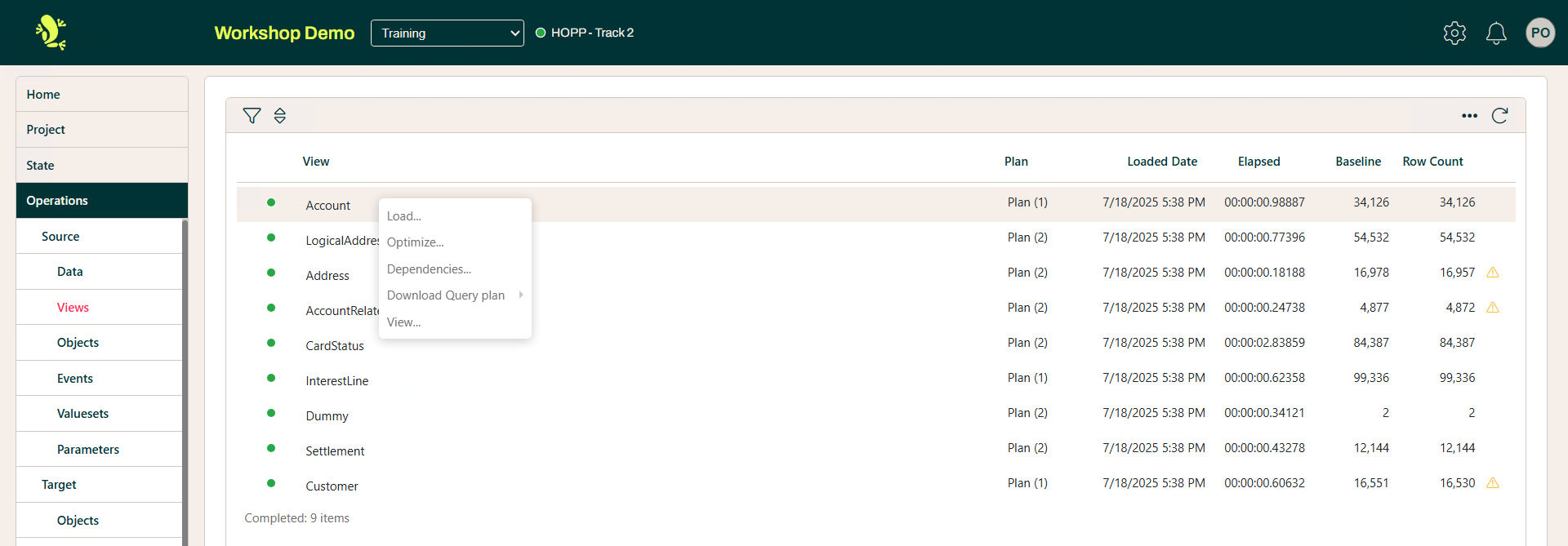
For each Business Objects within the View panel, you can use the context menu to Load, Optimize, view Dependencies, Download the query plan and View the data.
Objects
A Business Object represents all the data flowing through the migration related to one specific item in the business being migrated. Examples of Business Objects, of course, depend on the nature of the business but could be Customers, Account, Policy, Patent, Mortgage etc.
On the Source/Objects panel, we see the objects for this particular project displayed.
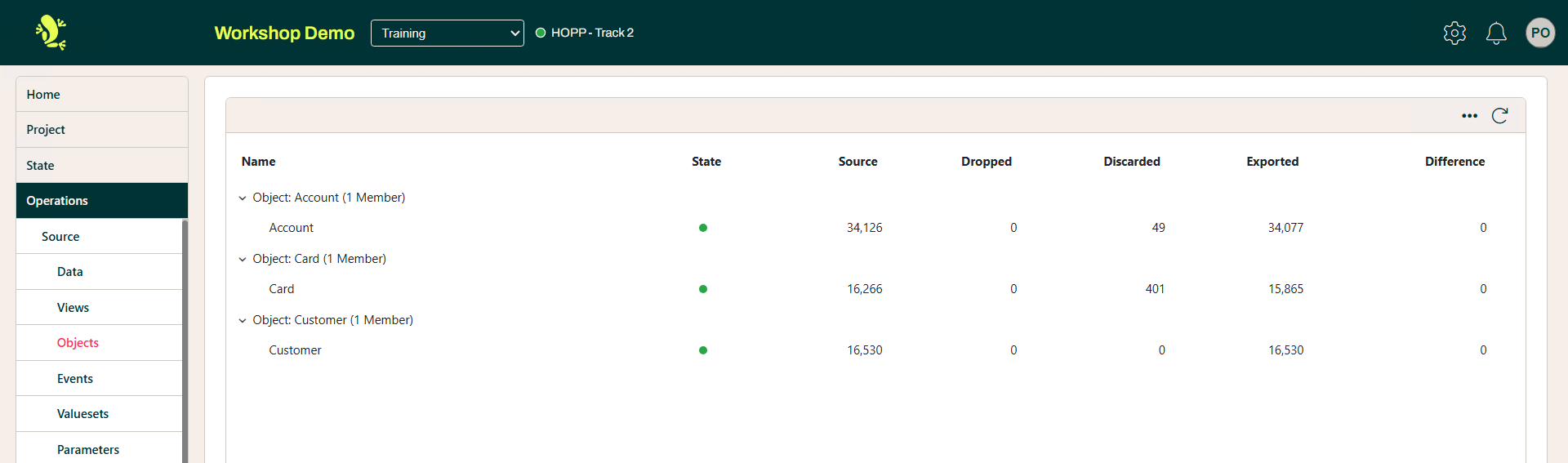
The meaning of the columns are:
- Name
- The Object is shown as a parent with one or more children.
- Source
- The count of Business Object instances in the staging tables (as defined by the Discriminator on the Card Business Object in the Source Map)
- Dropped
- The number of Business Object instances dropped during the Export. An instance is dropped when a raised Flag is handled with the Drop action, when an Exit Rule returns false, or when a Filter Rule rejects the root Source Object. Only drops of the root Business Object appear in this count; a dropped child instance is left out of the export without being counted. A drop is silent: the instance fires no Events. See Events for how Drop differs from the discard dispositions.
- Discarded
- The number of Business Object instances that where Rejected during the Export by firing an Event with Severity Reject Root
- Exported
- The number of Business Object instances that where Exported successfully
- Difference
- Any difference between Source and the sum of Dropped, Rejected and Exported. Any difference indicates that not all Business Object instances have been processed
As mentioned previously the State (green dot) represents that this migration has passed testing.
There are no dependencies in the export of Business Objects.
Click the Export button to show the Business Object Selection dialog:
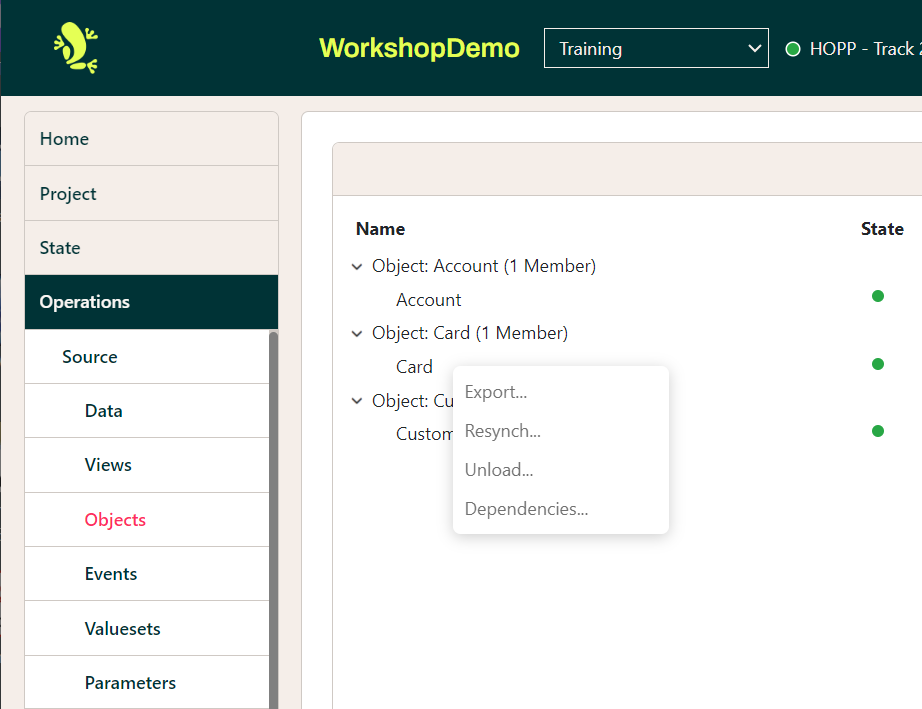
This will prompt this screen.
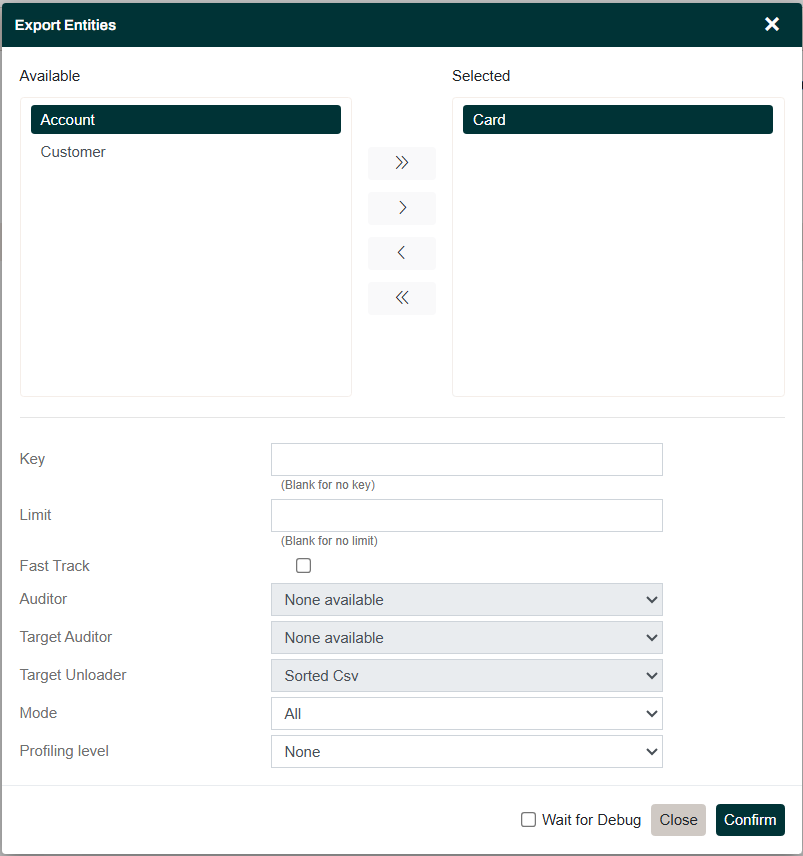
The Business Object Selection Dialog
With minor differences the Business Object Selection dialog is used to submit jobs in several places in the Portal Operations interface. The following fields are commonly available:
| Field | Description |
| Available / Selected | Move Business Objects to the Selected box to include in the job(s) being submitted. |
| Key | If you know the key of a given instance of a Business Object, you can supply it here to process only this instance. The key is subject to an SQL like query and should at a minimum be pre- and suffixed with the SQL wildcard %. |
| Limit | Type a number to limit the instances processed by the job. |
| Fast Track | Only available when exporting. For each instance, the Portal Operations runtime will:
|
| Mode | Choose what to include:
|
| Profiling Level | The generated code is instrumented, and in addition, Hopp provides you with the possibility to instrument manual rule implementations. If a Profiling Level other than None is chosen, this instrumentation is activated and will log elapsed time in the execution tree. Useful to locate potential bottlenecks if the migration is suddenly performing badly. |
| Wait for Debug | If checked, the job will be submitted but immediately pause until a debugger is attached. Allows you to debug your manual rule implementations. |
Events
Looking at the Events panel, you have a list of all Events fired in the lifetime of the project. The message for each Event is presented with the space holders for parameters, the actual parameter values have not been merged into the message.
At this top level, the parameter values in the event message are represented by the placeholder ({*0}).
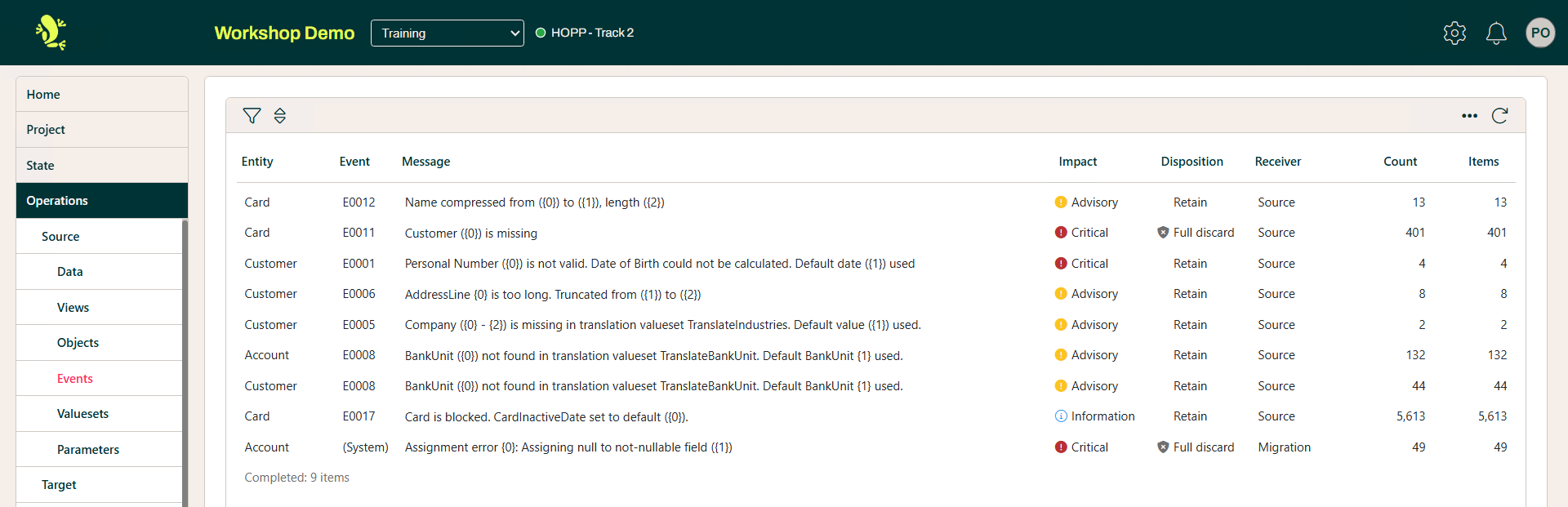
This panel gives an impression of how you can drill down in the Event aggregation to end up on a complete view of a single Business Object instance.
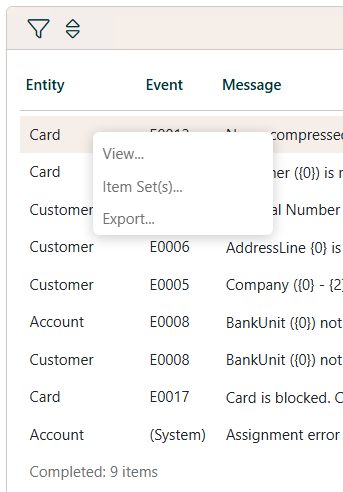
Using the context menu you are also able to:
- View
- Provides more information of the Business Object, i.e. D.O.B, Company ({0} - {2}) is missing in translation Valueset TranslateIndustries
- Item set(s)
- Provides the ability to create a new Item for this Event
- Export
- Export a Business Item from this Event
Valuesets
A Valueset is a table of data organized in columns and rows. Using Studio, the user defines the columns of the Valueset, giving their names and data types Once defined, a Valueset is used by rules to look up values or - in the case of manually implemented rules - in any way needed.
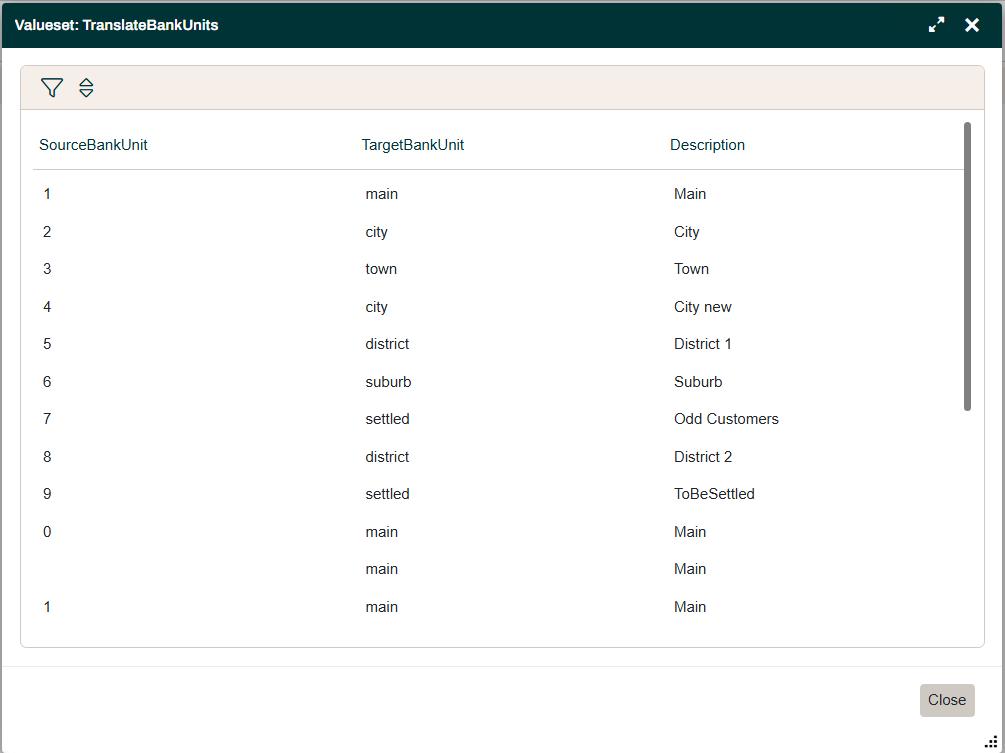
The Valuesets on this panel are representative of the migrations source data. For instance, using the context menu next to a Business Object and by selecting view, we can see the full data set.
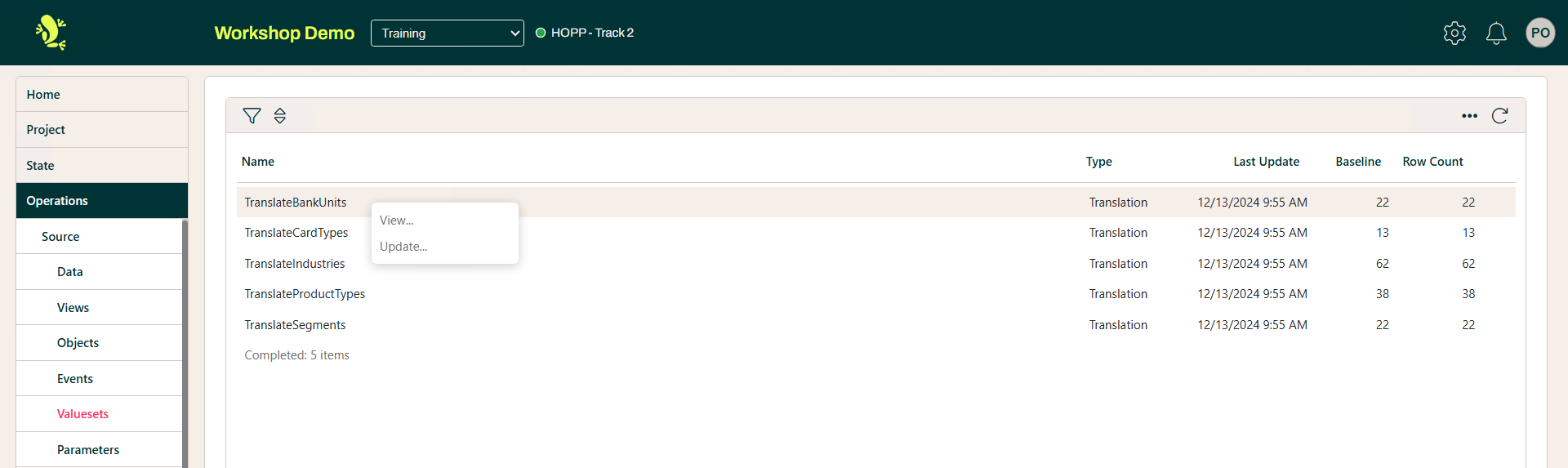
Full list of the Valueset available to the Source engine and mapping.
The context menu also provides the option to update a Valueset.
The context menu to the right as illustrated below.
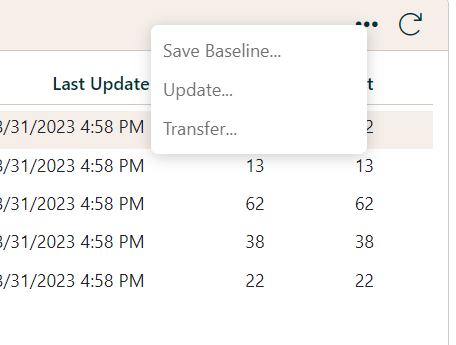
Provides the options to:
- Save Baseline
- Save the original Valueset
- Update
- Update a Valueset
- Transfer
- Transfer a Business Object into a Valueset (row or column of data)
Parameters
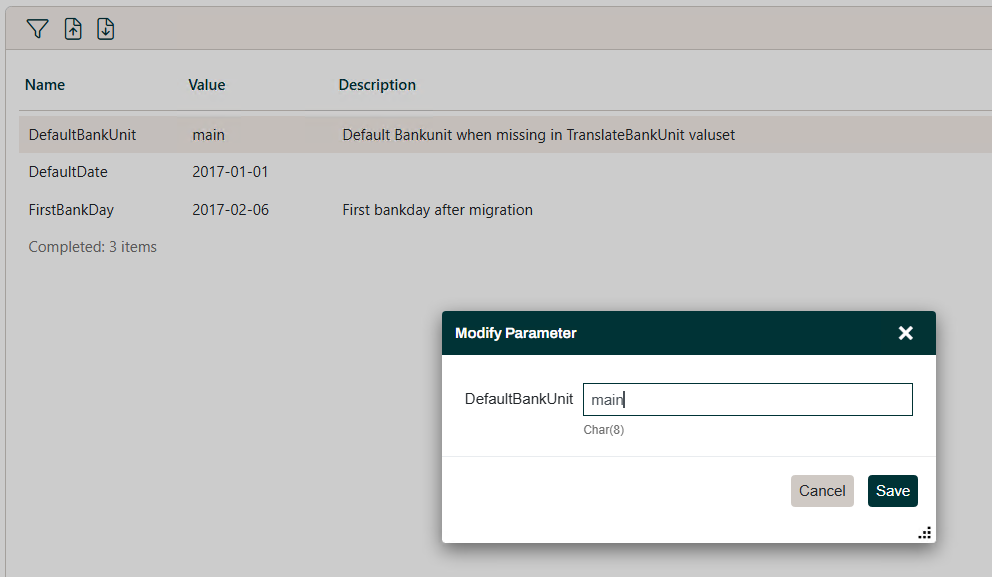
Parameters are the values that were in effect for the Runtime Parameters during the latest iteration. The Runtime Parameters are the Constants from the Studio that were marked as Runtime.
The most direct and relevant jobs are, for instance, Load Data, Perform Export Step, Perform Transformation and Target Step etc. But there are many job types that in combination makes up all functions necessary to run a data migration iteration from start to finish.
This panel is showing the values that were in effect for the Runtime Parameters during the latest iteration.
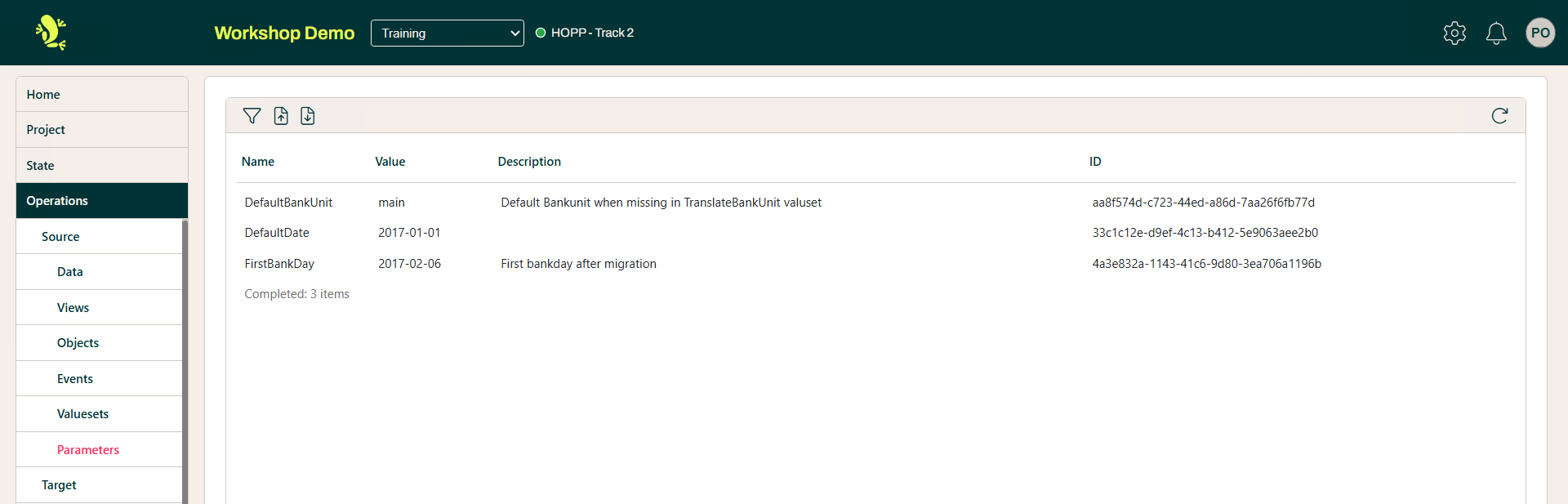
We also have the option to upload  or download a Valueset or additional files.
The action context menu here enables a user to modify a Parameter's Value.
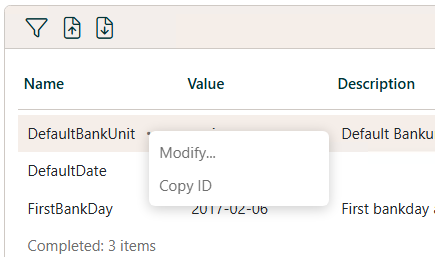
You are also, as always, able to filter the list using the filtering icon.