Studio Overview
Studio is an application dedicated to describing how the transformation and validation requirements in the migration must function. It's a structured interface with all the features needed to specify complex data migrations correctly.
Studio requires you to be precise and structured in your description of the mapping. It's a well-designed Windows application, focused on being user-friendly and helping users be productive and efficient.
It's a comprehensive, feature-rich application with all the functionality you need for complex data migrations.
A whole project team can work together to produce the maps, rules, etc, with each team member working within Studio to deliver their part of the map. A user can have Studio installed locally on a PC and check items in and out of a common repository. This means you can collaborate efficiently across a team because you communicate through a common repository.
The maps that you produce with Studio are so structured and so precise that they can be given to the Engine. The Engine contains a code generator that generates C# code that does exactly what is described in the maps we are generating the Engines from.
The Studio is intended for users who do not necessarily have a deep technical or programming background. These should be people who know the data and the business logic being moved. So, Studio is aimed at a functional consultant rather than a technical consultant. In projects not using Hopp software, these people would use Word and Excel spreadsheets to specify how they want the fields in the source system mapped and transformed to fields in the target system, and which validation rules to apply, etc.
The Interface
The Studio interface is composed of these main areas:
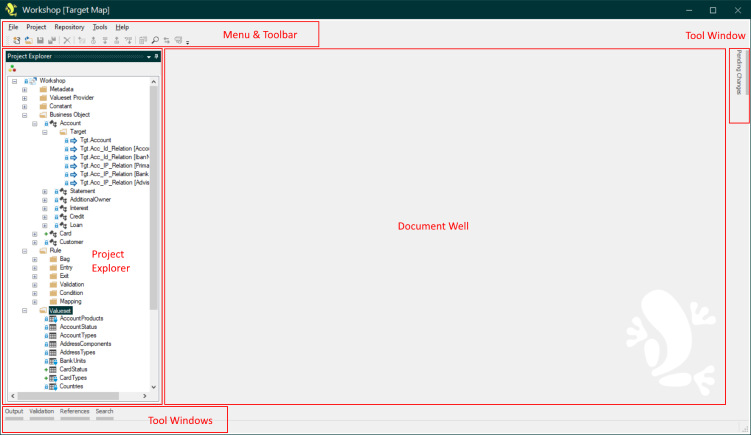
- The Menu provides access to all main commands of the Studio. The Toolbar provides quick access to the most commonly used commands.
- The Project Explorer shows all the items you can work on. You can double-click an item to open it or right-click to get a context menu with operations available on the item.
- When you open an item, it will be displayed as a tabbed document in the Document Well. You can have many items open simultaneously.
- At the bottom and on the right edge you have several tool windows. Open a tool window by hovering the mouse over the tab of the tool window
- Output shows various output from Studio processes like Get latest, open/close project, validate, etc
- Validation list shows the results of the latest validation
- Pending changes shows a tree view of the items you have added or checked out since your last commit
- References show the result of any cross-reference performed in Studio
- Search displays the result of the last search
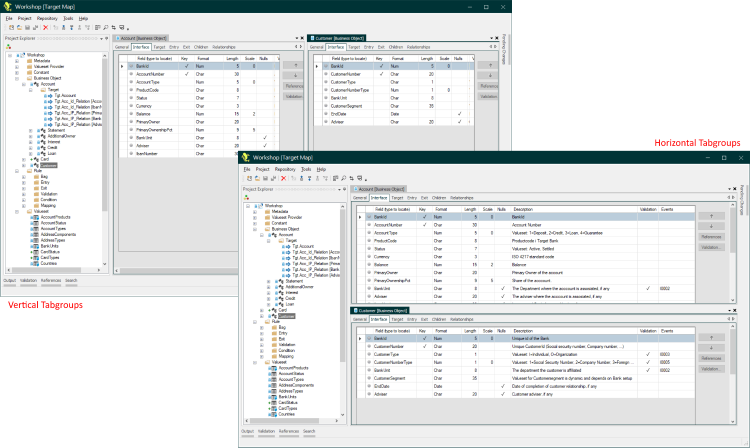
The MDI (Multi Document Interface) of Studio allows you to work efficiently on many items at once. You can organize documents in horizontal or vertical groups:
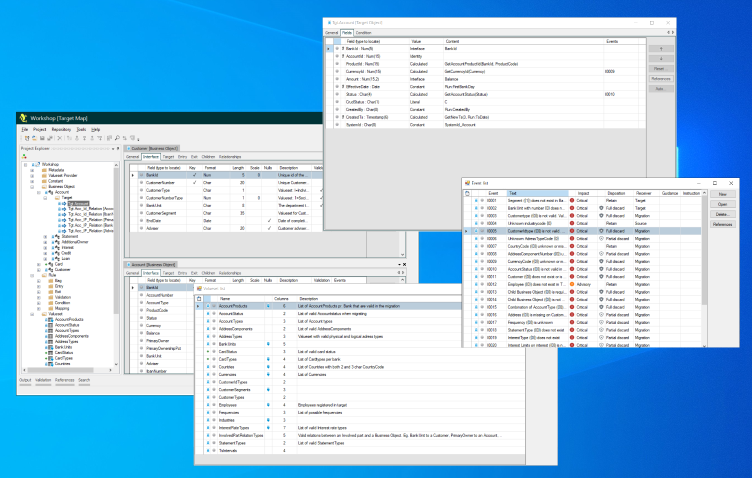
You can even pull the Studio apart and place documents outside the main Studio window, all on their own:
Studio Search
You can search for any entities in the Studio and you can limit the search only to look in certain item types.
Search is available in the Studio toolbar:

and also in the Tools menu:

Activating Search from the toolbar, from the Tools menu or with the keyboard shortcut Ctrl-F will display the Search Dialog:
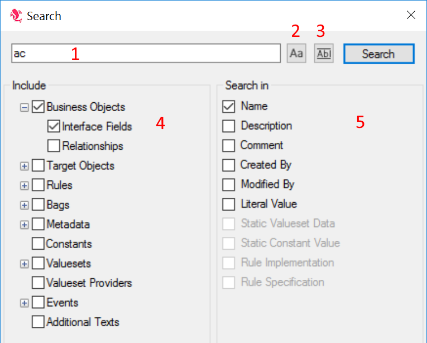
- Enter a search term.
- Toggle case-sensitive search.
- Toggle whole word-only search.
- Select the item types to search.
- Select what content to search in the selected item types. Only options relevant to the selected item types on the left are enabled.
Click the Search button (or hit enter) to perform the search. The Search results are displayed in the Search tool window at the bottom edge of Studio:

Initially, the list will show the items containing the Search Term. By clicking the expand icon in the leftmost column of the list, you can expand a row to see exactly where in the item the Search Term was found:

The columns in the search results contain:
- Item: The path to the item, or - for child rows - the sub-path within the item
- Hit: The content type that contains the search hit
- Value: The value containing the search hit
- Info: May contain extra information relevant to the search.
For instance, if searching in Static Valueset data, the Info column will contain the row number and the column name
of the cell containing the value that satisfied the search

Double-click any row to open the item in Studio.
As always, the leftmost button
 in the toolbar exports the search result list to Excel.
UTF-8 Character Encoding
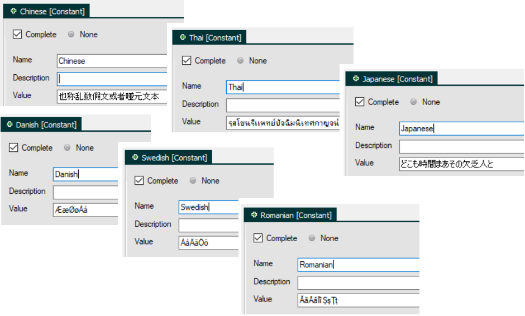
Studio saves all item xml files using UTF-8 encoding both in the xml content and in the encoding of the file itself.
This enables advanced encoding support in Studio: