Project
Authorization
In the Portal, we can select Authorization to see and assign the different user's authorization levels across Projects and Partitions.
Hopp is able to migrate multiple Projects each with separate legal businesses or areas. In order to limit what one group of users can see, Hopp maintains a strict separation of the data in Projects and Partitions. In Hopp we say the data is separated into Projects and Partitions.
Hopp can also selectively authorize users to see results for only one Partition and not any other Partition. Users with access to one or more Partitions can only see the results for this/these Partitions and not data or results for other Partitions included in the migration project.
In the illustration below you can see who is authorized as part of a project team and their partitions.
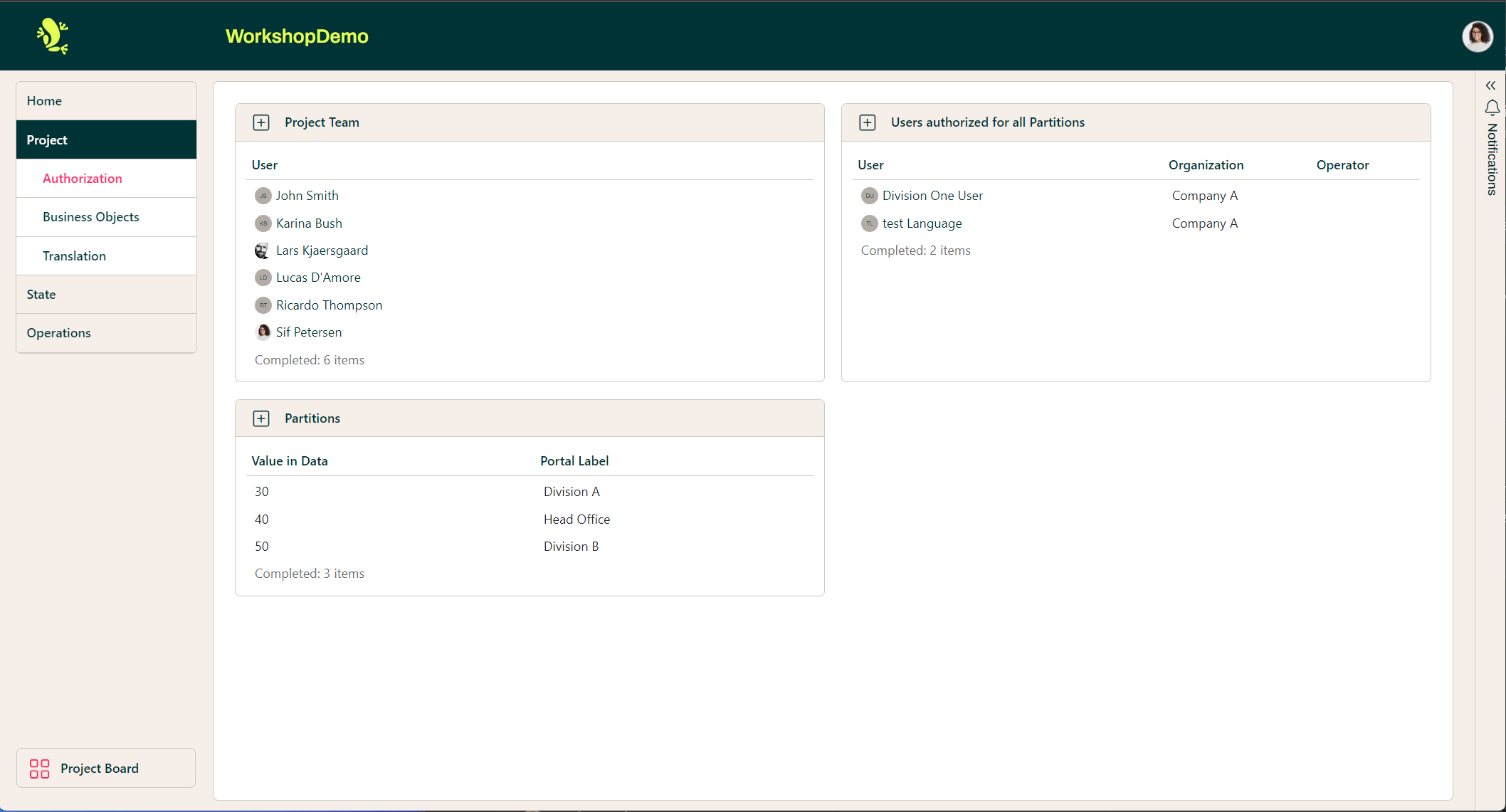
Partition users from the business(es) being migrated will not have global authorization and will only be authorized to see data for their respective Partitions.
In several places, the Portal user interface differs depending on whether you are a Team Member or a Partition User.
Authorization Levels
There are two major levels of authorizations:
- Team: Global authorizations including high-level authorization of Hopp administrators, operators and team members. These authorizations are global for all migration projects
- External: Project authorizations are in effect only for specific projects. External users must explicitly be authorized for specific projects/partitions
External users that have been authorized for a given Partition are also referred to as Partition Users.
This section allows you to add users to a Project and authorize them to a respective Partition.
Click the plus symbol which is located beside Project Team.
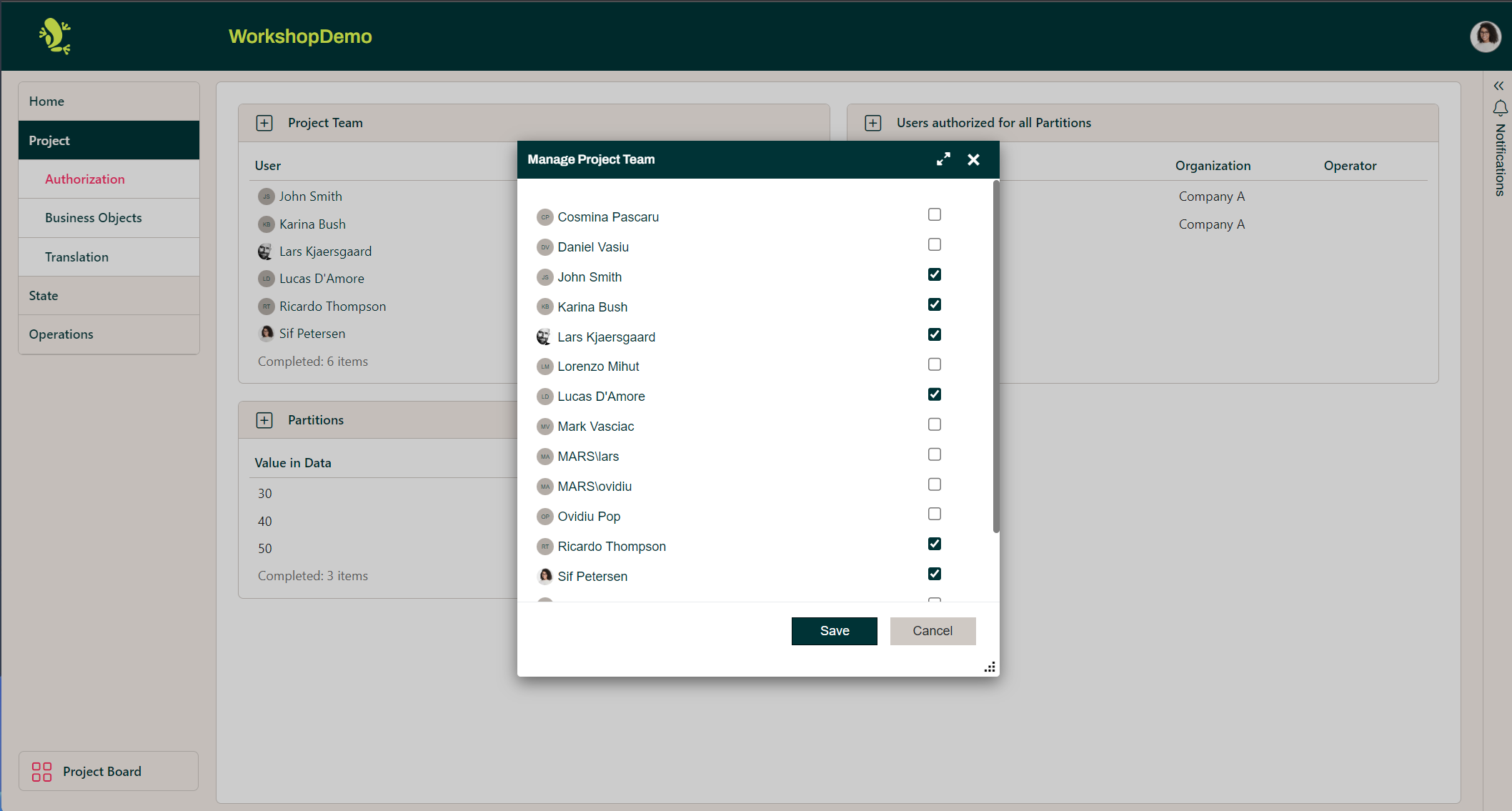
This brings up all the users that can be added to a project, tick a user and then click save to proceed.
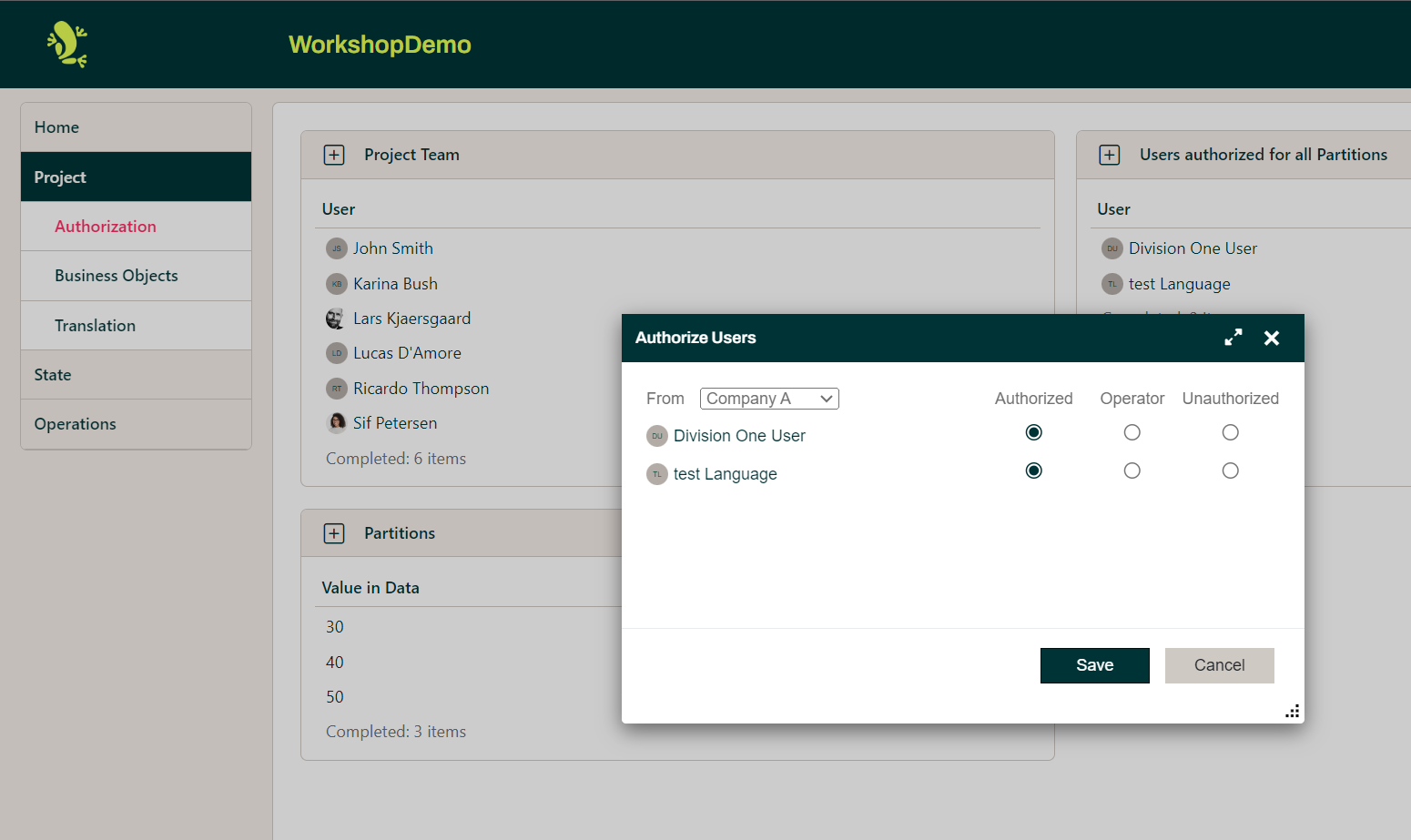
The same principle applies to the Users authorized for all Partitions, however, this section allows you to make the selected users a Division One User or a Division Two User as illustrated below.
You can also create a Partition user based on a selected value data range/set. Click the plus symbol on the Project Team box and you will get the below.
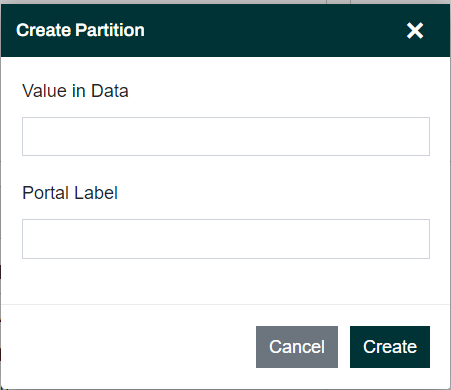
This allows you to look for values within a data set and create a Partition with a label.
Click the Action Context Menu as illustrated below.
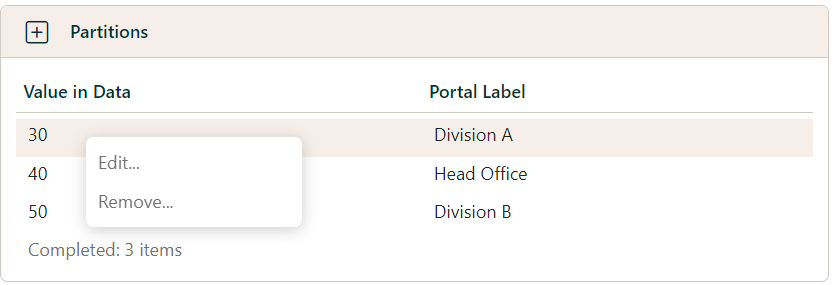
This allows you to modify a Partition by editing or removing it.
In the final section of the Authorization page the box with the heading Users authorized for 30 - 30 Bank 30 box, is a summary of the selected Value Data range, which is in the Partition box to the left.
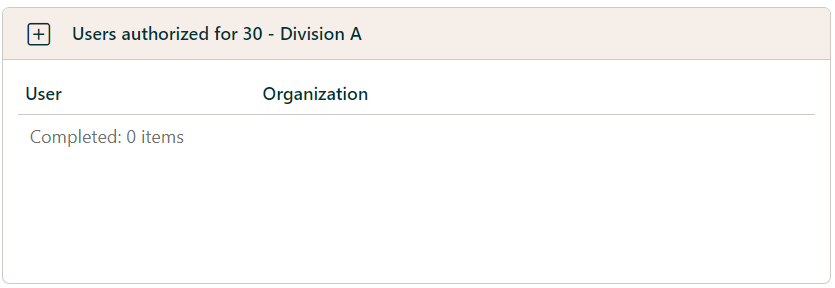
Here you can also make the selected users a Division One User or a Division Two User.
Business Objects
All elements of Hopp are created using Business Objects. A Business Object represents all the data flowing through the migration related to one specific item in the business being migrated.
Examples of Business Objects, of course, depend on the nature of the project/business but could be Customers, Accounts, Policy, Patents, Mortgage etc.
Business Objects are the basis for the mapping, for the actual iterations of the migration executions and for the surfacing of the migration results and Events. When executing, every Business Object passes through the migration steps as one unit.
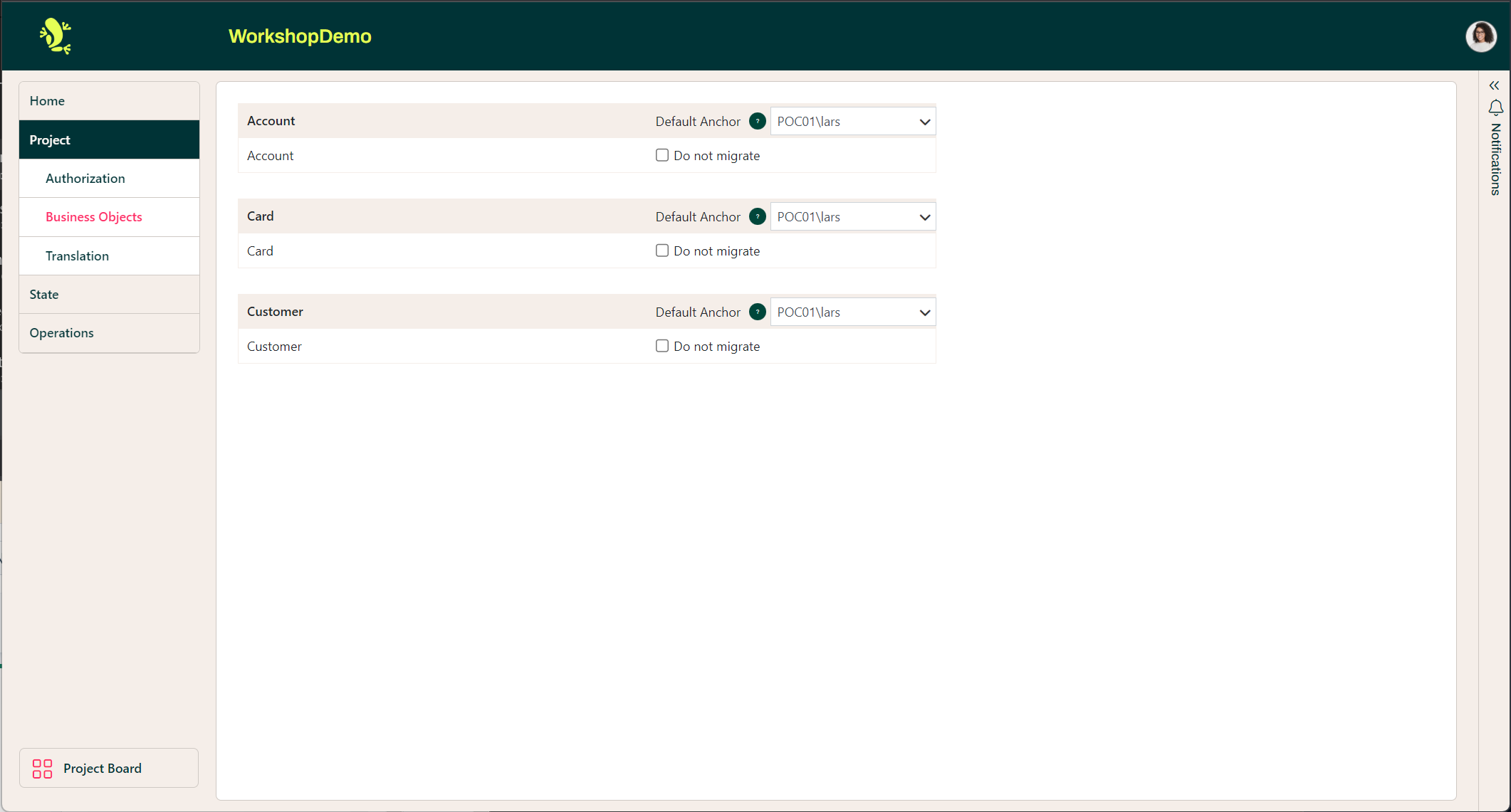
Here the Business Objects provide a common reference for all users working on and related to the migration project.
The illustration shows the default "Anchor" user for the Business Object "Accounts and Customer". Here you have the option to not migrate a specific Business Object.
The "Do not migrate" option enables users to run the migrations without the chosen Business Objects.
You can read more about the concept in Business Objects.
Translation
A special section of the Portal shows what we call Valuesets.
A Valueset is a table containing data organized in columns and rows. Using Studio, the user defines the columns of the Valueset, giving their names and data types. Once defined, a Valueset is used by Rules to look up values or - in the case of manually implemented rules - in any way needed.
Marked in the mapping as a Translation Table this enables users in the migration project (for instance users from the involved businesses) to provide the content for these Valuesets, normally to provide translations of terms and values in the source system to the target system.
An option is provided for functionality external to Hopp to read these Translation Tables and to write back a validation state (ok or faulty) combined with a validation message. This is useful to ensure that values manually provided by users actually are correct in terms of the receiving target system.
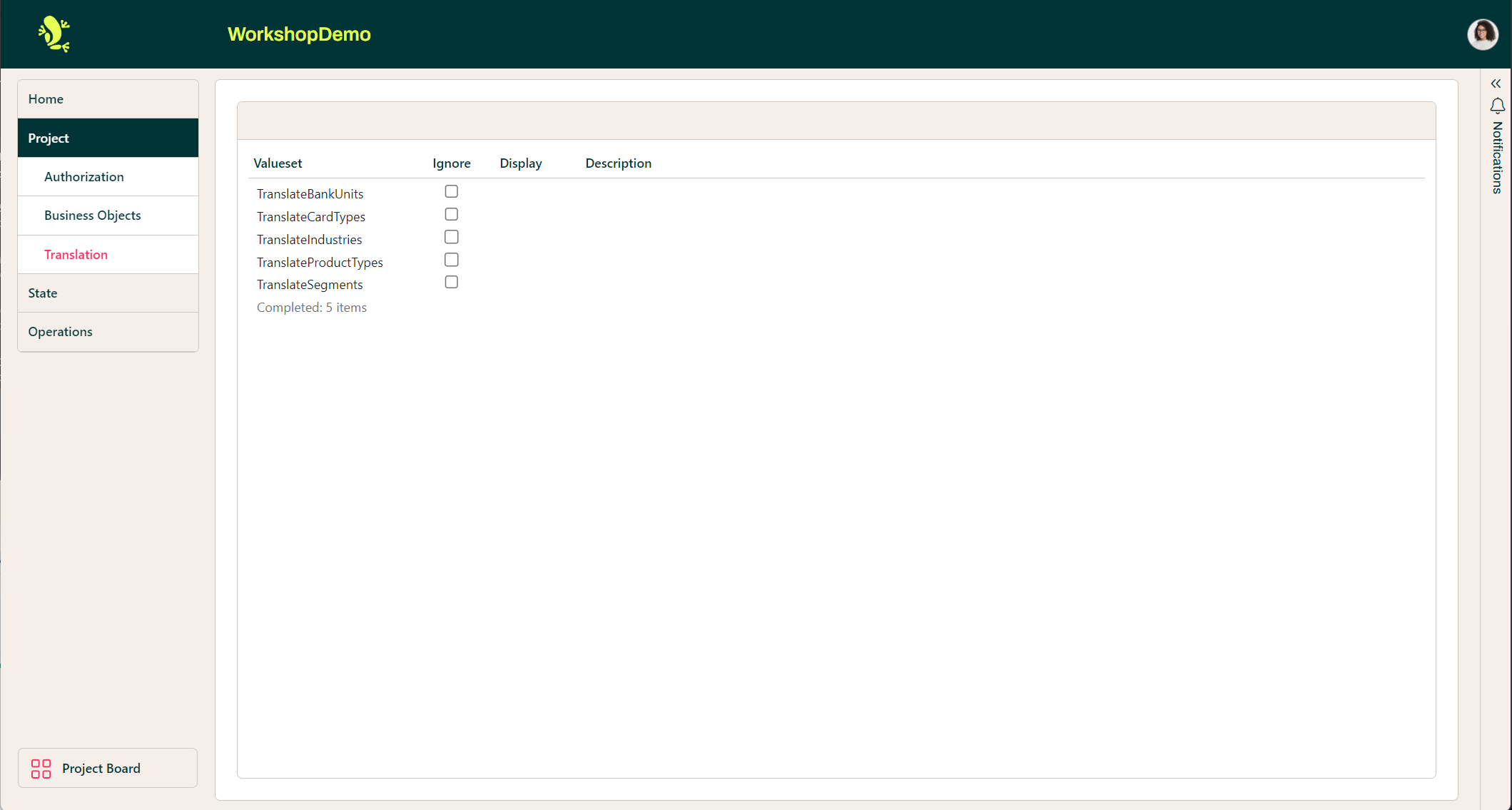
The Translation tab shows the Valuesets from Studio that were marked as Translation. The Portal displays the Valuesets depending on what has been selected in the Partition dropdown.
Translation Valueset deals with the translation of code values in the Source System to code values in the Target System, the utility can be used to validate that the code values for the Target System do actually exist.
The illustration above shows an option to ignore a Translation Valueset as part of a migration.