Operations Overview
The Portal, Runtime and the Execution environment
While the class libraries described in the Core pages contain the generated code, the manual rule implementations, the interfaces, and indeed all the bits and pieces necessary to migrate 1 business object, the Portal component is charged with the task of migrating all business objects by calling the engine interfaces provided, one object at a time.
In addition, the Portal Operations is responsible for the housekeeping necessary to store all migration results, intermediary results as well as all events occurring during migration, and finally all audit information collected during the migration. It is the responsibility of the Portal to keep track of this information, even when the migration is iterated repeatedly and events and even items may appear, reappear and disappear.
The complete runtime and execution component consists of two main parts:
- Runtime
- The runtime runs in a server setup and executes all the data migration processing. The runtime runs jobs on a server, performing a multitude of different tasks. The most directly relevant jobs are for instance: Load Source Data, Perform Export Step, Perform Transformation and Target Step, etc. But there are many different job types that in combination make up all functions necessary to run a data migration iteration from start to finish.
- Portal Operations
- The Portal Operation connects to the Runtime and enables a user to orchestrate the data migration and initiate and monitor jobs as required.
While the collaboration and workflow around the mapping and the generated code take place locally on a personal machine, once the engine libraries have been deployed in the server environment of the Runtime, the rest of the framework execution flow takes place in the Runtime environment and is managed using the Portal Operations.
While the Runtime is executing migration jobs, the user monitoring the job execution may view the events raised by the migration engine as they happen. In this way, it is possible to react quickly in case of serious and invalidating events.
Runtime Environment
Normally, in a data migration setup of any significant size, the Runtime will run on one or more dedicated servers. However, in a tiny setup, it is perfectly possible to establish and execute the Runtime on a local machine as well.
A complete setup will leverage the full execution facilities of the runtime environment, including the ability to concurrently iterate over separate data migration projects.
In this full-scale scenario, the Runtime can execute several, isolated migration projects on one or more dedicated servers in so-called Tracks. One server may host multiple tracks, and the Runtime can handle multiple servers – each with multiple tracks.
Portal Operations Overview
-
Operations are available inside the Portal projects when the Track is setup
-
A track must be selected in one of the pages from the Project menu (sections Home, Project, State) for the Operations section to appear
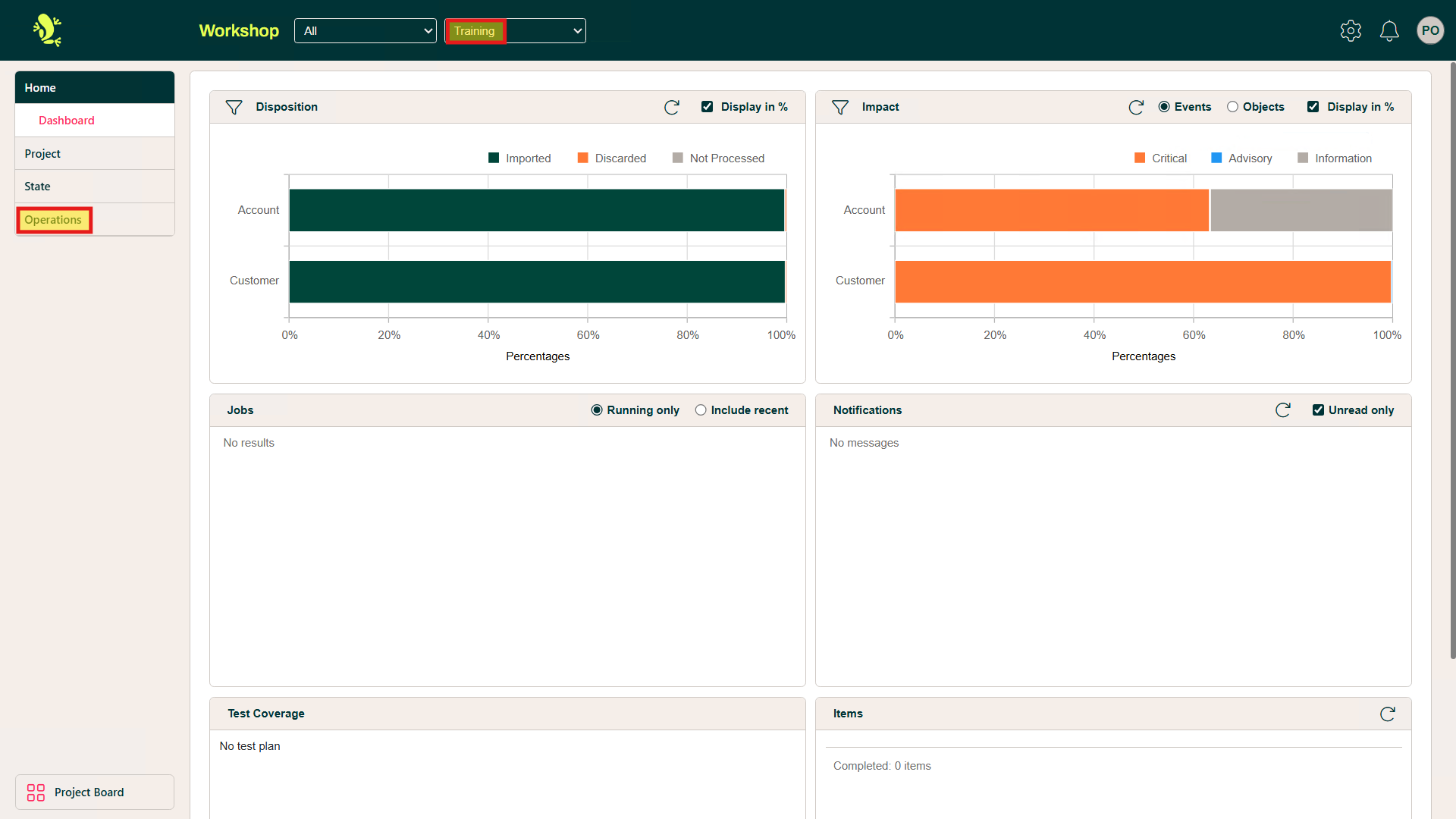
-
Depending on the Project migration type (Export or Migration) some of the menu items under Operations may not be displayed
-
If a track is Archived, then the Operations menu section disappears
-
Tracks state status and service status can now be visible inside the portal in one of the pages from Operations section. The colored dot represents the status of the track, whereas the Service will appear only as a text “(service stopped)” when it is not running and without any other text when it is running.

The operations menu items are available under Operations in the menu bar:
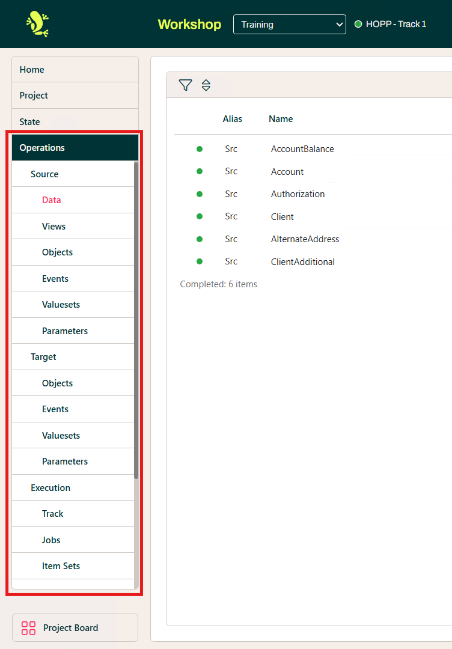
The Operations menu covers functionalities the following functionalities:
- Source
- Data
- Views
- Objects
- Events
- Valueset
- Parameters
As a general functionality inside the pages, there are a few differences regarding interacting with the actions available in a list:
-
Actions related to one list item can be viewed with the context menu item on a single row:
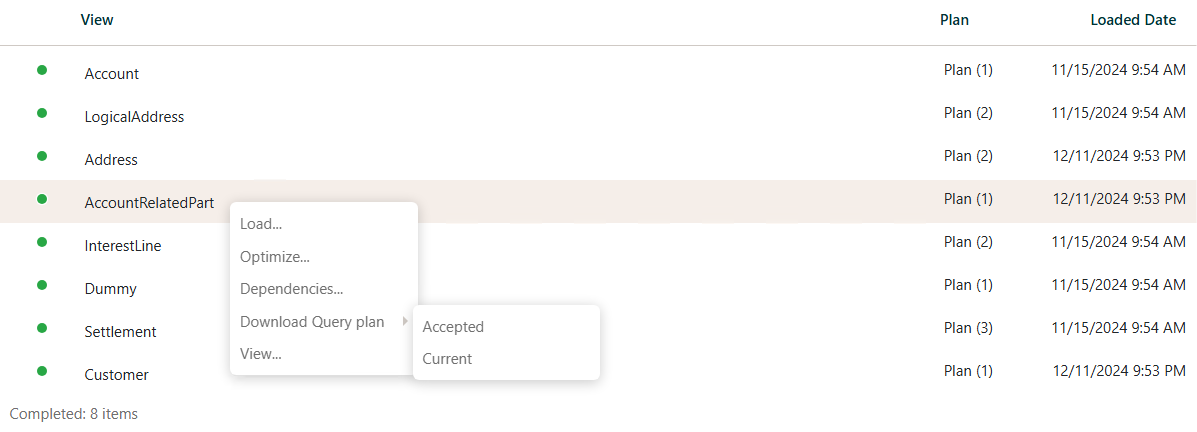
-
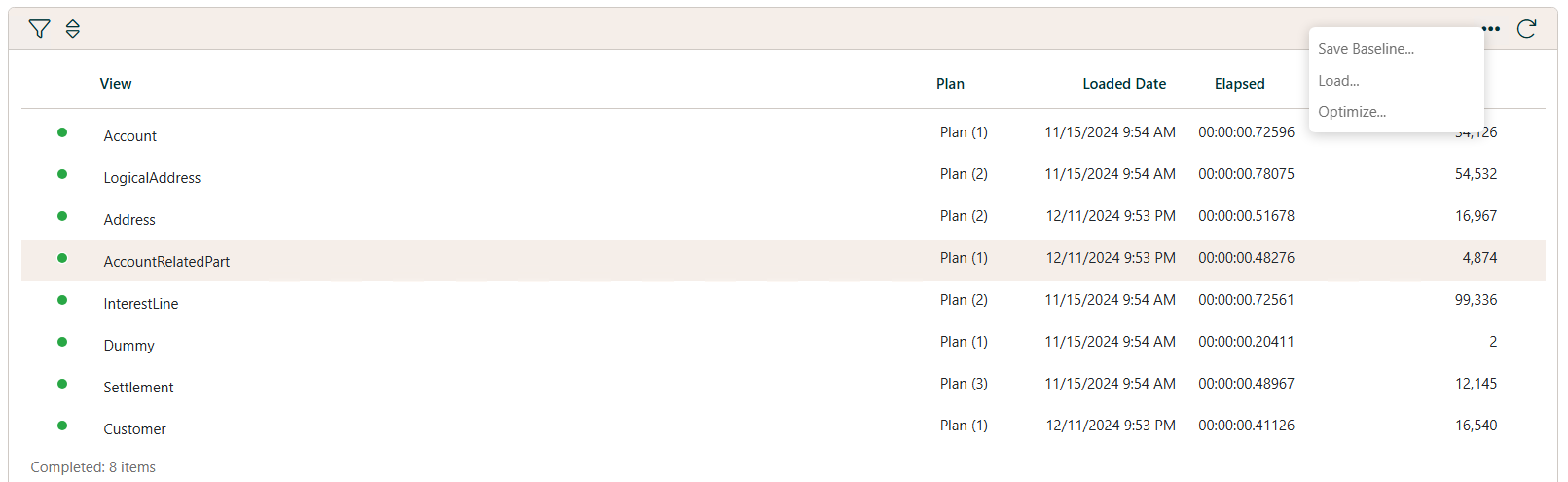
Actions related to multiple list items can be accessed using the context menu in the toolbar (3 dots button) on the right-hand side:
-
Some pages will be provided with Filtering and Sorting capabilities (as other pages within the Portal)
-
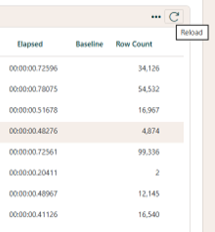
Refresh button is available in the toolbar on the right-hand side. Note: every time the user navigates to a page, the displayed data is latest, so the Refresh button can be used only if the page was opened long time ago or it is expected data to be updated.
-
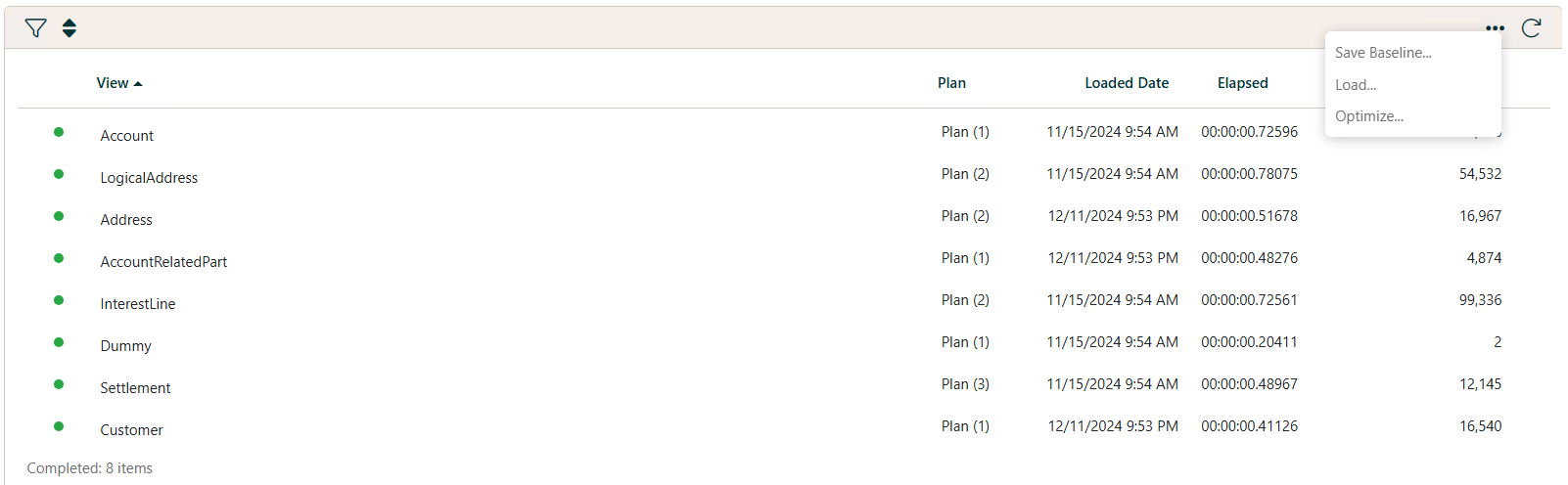
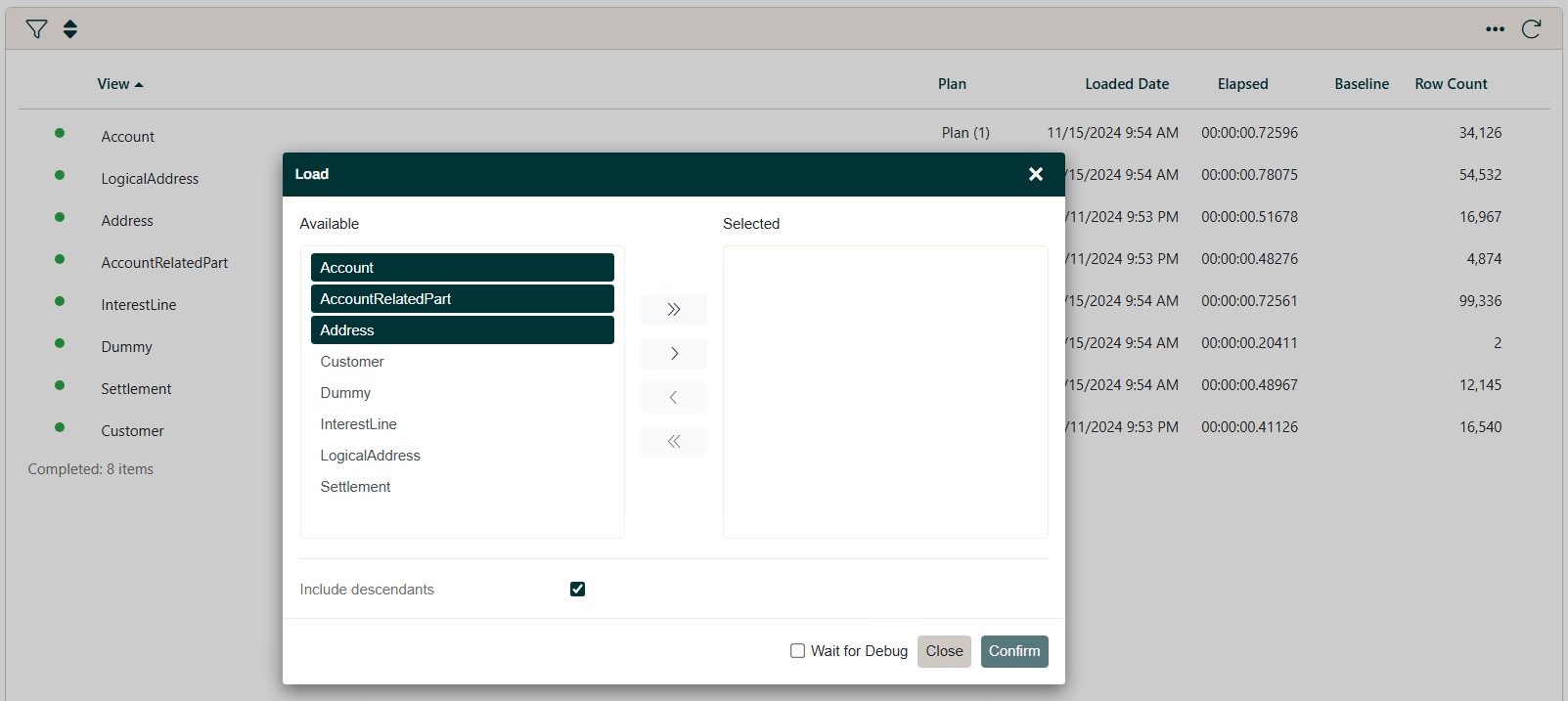
Multiselection is available. Usually, there should be a functionality available on multiple rows among actions from the context menu in the toolbar (3 dots button). For example, to Load views, there is a context menu item with the same name that will open a multiselect dialog as per screenshots below:
-
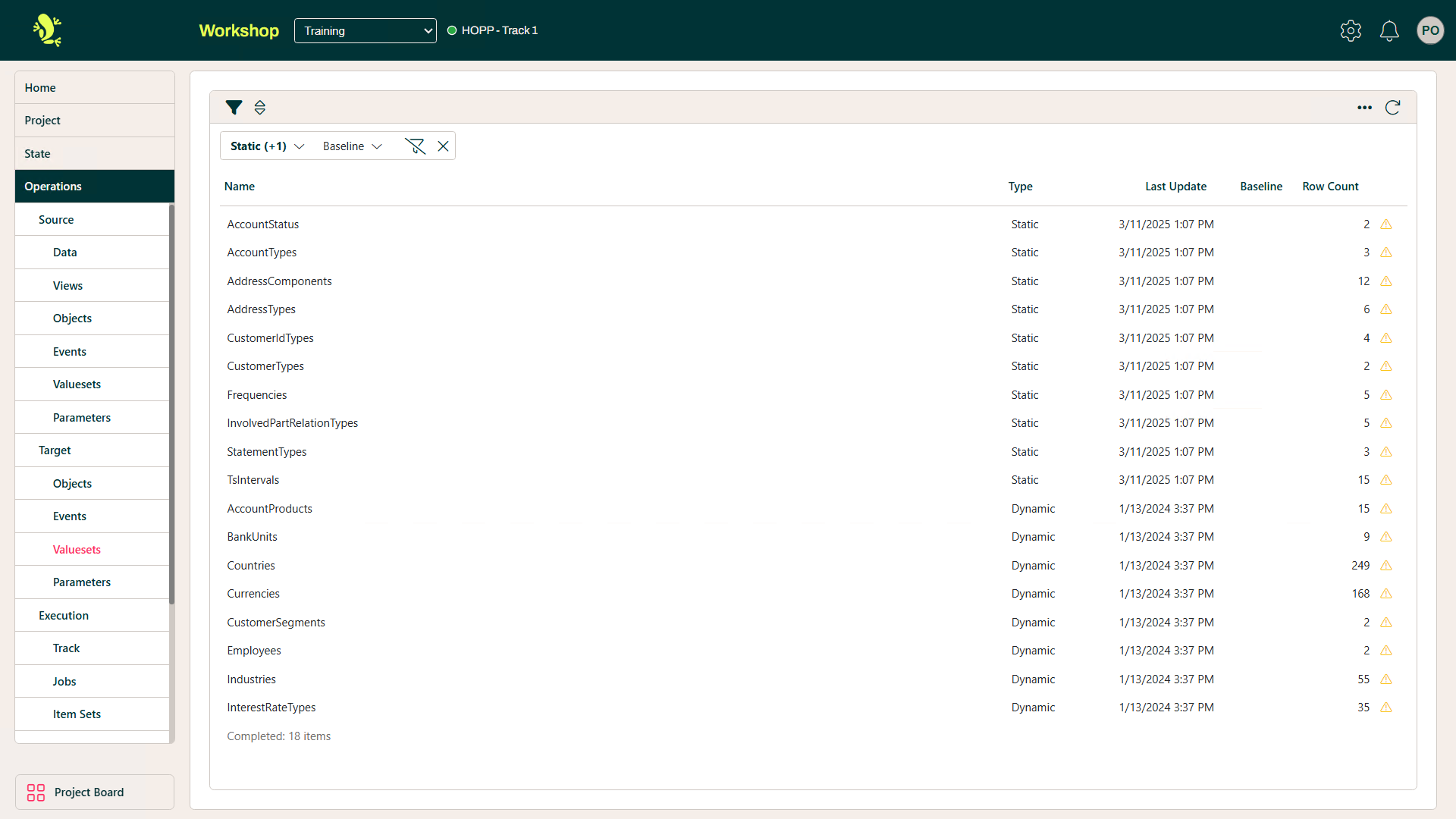
Valuesets pages have been designed so that the items are displayed in one single list with the possibility of filtering by type.
-
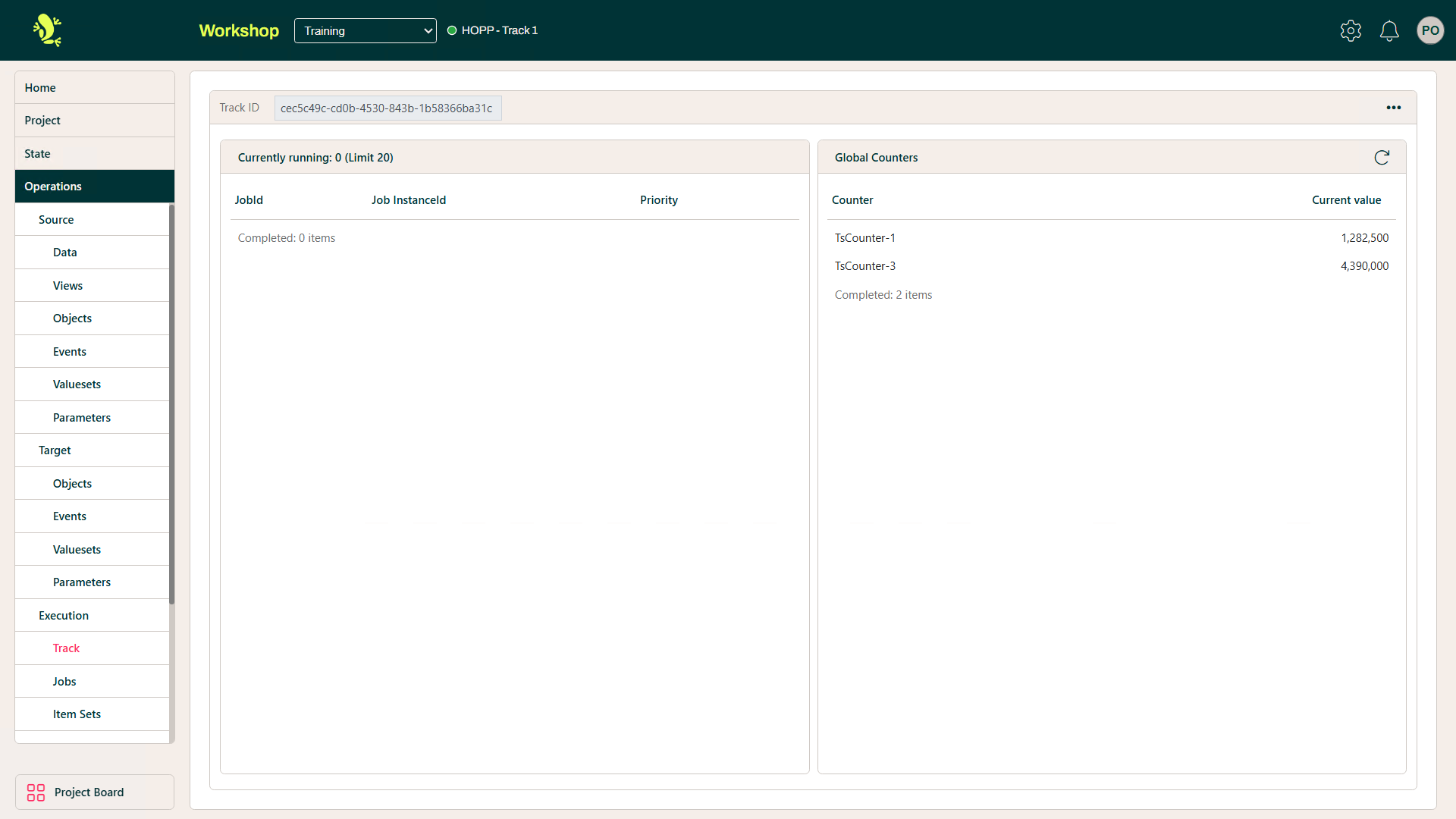
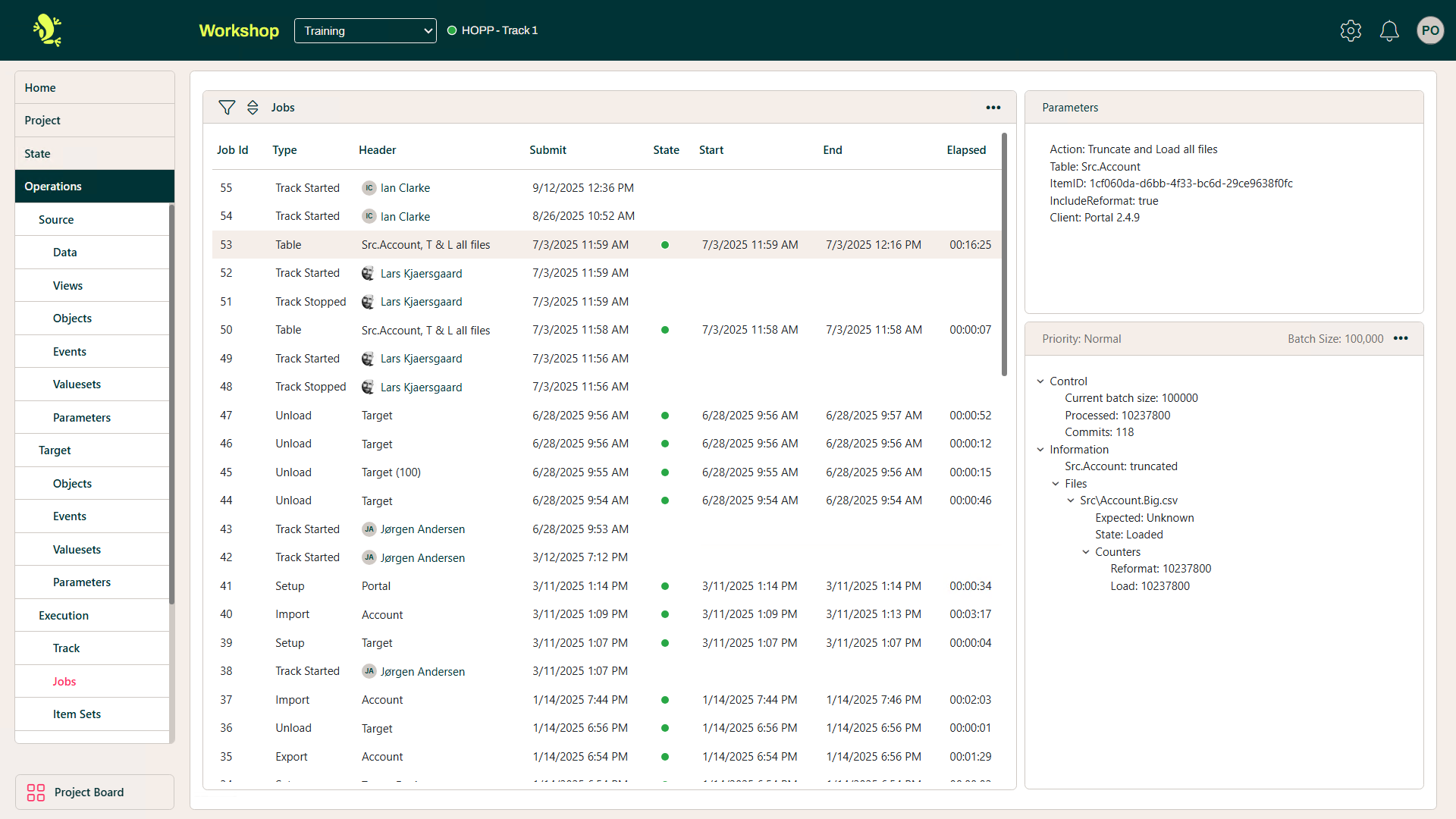
Track and Jobs pages are real-time updated, so they do not need a refresh button. In Jobs page, the status and the elapsed time are live updated without any need to manually reload the data or the page.
-
For Job priority or batch size changes, there must be used the context menu button above the restart area tree on the center right-hand side. The option is available only for running jobs.
-
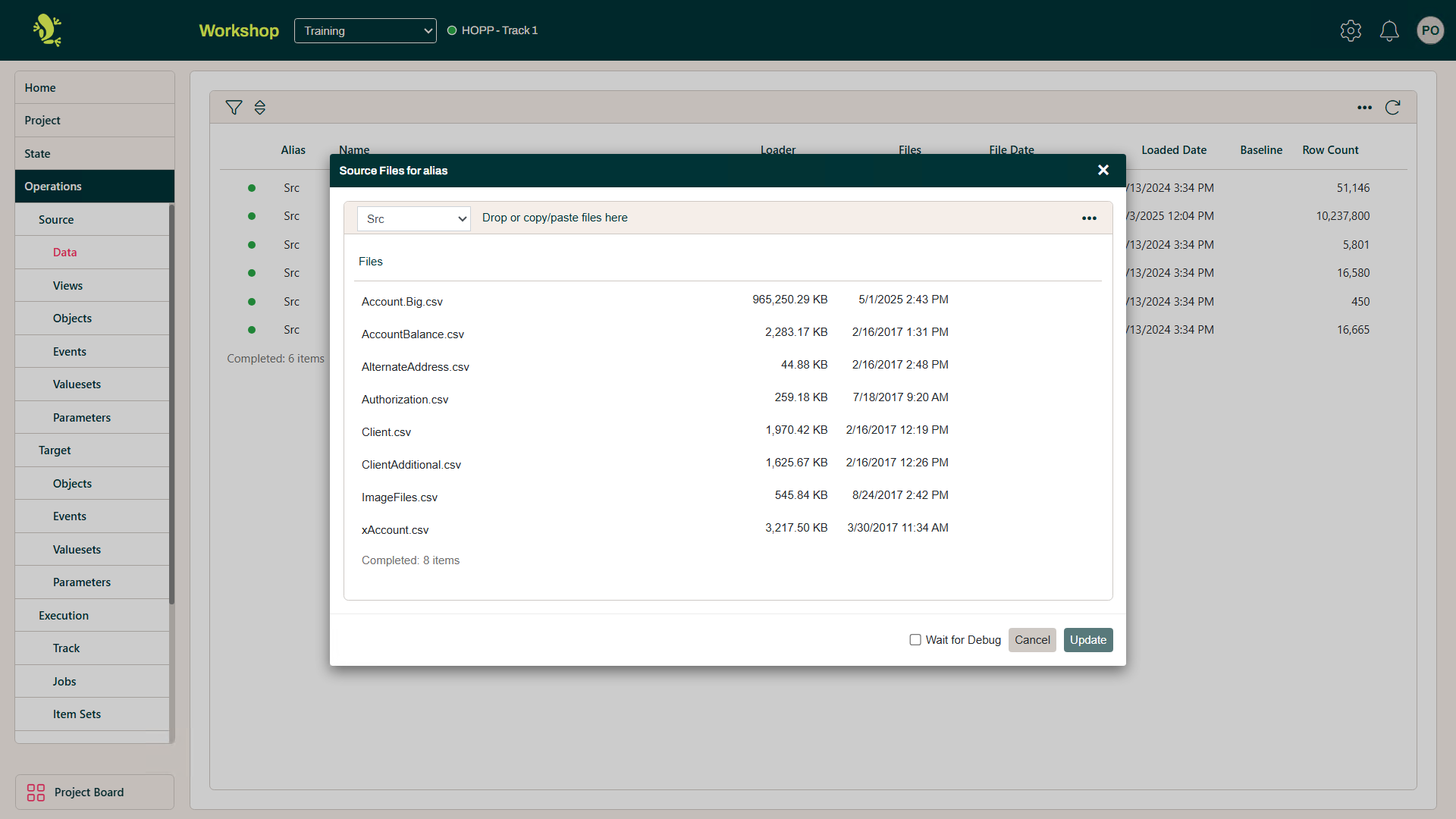
The File transfer dialogue works similarly to the Windows app variant, but with a few limitations:
- drag and drop works only to upload files
- download files cannot be used with drag and drop, only with context menu items on each row or by using the multi-select action from the list context menu (3 dots button on the top right-hand side)
- when selecting to upload or update a file, the local path is not displayed due to security limitations inside the Browsers