Portal Overview
Overview
The Portal component presents the migration results and events.
As a web application, it is easily accessible to a broader audience, including users from the businesses involved in the migration. The aggregations in the Portal component provide a comprehensive understanding of the overall quality of the migration iteration, including baseline comparisons that reveal trends since the last iteration.
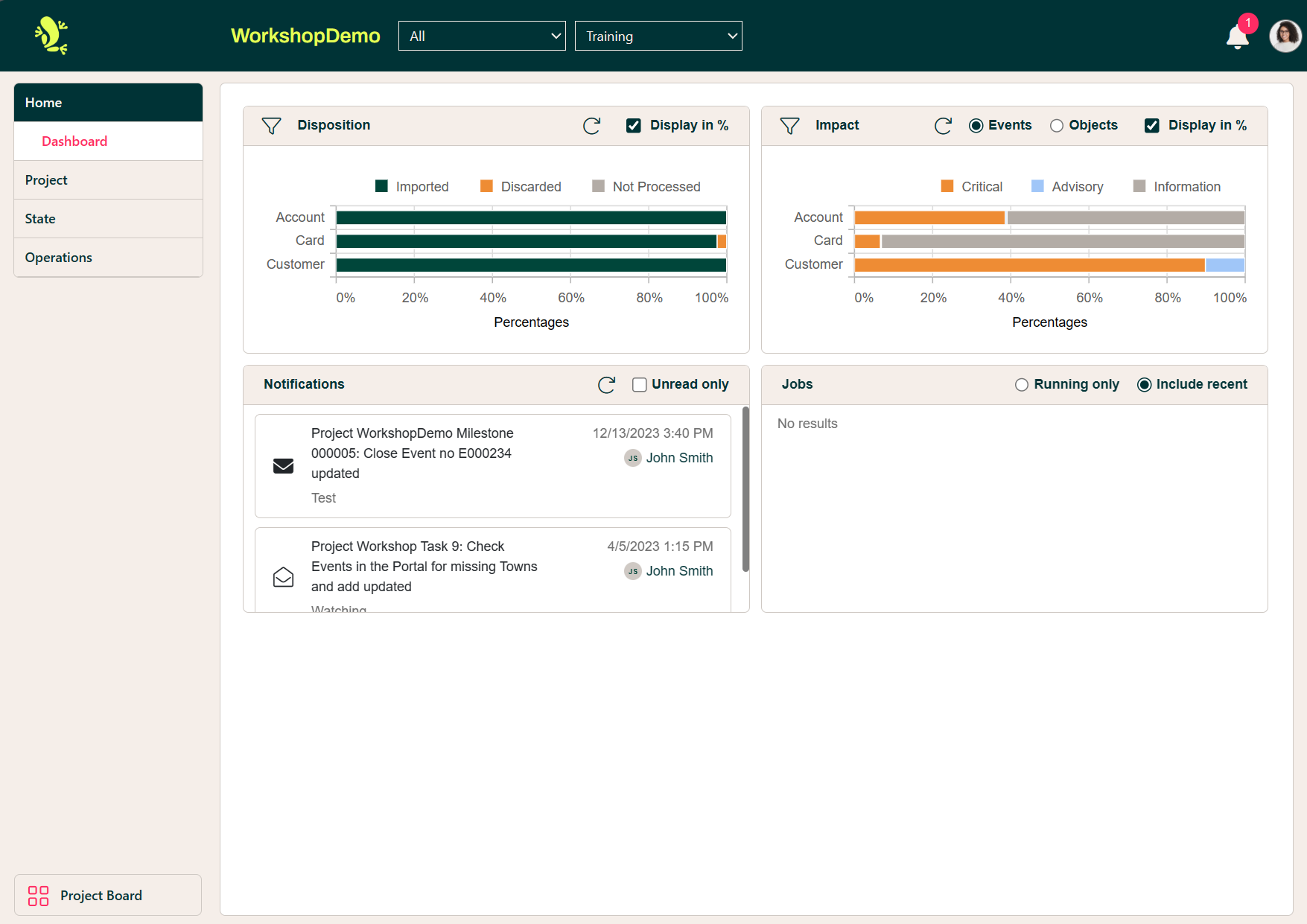
In addition, the Portal provides detailed information for each migrated Business Object, enabling users to analyze results and seek explanations for any issues.
Finally, the Portal provides collaboration functionality, enabling users to keep track of event status (new, fixed, accepted, recurring, etc.), comment on events, and assign a user to be responsible for resolving the event.
For any Business Object, the application presents:
- How many Business Objects of this type have been migrated successfully, and how many were rejected during the migration
- An aggregation of the events that occurred for this type of Business Object
The application enables the user to search or drill down to any specific business object to view:
- The Events that occurred for this Business Object
- Links to any related Business Objects (ancestors and/or descendants)
- The data that were produced for each step in the migration process:
- The data extracted from the source system
- The intermediate result produced by the Export Engine
- The result produced by the Target Engine
The Portal Structure
It is important to define the structure of the Portal and the differences between the Portal State, Portal Operations or the Portal itself.
-
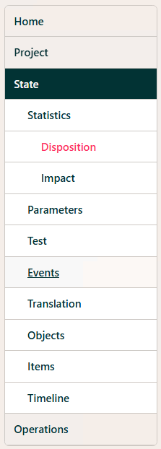
Portal State is where you go to process the events and results of the migration and to analyze issues etc. The Portal State has its own section in the Portal navigation menu:
-
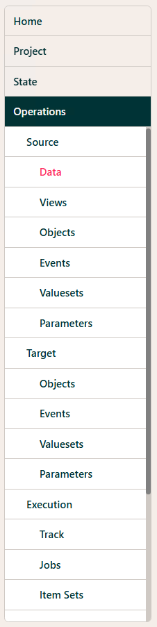
The Portal Operations is where you go execute all the jobs that will in fact do the data migration. The Portal Operations has its own section in the Portal navigation menu:
Context Menus
In general, you will find the actions you can take in the Portal in 2 locations:
- The Row Context Menu
- The Action Context Menu.
-
The Row Context Menu is visible as 3 dots when you hover the cursor of an item in a list:

-
The Action Context Menu is also 3 dots, but is located in the upper right-hand corner of most Portal Operations panels:

Refresh
In most of the panels of the Portal, you will see this Refresh
 button in the upper right corner.
The Portal is communicating with the Runtime via requests to and responses from a backend API. Due to this fact, some of the panels in the Portal do not update automatically. You have to click the Refresh button yourself to get the latest news from the Runtime.
General Options and Icons
The following Icons and Options are generally available through the Portal.
On top of each page/list, you will find options such as:
 | Go back to the previous page. |
 | Filter the list (filtering options depend on the list) |
 | When filter options are in use the filter will show as “full” |
In the filter options menu:
 | The first icon clears the current filter. The X closes the filter option menu - without clearing the filter |
 | Download the current list to an Excel file. |
 | Upload a new list (only available for Translation value sets). |
 | Add new (e.g. in Translation value sets a new row can be added or in Edit Event a tag can be added). |
 | In any pop-up this will change the size of the pop-up to full screen. |
 | In any pop-up this will change the size back to normal (only visible when changed to full screen). |
It is also possible to resize a pop-up by dragging the corner marked as this:
 (below Save button).
In all lists of objects, a dot is shown after the item id. The dots have a color-coded meaning:
 | Failed in Export (Source) |
 | Exported (will only be shown when Import/Target has not been run) |
 | Failed in Import (Target) |
 | Imported – ready to be migrated |
Other important Icons:
 | Indicates there is a list of changes available (Log) |
 | Indicates that the Event/Item/Area is or can be linked to another Event/Item/Area |
 | Shown on comments you have previously created; allows you to edit the comment (found on all Comments/Discussions). |
 | Shown on comments you have previously created; allows you to delete the comment. |