User Account
Log On
The logon procedure depends on where the Portal is installed for your organization.
To illustrate the login process you need a browser like Chrome to access the Portal, your UserID and Password. Both should be provided by your administrator.
On your first visit, the Portal will ask you to sign in (later you might be recognized automatically if you have checked "Remember me" was checked not long ago).
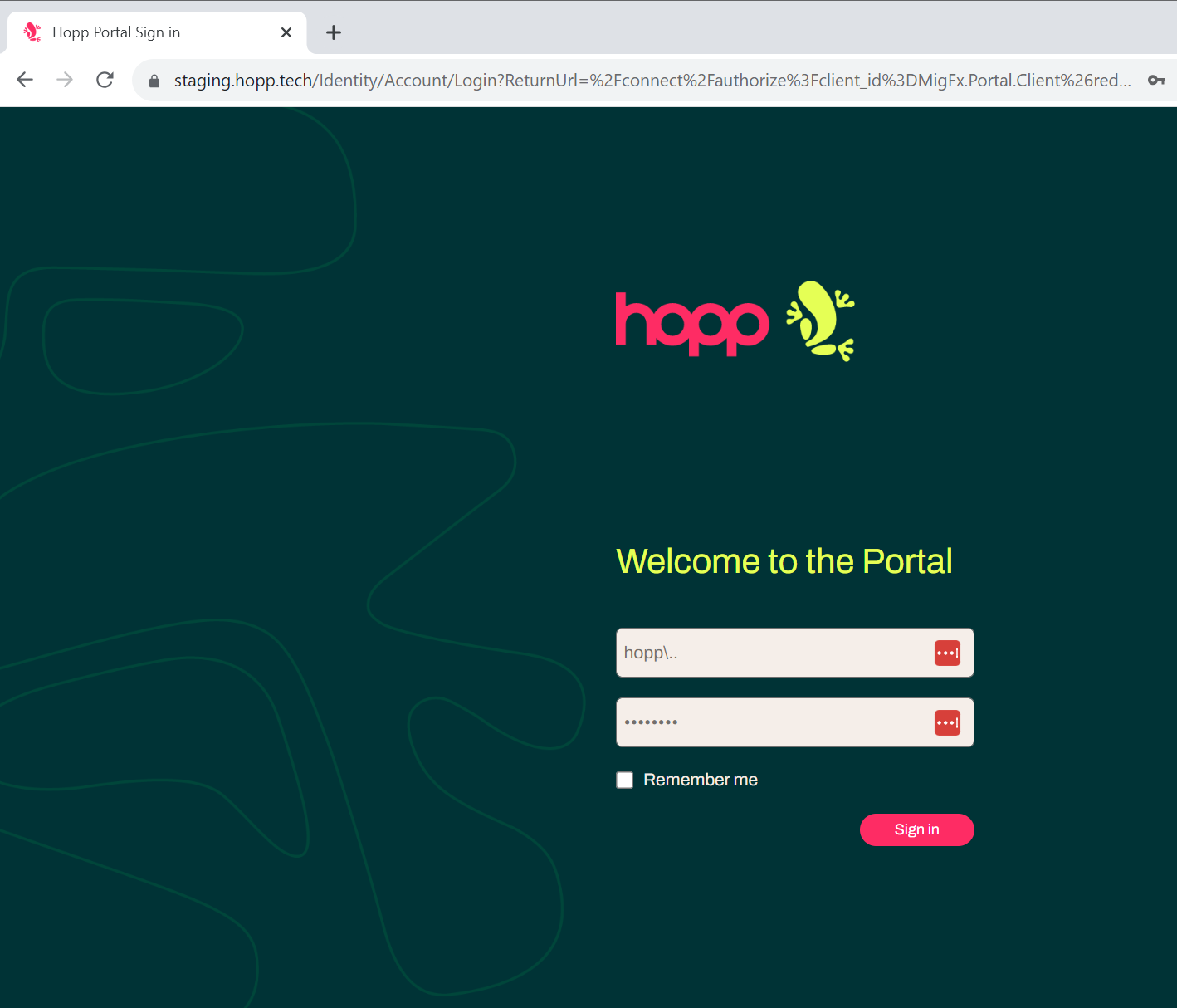
- User: UserID
- Password: Password
- You can let your browser save your password (if this has not already been done)
- Once signed in the Portal shows up in all its glory
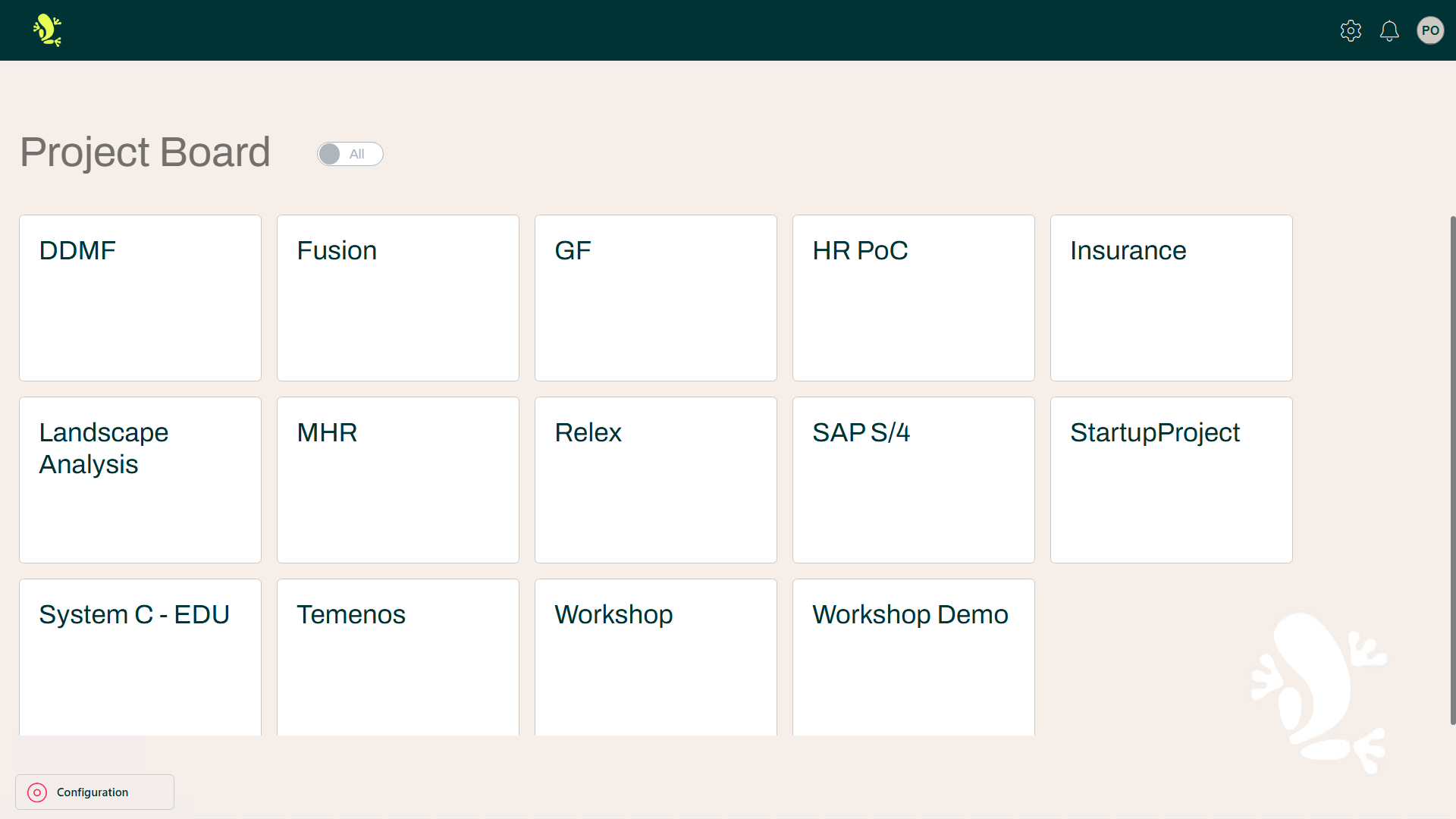
Once you log on to the Portal it will show you the Projects that are available to you. Each Project is represented as a tile. You need to select the Project you like to work on by clicking on one Project Tile.
In most cases, you will only have one project. If you don't see a project contact the Administrator.
Clicking on a tile will open the project on the Dashboard.
Subscription and Notifications
It is possible to subscribe to and get a Notification when an item has been changed by another user or when a background process has finished.
Across the Portal, a user has the opportunity to Subscribe to a number of different updates. Where there is a bell the user can turn on and off Subscriptions for the item in question.

An example of such a Subscription can be found under Items in the menu.
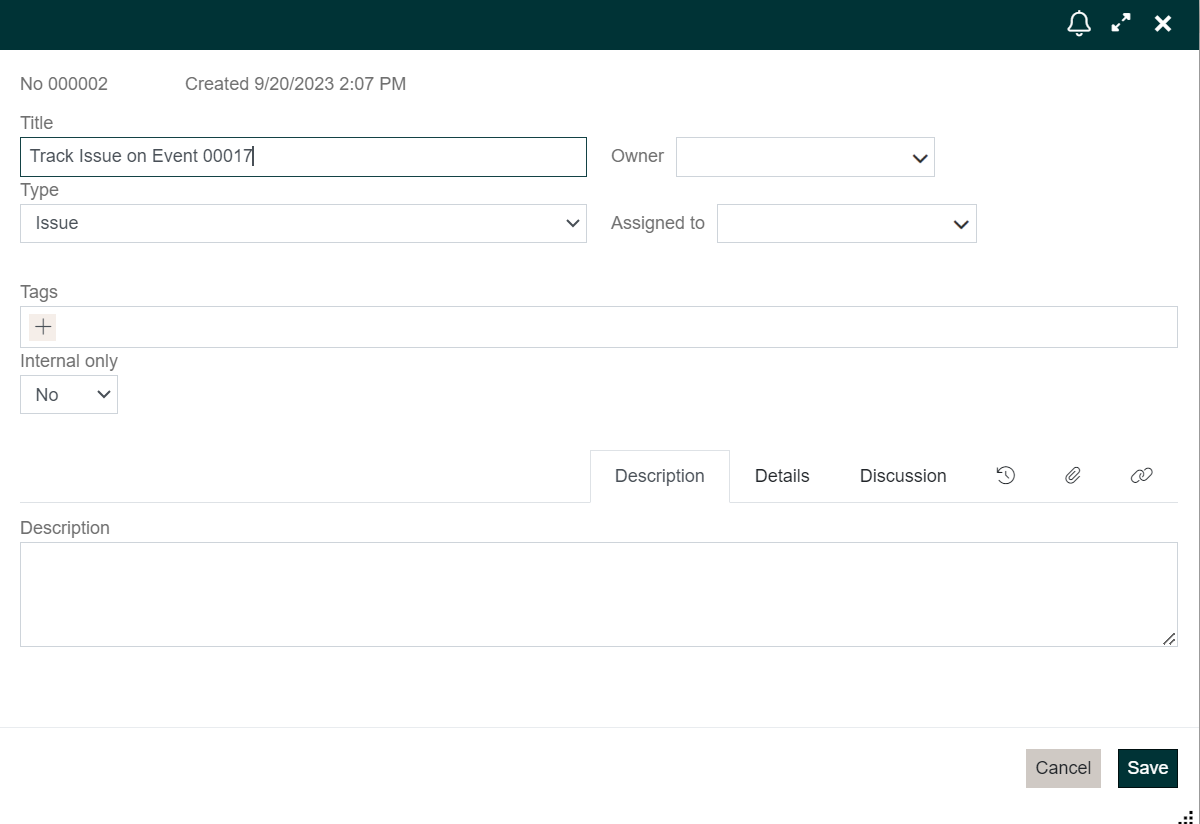
List of Subscriptions
To view your current Subscriptions as a user just Click on the User Icon in the top right corner:
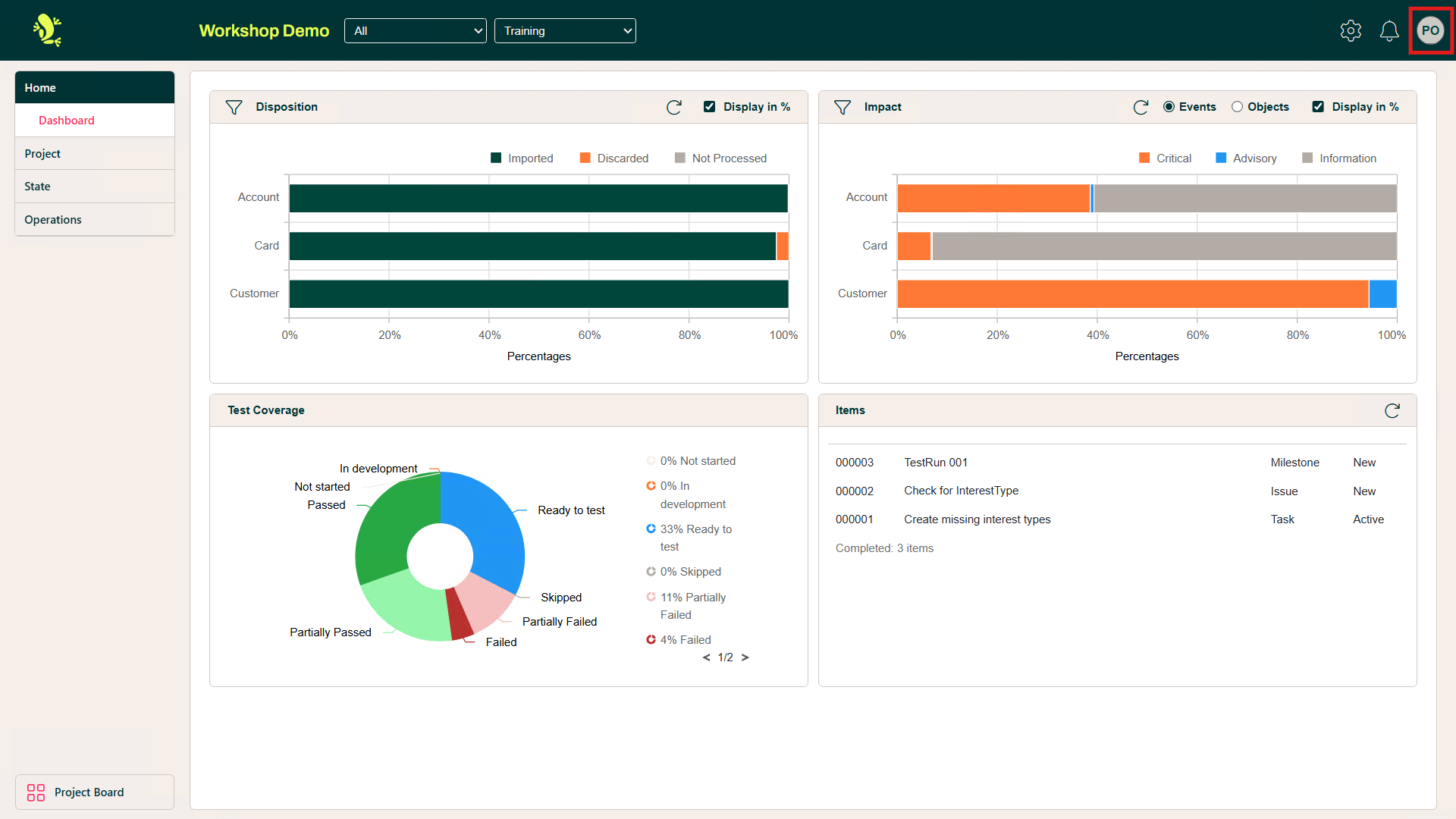
A menu item "Profile" is now shown on the left-hand side of the screen.
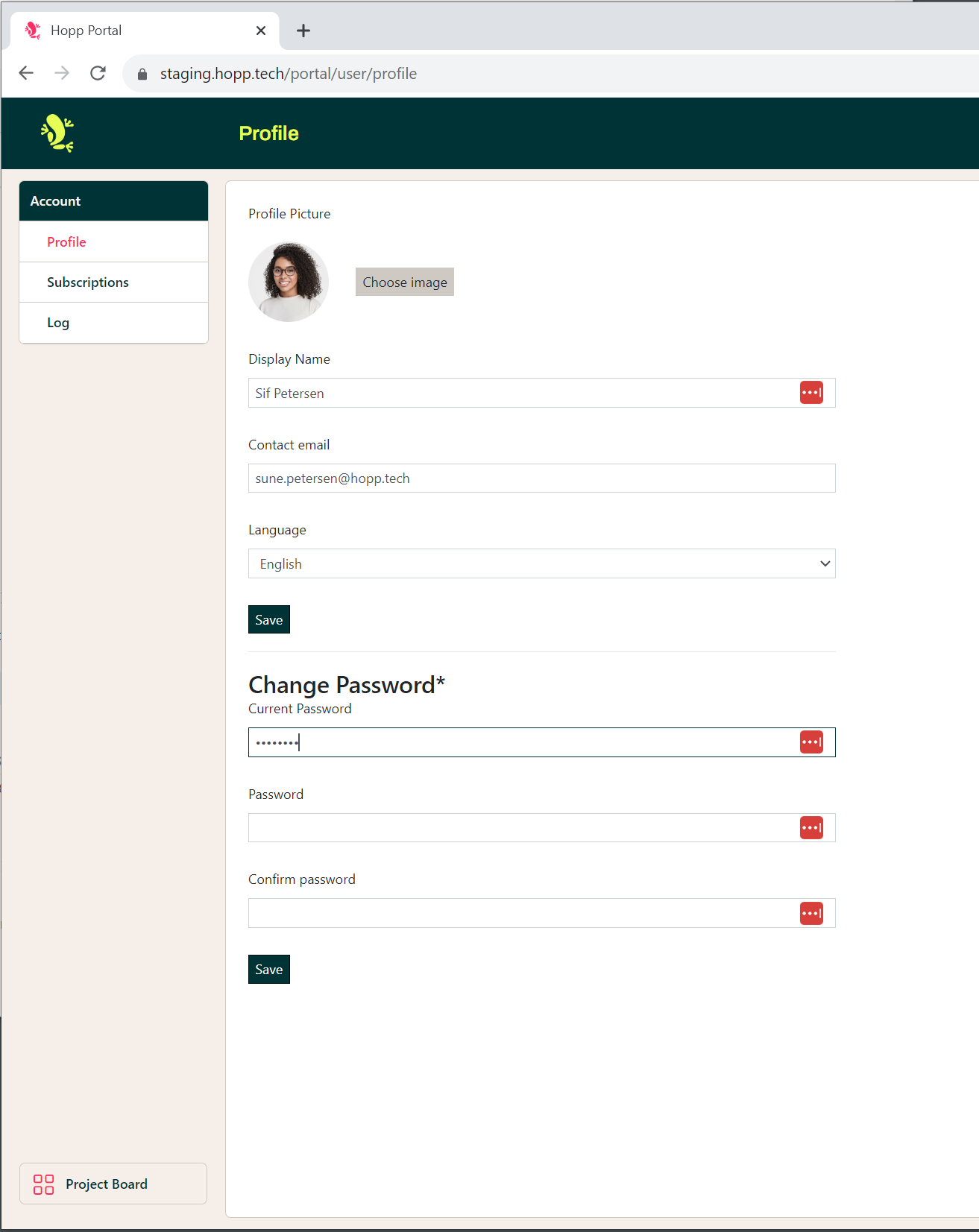
Choosing Profile will give you the option of changing your profile-data or view your Subscriptions.
Choosing Subscriptions will give you a list of the Items or Areas you are currently subscribing to:
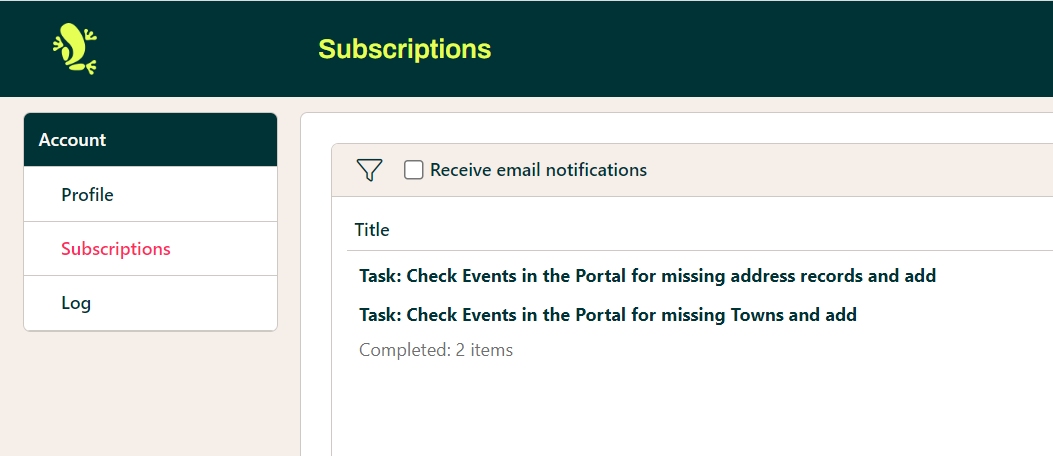
In the top bar, you can choose whether you want email notifications for your Subscriptions, as default emails are sent.
The filter function currently only includes filtering by project name.
The list contains:
- Title
- Name of the Item or Area to which the subscription is added.
- Project
- To which project does the subscribed Item or Area belong
- Subscribed at
- When you started subscribing to this Item or Area.
- Comment
- The comment you added when creating the subscription.
When hovering over the line of a subscription, 3 dots will be shown after the Title and when clicking on these, you will get the option of unsubscribing from this item:
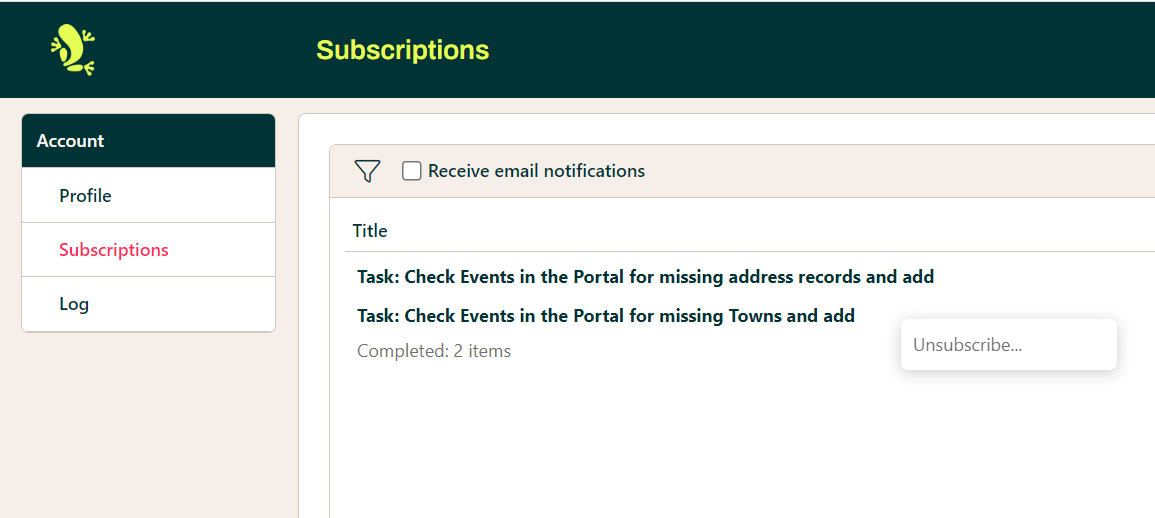
When clicking on the Title, the Portal will go to the relevant page, and the Item or Area will open.
List of Notifications
On the right-hand side of the screen, you will see the Notification icon.
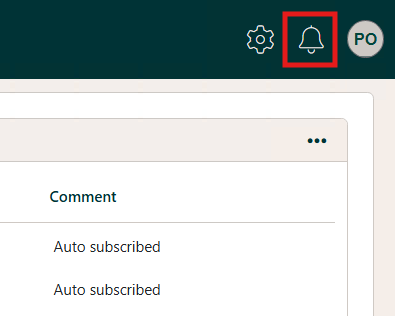
When changes have been made to one of the items you are subscribing to a new notification will have been created and the icon is now colored.
Click on the icon to open the list of all notifications:
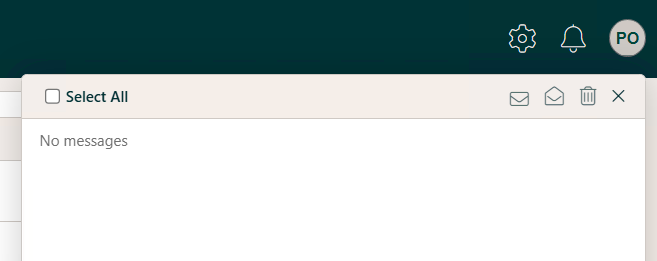
Use the arrows to close the list again.
-
 will mark all selected notifications as read.
 -
 will mark all selected notifications as unread.
 -
 will delete selected notifications.
When clicking on a Title in the list, a pop-up will open with information regarding the change.