State Overview
The Portal State is the section of the Portal that presents the results of the migration to all stakeholders. For instance:
- The Migration Team
- Users from the business involved in the migration
- Management
In addition to the static presentation of the migration results the Portal State also allows users to edit certain aspects
- Status, Responsible User and Comments on Events to support the Event resolution workflow
- Data content for Translation Valuesets
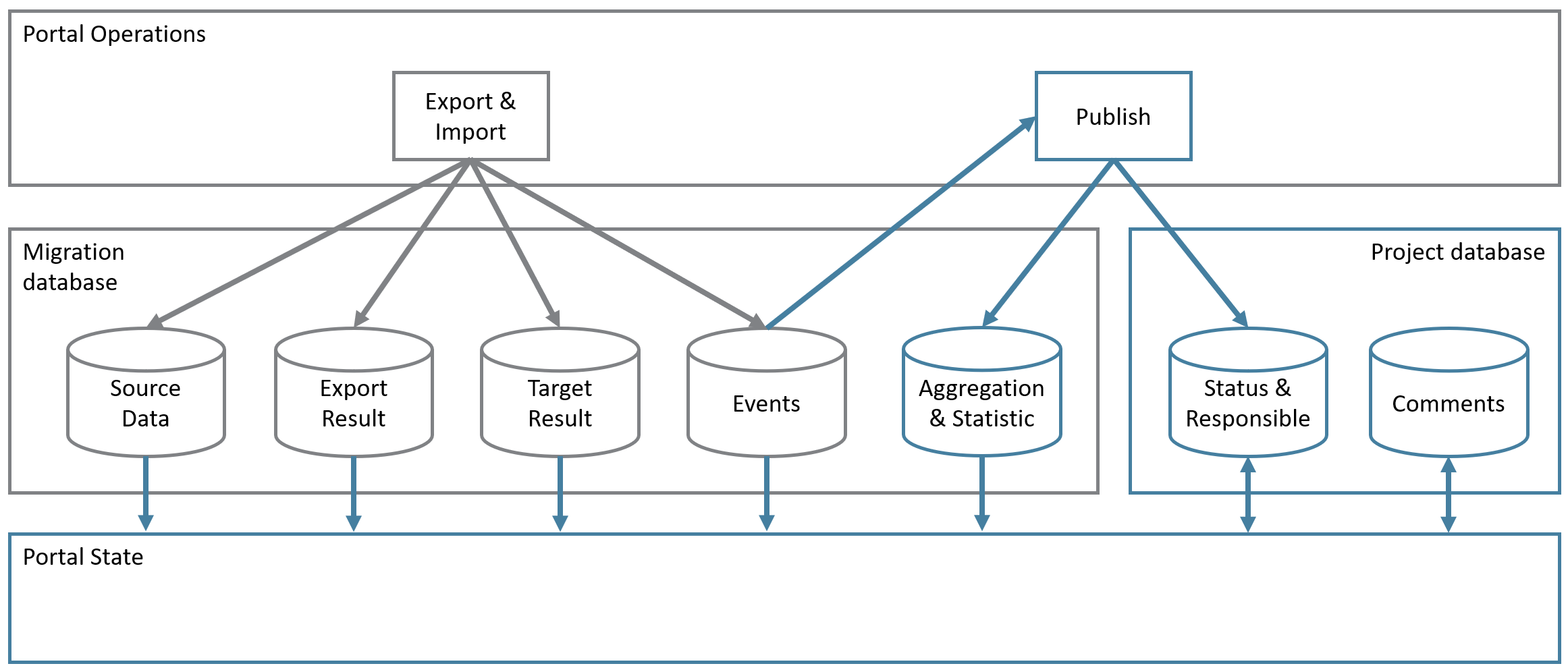
The Portal State presents the results that were stored when the latest migration iteration executed the Export and the Import. In order to improve responsiveness, you will in this exercise submit a Publish job to store aggregated results and statistics in optimization tables in the Migration database.
This job will also synchronize the Project database with new Events to participate in the workflow.
The Portal State
By clicking the State menu item in the Navigation Menu, you will collapse the Operations submenu and expand the State submenu:
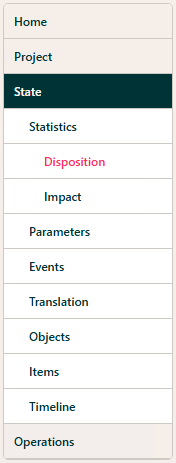
- Statistics: Displays statistics for the migrated Business Objects
- Parameters: Shows a list of the actual values of the parameters in place for this migration iteration (The values of the Constants from the Source and Target Maps that were marked as Run Parameters)
- Test: Part of the Scope & Test module and not active for the Workshop project
- Events: An aggregated list of the Events that occurred during the migration
- Translation: Edit and manage the Translation Valuesets
- Objects: List and search in specific instances of Business Objects
- Items: Part of the Issue management module - lists issues in the migration project
Partitions and Tracks
Once a menu item is selected, you will in many cases need to select a Partition and potentially a Track:
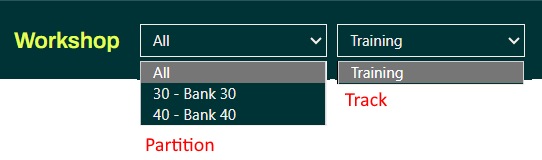
- Partitions
- The Partition box contains the actual partition values that exist in the migration project.
- Tracks
- The Runtime executes the migration in what is called a Track and a project can have as many active Tracks as you want. This enables you to separate different aspects of the migration. For instance, in a banking migration, it is quite normal to separate the migration of historic transactions (huge volume, little complexity) in a separate track and keep the golden track for the complicated stuff unpolluted in another track.
You can see the All level in the Partition dropdown if you are authorized as a Migration Team member.
Partition users, from the business(es) being migrated, will not have this global authorization and will only be authorized to see data for their respective Partitions.
In several places, the Portal user interface differs depending on whether you are a Team Member or a Partition User.