Execution
Track
A Track is a container for all the elements necessary to execute data migration iterations for one project or part hereof.
These elements include:
- The code needed
- A folder containing the engine libraries deployed as a result of the code generation.
- An export database
- A SQL Server database containing (generated) tables and SQL functionality (generated stored procedures) used by the generated export engine to produce the export result.
- A Portal database
- A SQL Server database used by the Portal Runtime to store the intermediate and results of the data migration as well as the events that occurred for each Business Object.
- A Valueset database
- A SQL Server database containing (generated) tables for all Valuesets defined as part of the mapping.
To keep track of all this, Hopp also includes a Master database containing all information necessary to manage all the Track.
This information includes.
- Which migration projects are executed in which tracks
- Folder locations for the track
- Database connection string for the track
- etc.
Once a new engine is loaded, the Track panel provides the options to Set Concurrency limits, Restart, Stop, and Assemblies, as illustrated below.
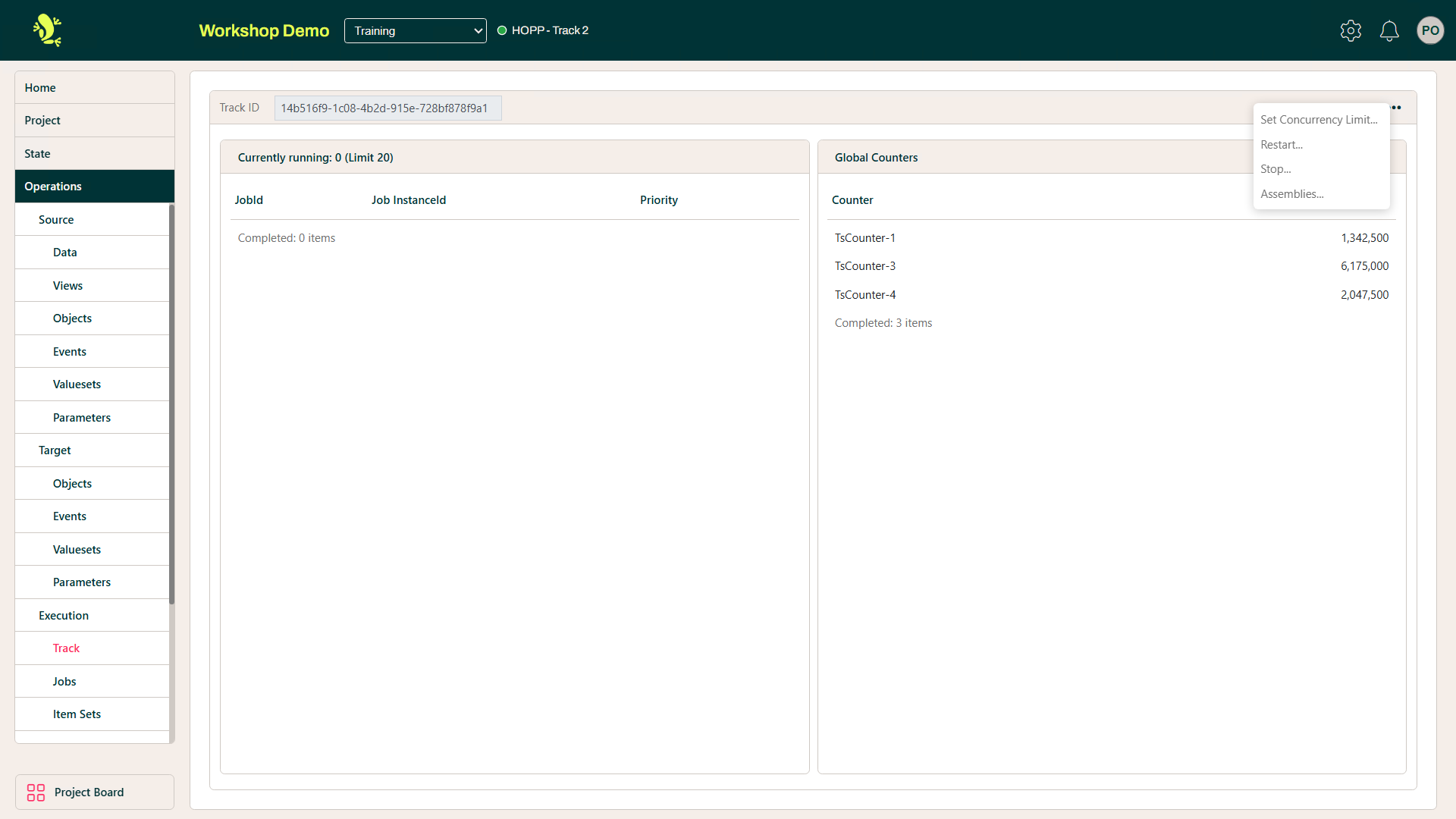
The context menu provides the options to:
- Set Concurrency Limit
- Modify the Max concurrent jobs
- Restart
- Restart the Track to pick up new data
- Stop
- Stop the Track
- Assemblies
- View the Assemblies loaded into the project
Jobs
A Job is a Runtime process carrying out a process on data.
It can be applying the mapping which you or a team member may have completed in Studio or the generated manual code in Visual Studio which includes the Business Object Card and related items, such as Valuesets, Constants rules and Bags.
These Jobs are then deployed into a Runtime environment which in turn managed by the Portal Operations as a Job.
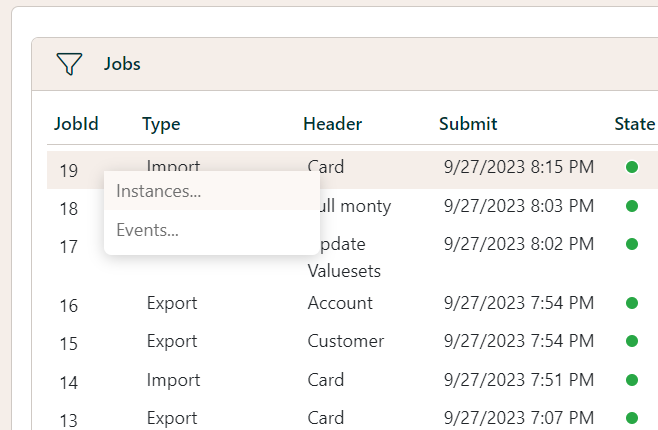
These Jobs are indicated below as JobId.
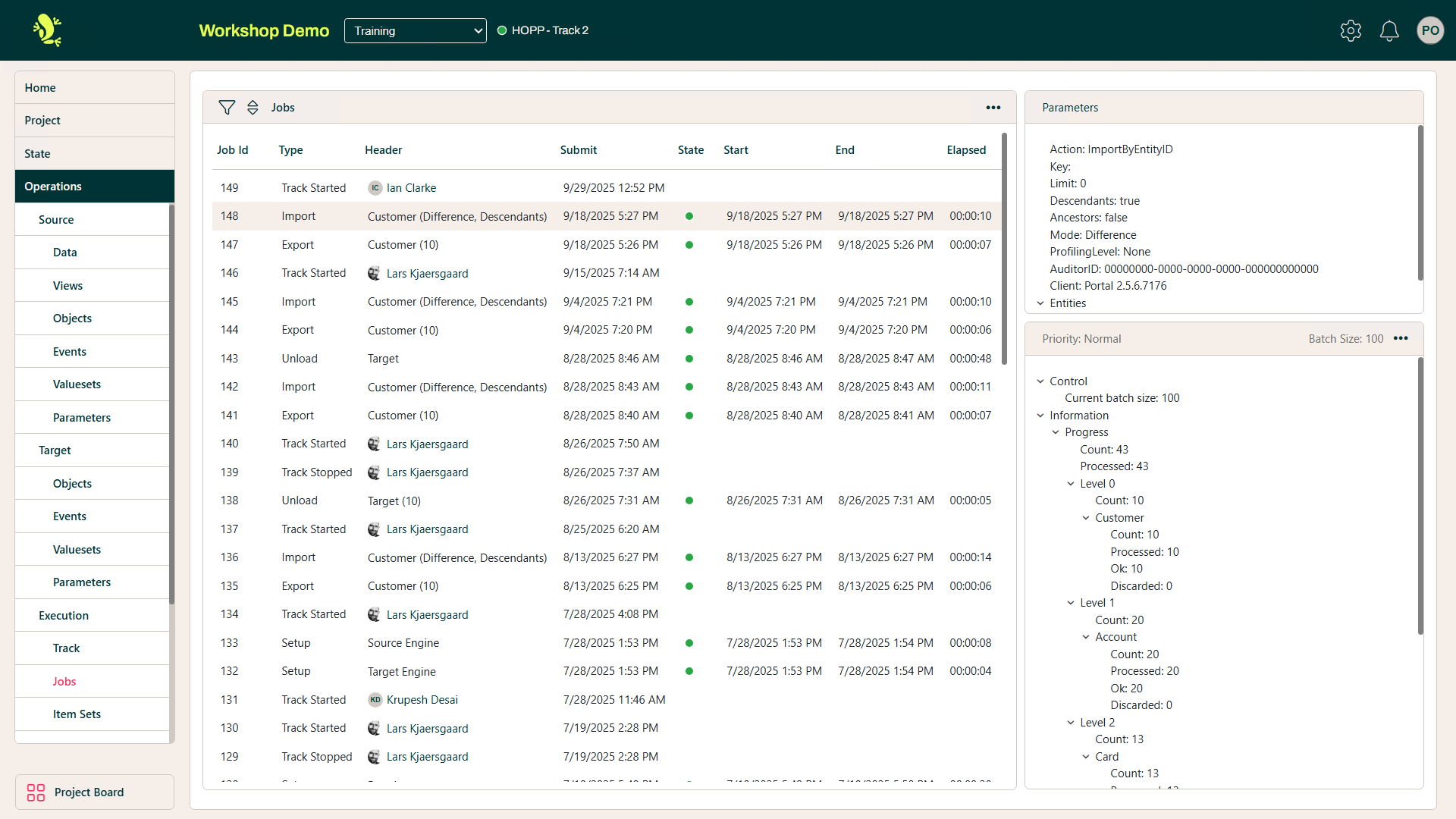
This job screen shows an in-depth explanation of the Job that has been executed.
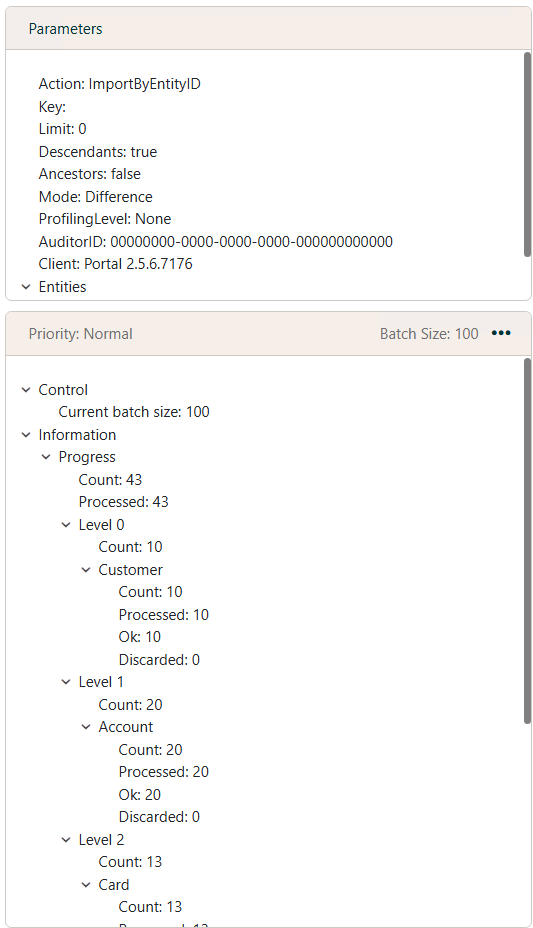
The headers are self-explanatory but by selecting a Job you can get a full explanation in the Parameters in which the portal processed for this job. As illustrated below.
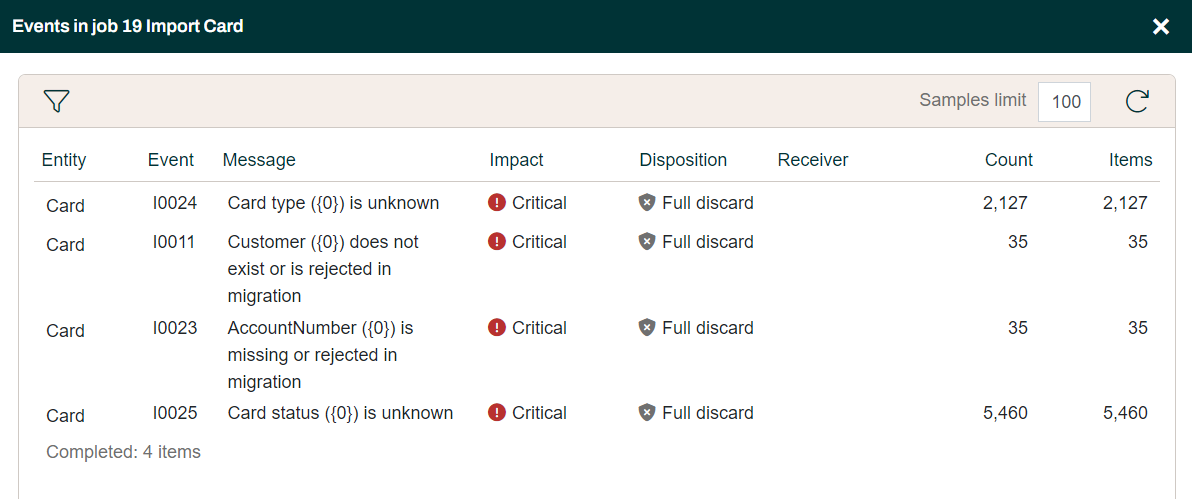
You can also use the Context menu under the JobId to bring up the instances, this will show the Event which was created for this particular job.
Item Sets
The Item Set panel shows a brief description of any Events which may have been flagged. A Flag is raised as a signal, and an Event is an action taken in a given context:
- Flag
- Something happened
- Event
- What to do about it
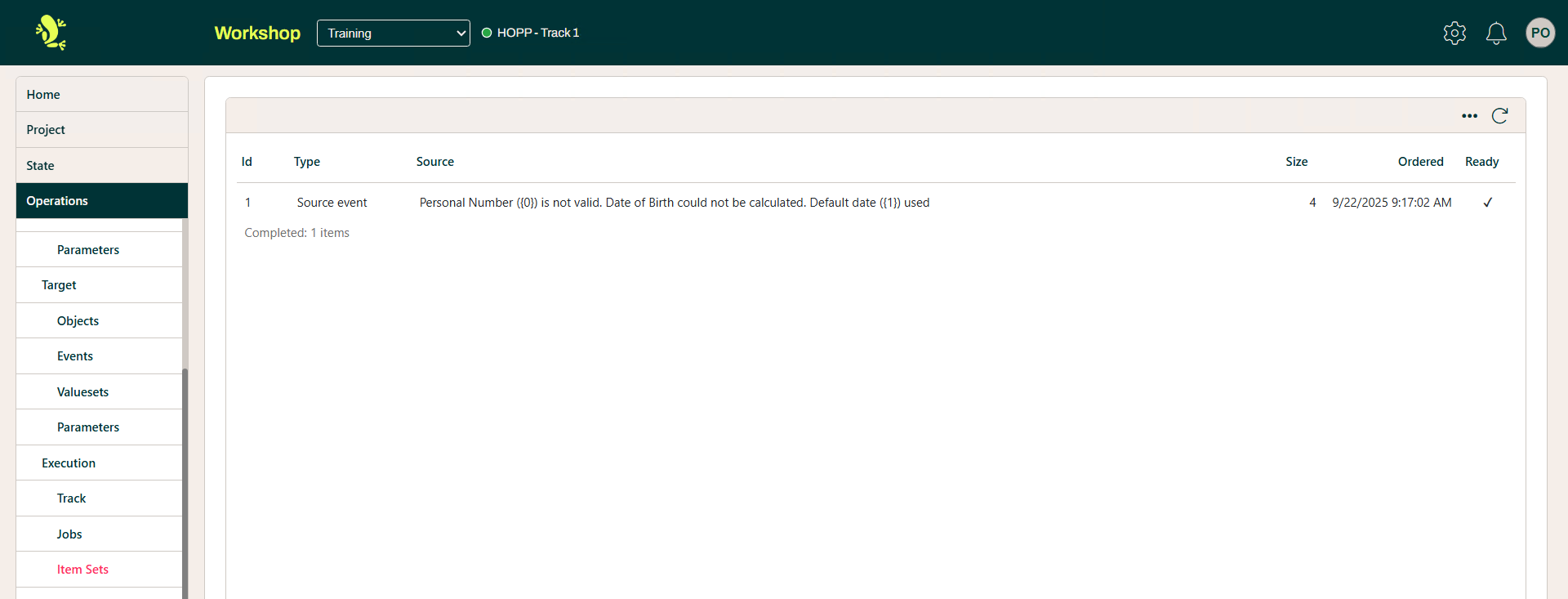
Looking at the above we see in the Source heading that a flag was raised and the event was put in place as a result.
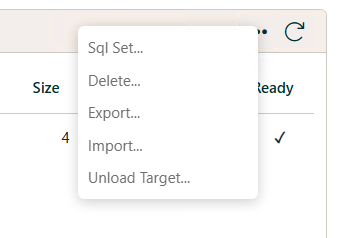
The context menu also enables you to:
The headers within this panel are self-explanatory and follow the principles of the other panels, things such as size is the number of records with this particular flag.
Concurrency
The Concurrency panel shows the current settings for the amount of attempts a job or an Item takes to migrate or for the process to run.
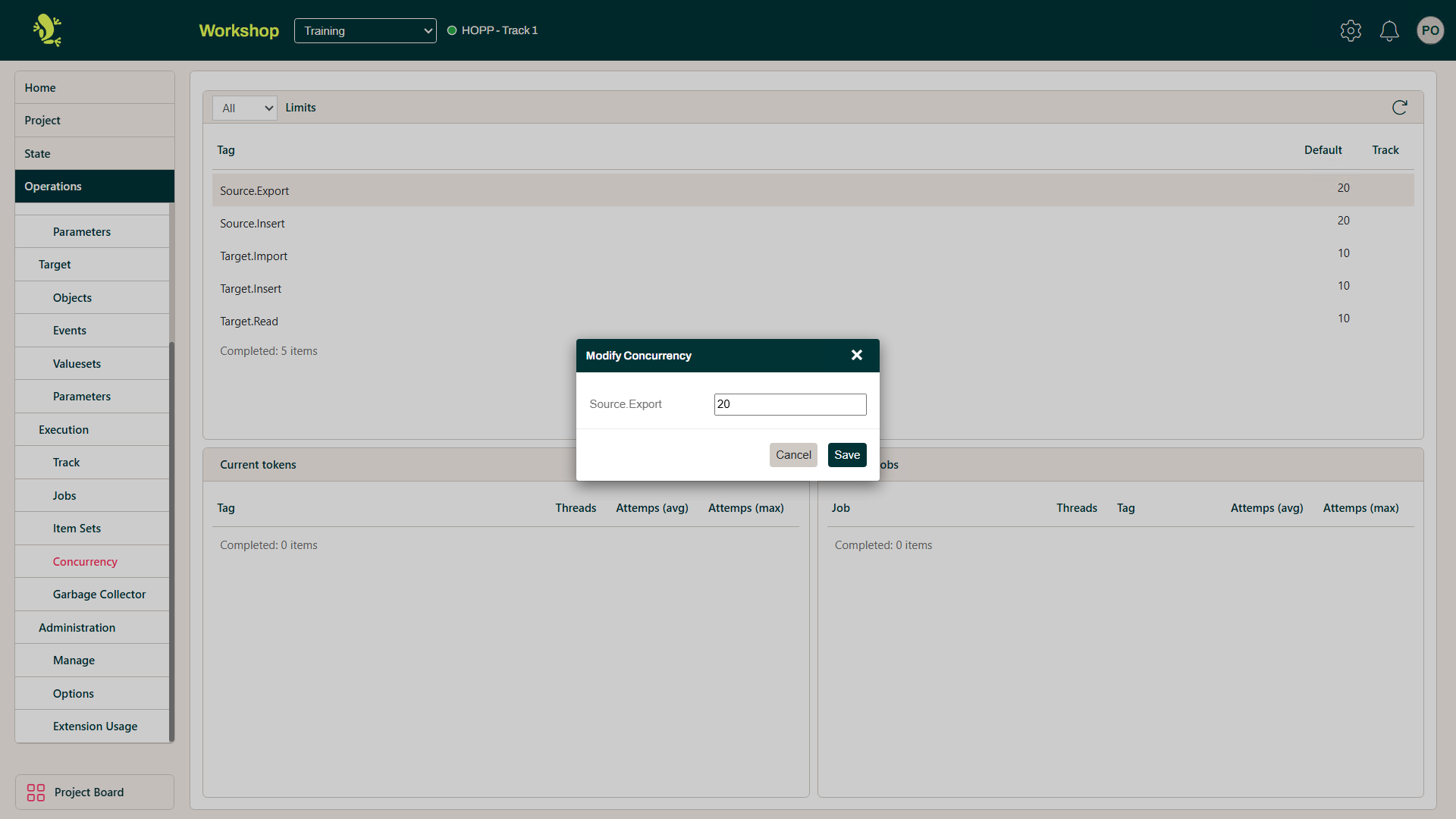
Here we can see the Business Objects as Tags, if you select the context menu you can alter the amount of attempts these items are currently set to do.
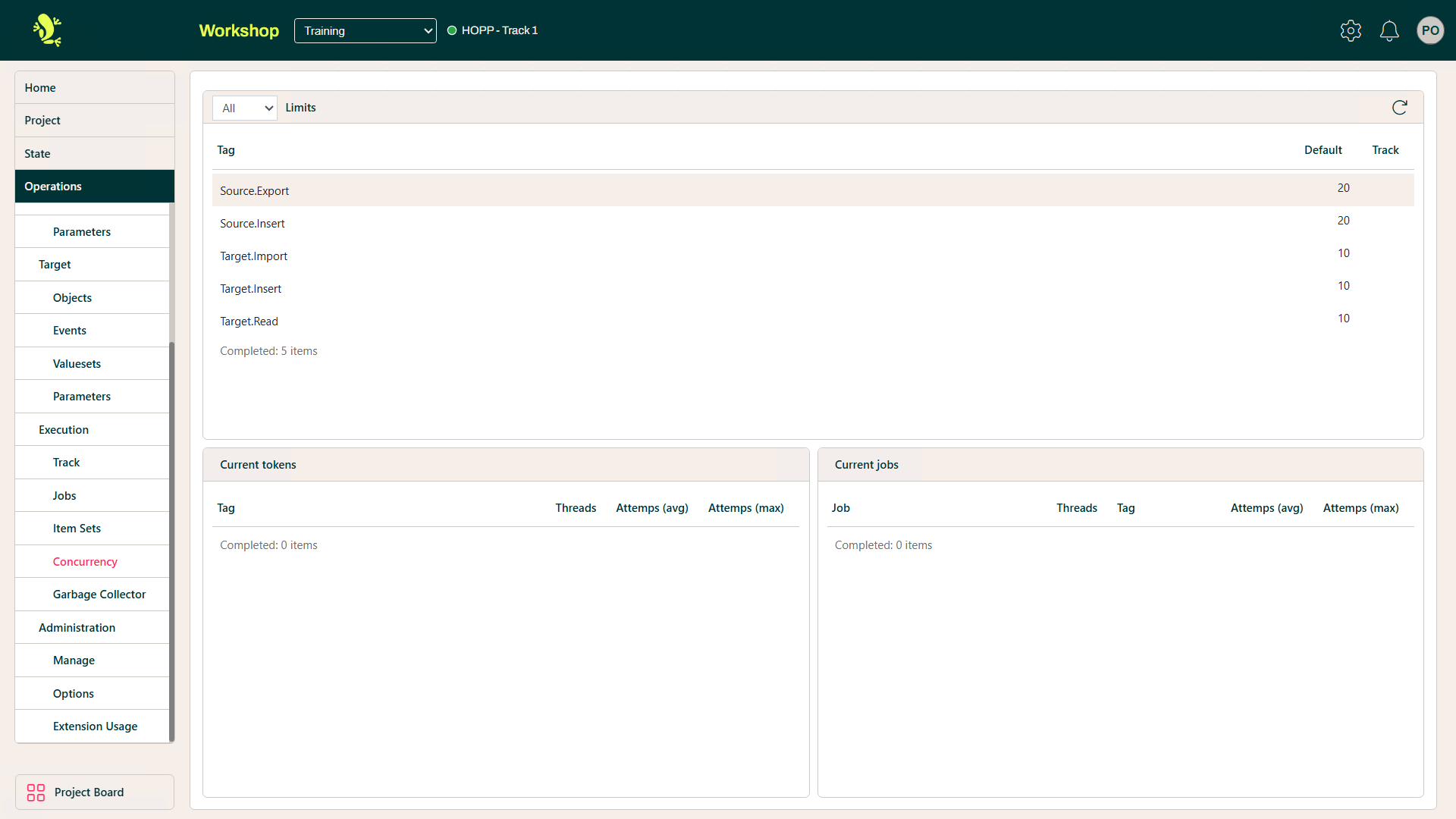
The panels below show the current jobs and the current tokens. The Default heading is the current setting for that particular Business Object.
Garbage Collector
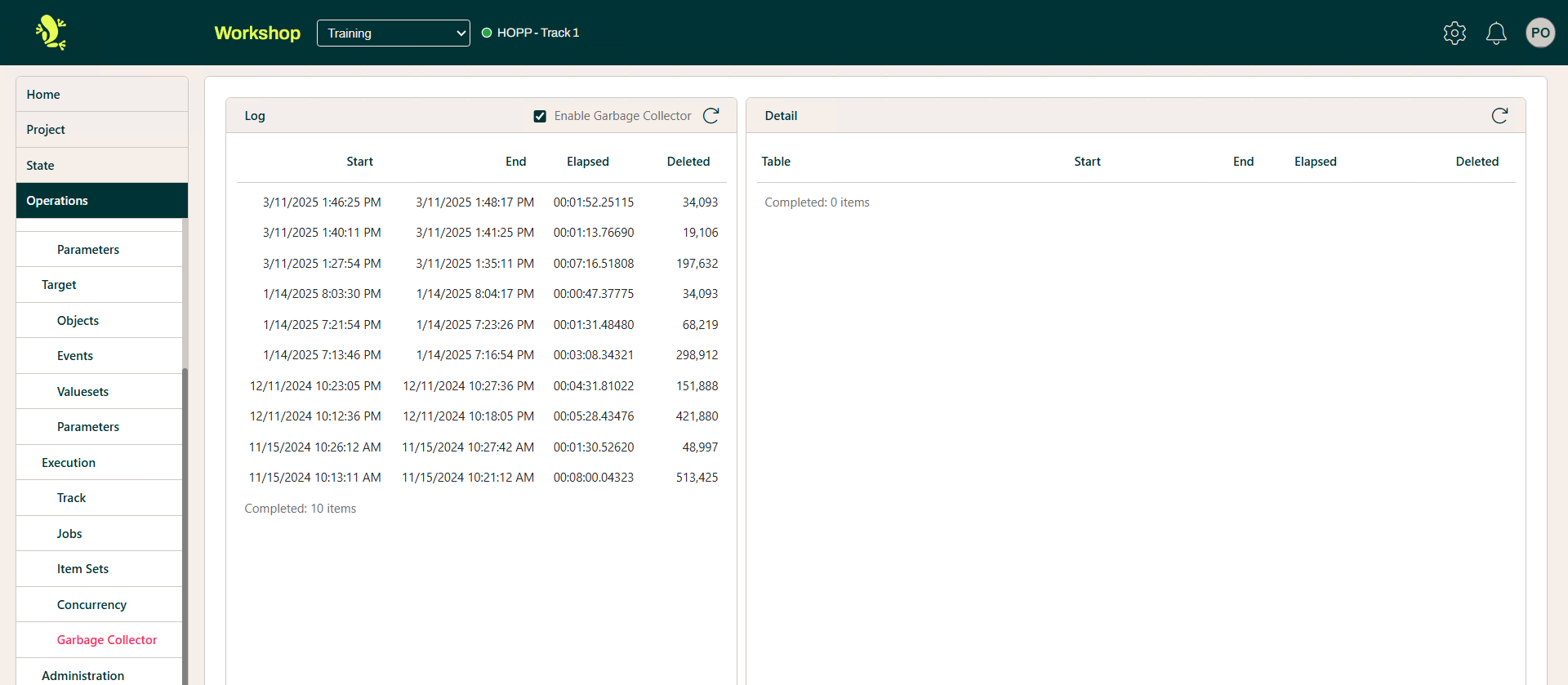
The Garbage Collector is like a recycling bin, it contains all related Business Objects with dates, logs and records deleted.