Translation
The Translation page shows the Valuesets from Studio that were marked as Translation. A Valueset is a table of data organized in columns and rows. This enables users in the migration project (for instance users from the involved businesses) to provide the content for these Valuesets, usually to provide translations of terms and values in the source system to the target system.
Using Studio, the user defines the columns of the Valueset, giving names and data types. Once defined, a Valueset is used by Rules to look up values or - in the case of manually implemented rules - in the way required.
The Portal displays the Valuesets depending on what has been selected in the Partition dropdown. Here is an example of a list of Valuesets.
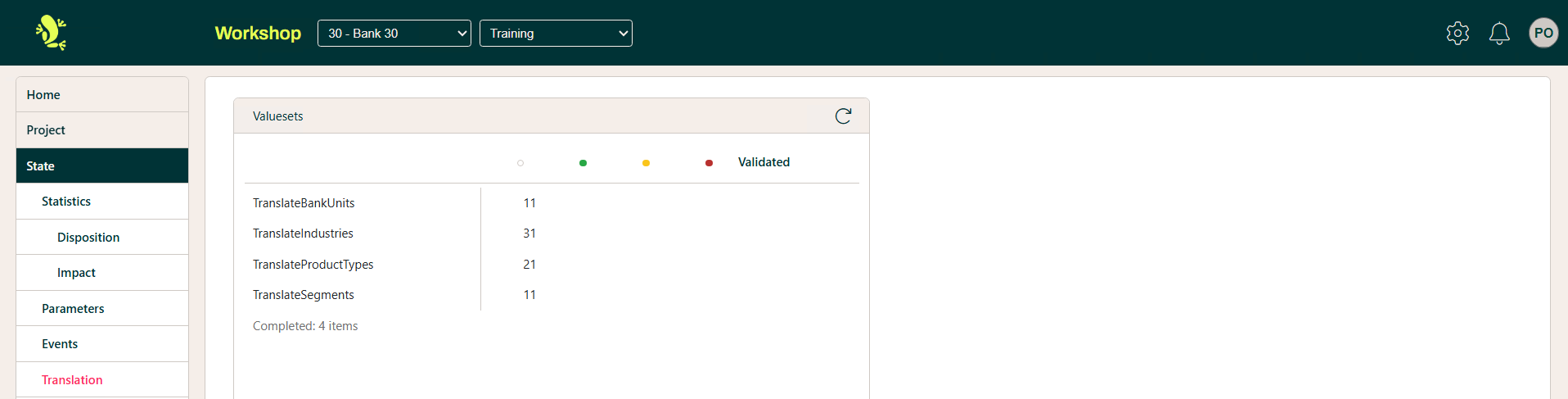
Specific Partition
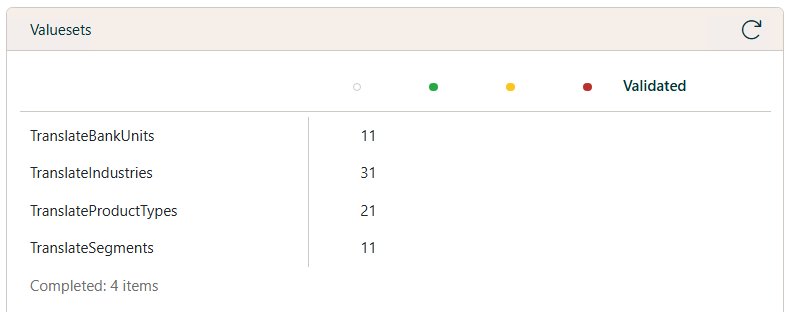
Shows initially a list of the Valuesets together with a matrix over the validation results (if any) for the rows in each Valueset:
Hopp comes with a utility function that can export the rows for all Translation Valuesets to a file and afterwards to import a file containing validation results for each row.
For instance, if a Translation Valueset deals with the translation of code values in the Source System to code values in the Target System, the utility can be used to validate that the code values for the Target System do actually exist.
- Export the Valueset rows to file using the Hopp Utility
- Hand this file to proprietary functionality to validate the rows against the Target System and write a file containing the validation results
- Import this file using the Hopp Utility
By clicking on a Valueset, you can edit the contents of the Valueset:
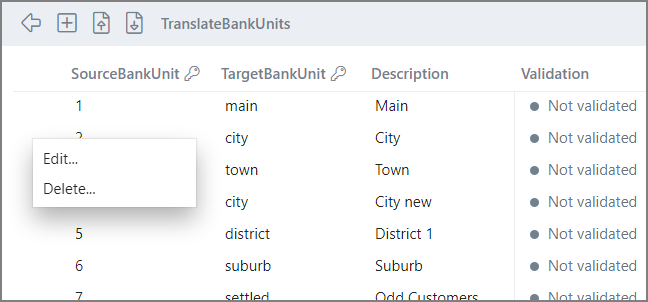
- Delete, which will remove the current row (and hence the translation of that value) from the set.
- Edit, which will open a small pop up where the values can be edited.
The red star ( * ) behind a field means it is mandatory and cannot be left empty.
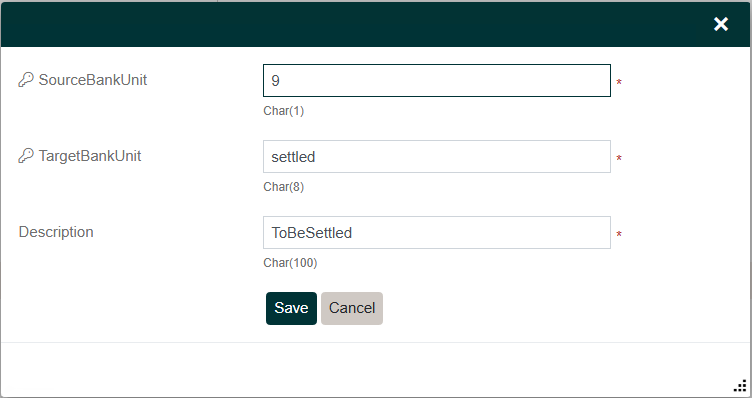
The Add button on top of the list will open a similar pop up – without existing values.