Test
This menu item requires the Planning Module to be installed.
Overview
Test is an area where we can see the migration project and the state it's in, we can also drill down to see the state of a project's sub-area as defined in the Planning Configuration. The State column will show how far the test is (i.e., how many of the sub-areas have been updated as Passed).
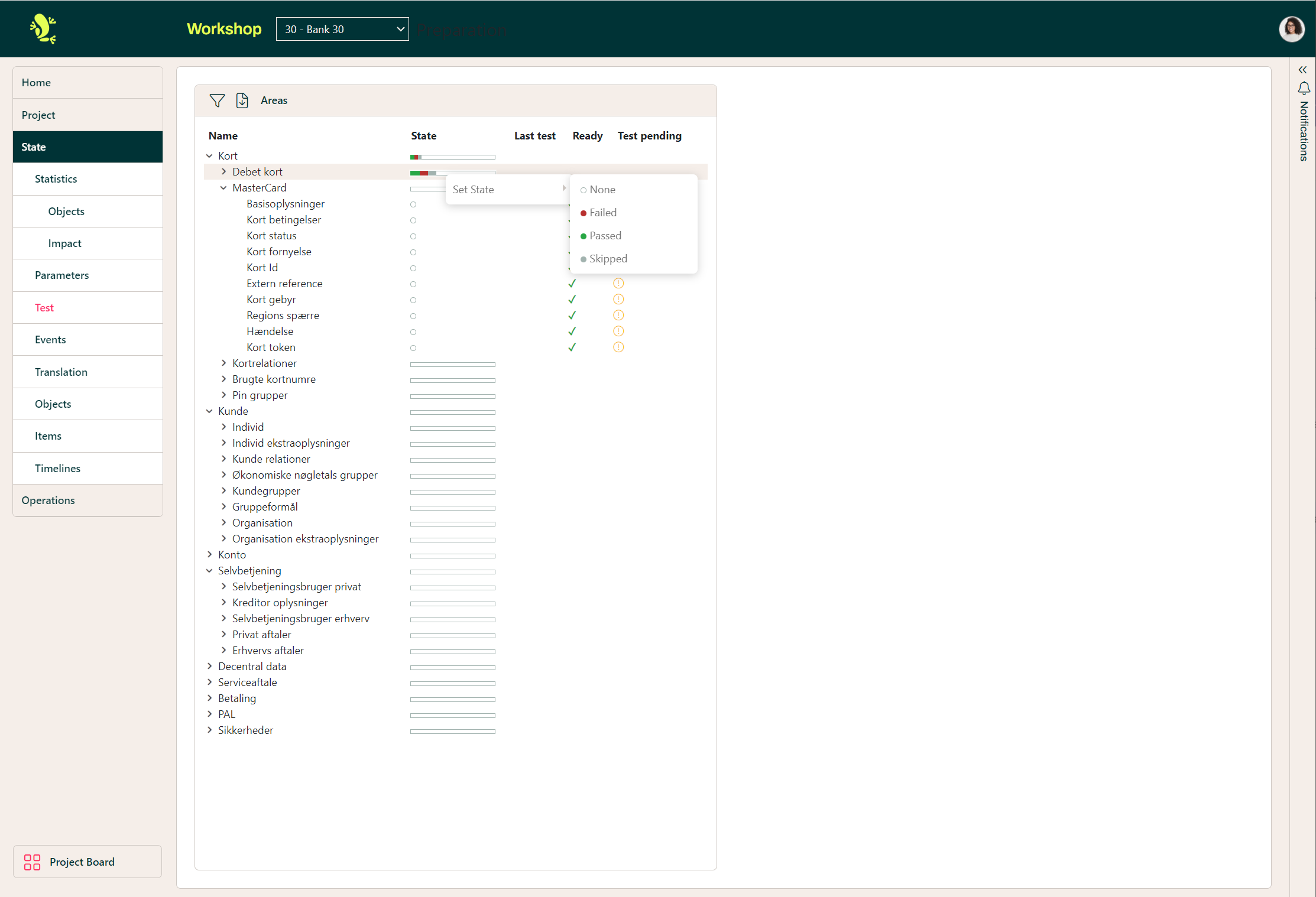
-
The latest test column shows in which Milestone the test was Passed or failed as illustrated below.
-
 In the Ready column if you see this symbol, this indicates that the area is ready for testing.
 -
 This symbol indicates that the area has not been changed or there is no data for this instance, but it is ready for testing.
 -
The Red, Green, and Grey bar gives you the status of the project's state, these colors are indicated above.
Area Details
To get more information on a specific project area you can click the project name and this will bring up the below.
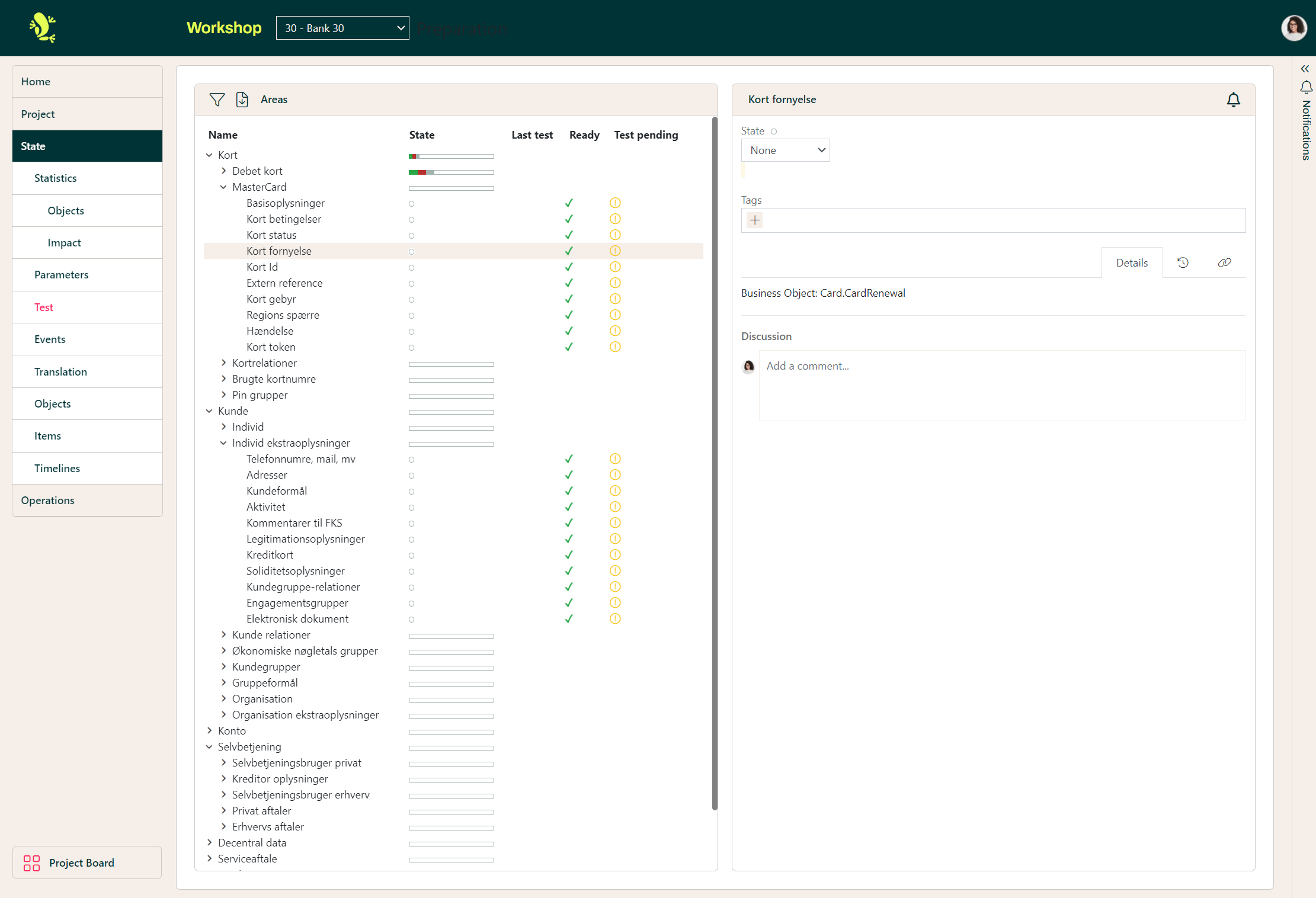
For the sub-area, you will be able to change the state, add a tag, and even start a discussion with others with project access for this particular partition.
For the main project area, in this case, Kort, the screen is slightly different with the option to start a discussion in the Details tab, then the option to see recent updates, and finally the option to add links using the plus symbol, as illustrated below.
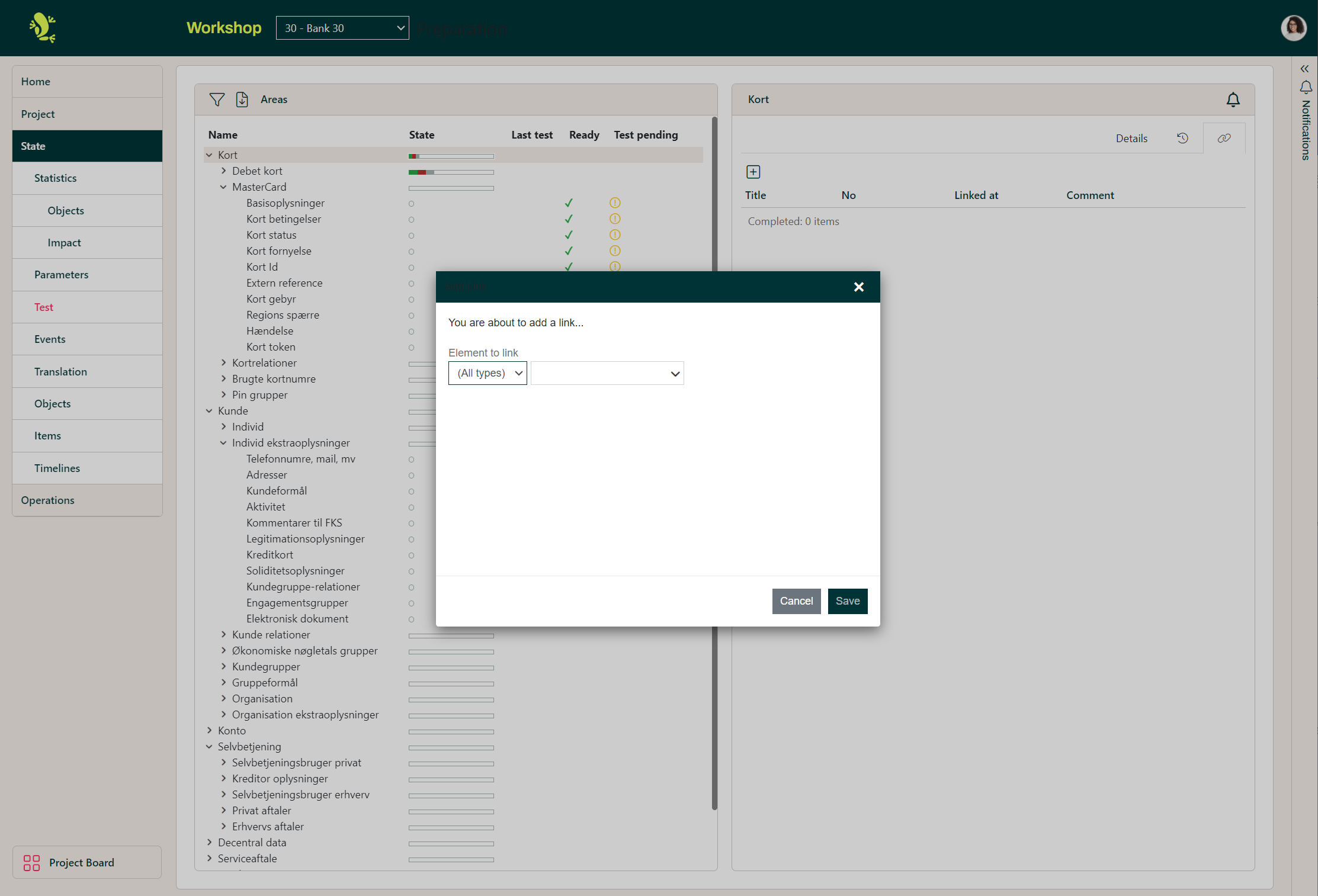
The options for each tab are described below:
| Tab | Description |
|---|---|
| State | Only the lowest sub-area; shows the current state, which can be changed. |
| Tags | Only for the lowest sub-areas: shows previously added tags, and new ones can be added. |
| Details | Shows any comments/descriptions added during the set-up of the area. |
| Discussion | Shows previously added comments; new comments can be added and multiple users can discuss the area by adding new comments. |
| Log | Lists all changes made to this area. |
| Links | List all areas and Items that this area is linked to; new links can be added. |
Execution
The Plan in the Planning Module enters execution mode when it is linked to the migration project in the runtime infrastructure.
Access
In the previous stages of the planning process (Template and Plan) only authorized members of the migration team had access. They will work on establishing the Plan.
But now – in Execution mode – the Plan should also be visible to the all business users involved in the migration. This is done by displaying the Plan in Portal. In this way, the Plan shows up for the business users next to all the other stuff they are handling in relation to the migration (Events etc).
In this execution view – integrated into the Portal – only state and progress-related information can be edited, not the business areas themselves (Name, Description, Test Outline etc).
What remains open for edit is the state of each business area of the Plan under execution.
Milestones
When a migration project executes using Hopp, it will start out in an internal state where the data migration team is maturing the migration to achieve a level of quality necessary before it makes sense to actually load the migration result into a test instance of the target system and ask the business users to test.
Once through this initial state, a migration project typically progresses through a set of milestones.
For instance:
- Test conversion 1
- Test conversion 2
- Test conversion 3
- Dress rehearsal
- Go-live
Partitions
In some (rare) cases, more than one business may be migrated as part of the same project.A typical example is when multiple separate organizations are to be migrated at the same time. In this case, all the businesses are exported from the current systems together and migrated by Hopp in one single project.
Each separate business being migrated in the same Project in this way is called a Partition.
Even though 2 businesses can be said to be involved in a merger migration because one business is merged into the other, a merger only involves 1 partition.
Migrations involving more than one Partition are rare. Nevertheless, it is paramount that the entire migration setup can handle them when they do occur. For instance, the Hopp migration framework separates the data and events concerning each partition and has authorization mechanisms in place to control that business users from one Partition (bank) cannot view data from another Partition (bank).
Likewise, it is important that the Planning Extension is ready for the concept of Partitions.
State
Different state aspects state of a given business area are edited at different levels
- Business Area level
- Partition level
- Milestone level
Business Area level - Development State
For a given business area, the migration team can communicate a development state:
- Not started: The migration team must do some work before the area is ready to test. This work has not started
- Active: The migration team is actively working on the area
- Ready to test: The area is ready to be tested by the business users
This state is relevant only for the business area itself and is the same regardless of Partition or current Milestone.
Partition level – Test Relevance
For one Partition (bank) a given business area may not be relevant for test while the same business area may be relevant for another Partition (bank).
For a given business area, users can for each Partition can mark if this business area is
- Relevant for test (default)
- Not relevant for test
Milestone level – Test State
For a given business area, users from a Partition can communicate that the business area has been tested – and the result of this test. This Test State is registered per Milestone, so the Planning Extension can display at which Milestone a given business area was tested last.
For a given business area and Milestone, users can for each Partition mark the Test State of the business area:
- Not tested
- Tested ok
- Failed – a comment is mandatory
Managing Testing
As the project develops the current status of each lowest level area in any hierarchy should be updated in the configuration of the project, moving from Not started through In development to Ready to test.
Once it has reached Ready to test the testers can carry out the test scenarios designed for that area and record the result in the Test view in the main project portal.
As each area is tested the results are visible in the Portal to other testers or management. The state of higher level areas will be dependent on the state of the lowest level areas which are dependents.
You can read more about managing testing in Migration Sign-off