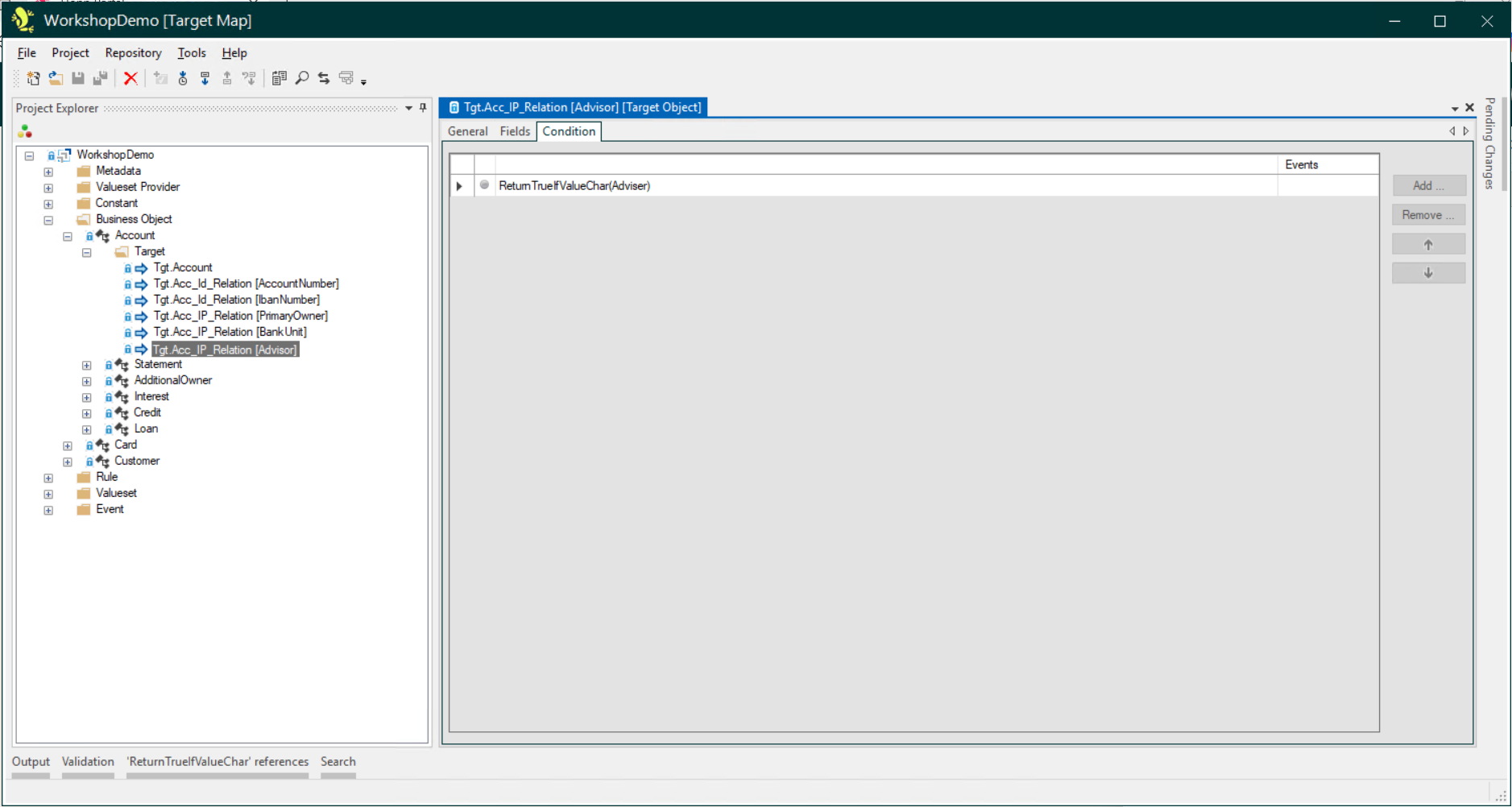
Target Objects (Target Map)
Target Objects can be seen in a 'Target' sub-folder, directly below their Business Object in the Project Explorer:
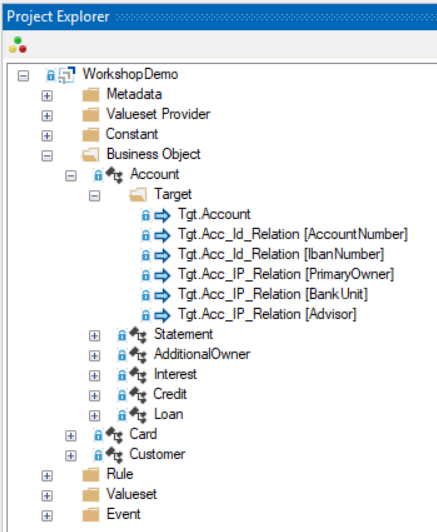
Target Objects can be added directly on the Project Explorer, as well as from the Business Object Target tab. You can read more about adding, deleting and copying Target Objects here: Add and delete Target Objects and Child Business Objects directly from the Project Explorer
General Tab
This tab has three fields, to record the Name, Description and Comments about the Target Object.
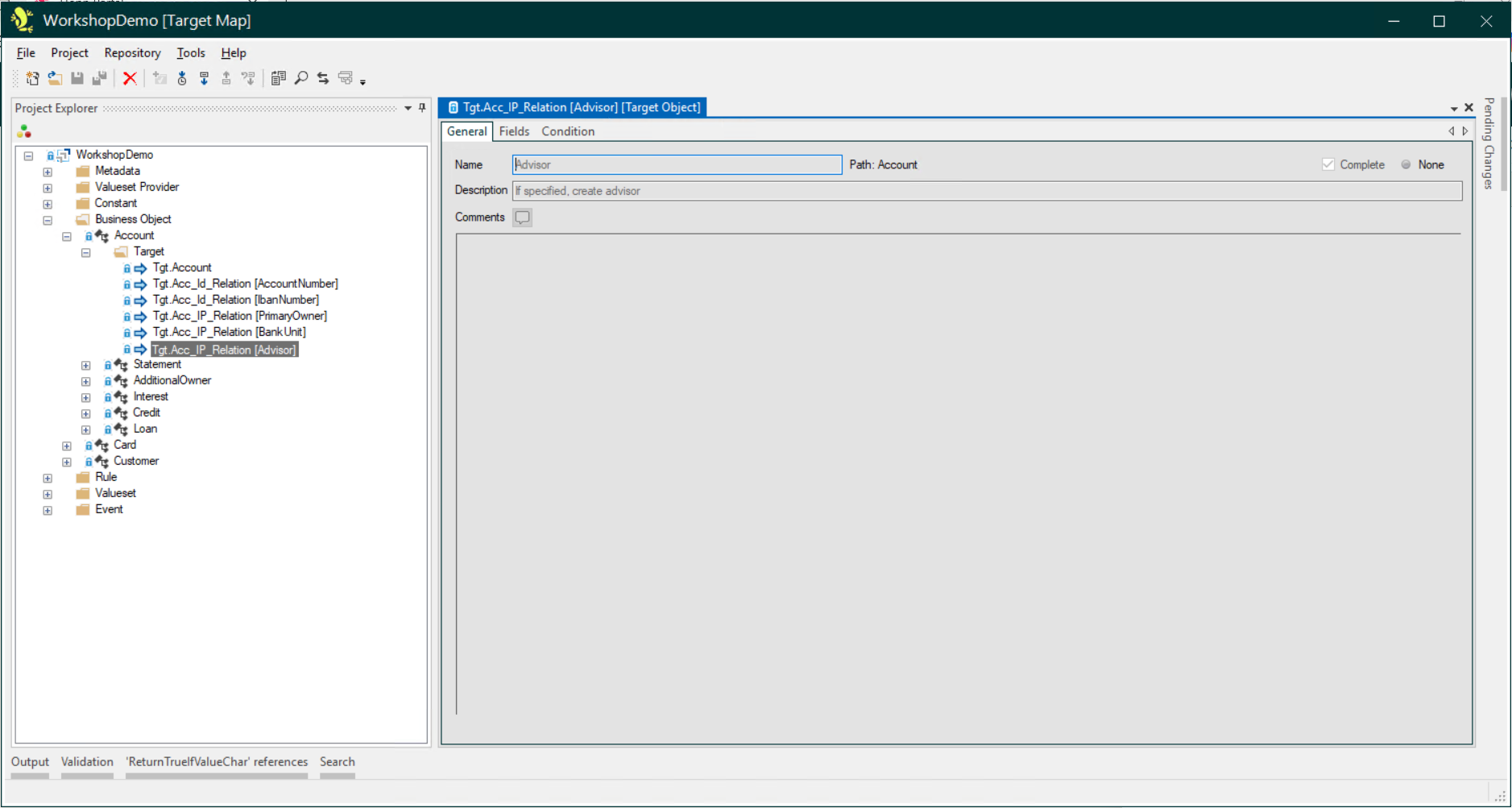
The Name is only required if the same metadata structure is being used more than once for the Business Object targets. In this case, the Name will be displayed in square brackets on the Project Explorer, after the metadata structure name.
As with Description and Comments fields elsewhere in the Studio, it is good practice to use these to record additional informative details about the migration mapping for other users.
Fields Tab
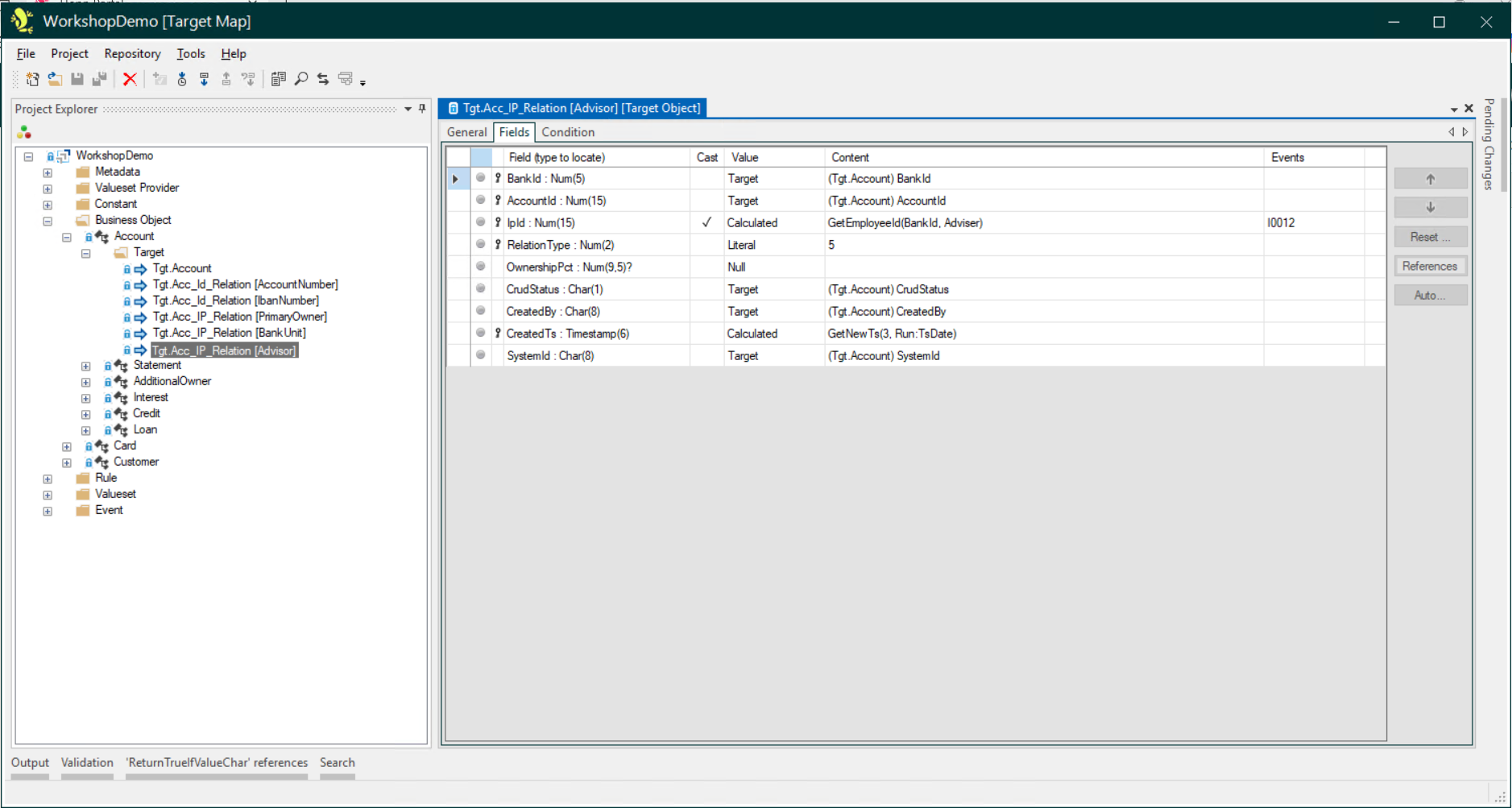
This is where the target mapping to the fields of the metadata structure are defined.
Field Value Types
Target Object Fields can be assigned the following Value Types
- Interface
- to use the value of an Interface Field defined on the related Business Object.
- Literal
- allowing you to simply type a literal value to be assigned to the Target Field.
- Constant
- to specify a Constant that will define the value to be assigned to the Target Field.
- Target
- to pick up a value from another Target Field, which may be in a parent Business Object.
- Relationship
- to pick up a value from another Business Object outside the current Business Object hierarchy. You can pick up either the value received for an Interface Field or the value assigned to a Target Field.
- Calculated
- to use a Mapping Rule to calculate the value of the Target Field.
- Identity
- to assign an Integer value to the Target Field at run time. This value unique for the Target Field. This uniqueness is at run time defined by the values of all the Interface Fields defined as Keys on the Business Object ancestors of the Target Object. In addition, the internal ids of the Target Object and the Target Field in the Target Map are taken into consideration, so the Identity value is globally unique for each Target Field.
- Guid
- is very similar to the Identity Value Type, but instead of assigning a unique Integer value, it assigns a unique Guid (Microsoft Global Unique Identifier) value to the Target Field.
For Identity and Guid types, at run time Hopp will keep assigning the same unique value each time the migration of the same Business Object is iterated.
Reordering the Target Field Order
When the Target Engine executes the migration, individual fields will be populated in the order shown in the Target Object. Fields for different Objects will be processed in hierarchy order, starting with the root Business Object.
Therefore, when you assign the Value Type of Target to a Target Field, it is important that the Target Field being referenced is above the field being mapped, if they are both in the same Target Object. This is why you can change the calculation sequence of the Target Fields by moving them up or down in the list using the 2 buttons on the right.

Note that moving the Target Fields like this only affects the sequence of the value assignments. Regardless of this, in the migration result the Target Fields will always be delivered by Hopp in the sequence they are defined in the metadata.
You can read more about Field Calculation Order here: Field Calculation Order
Condition Tab
This is where Condition Rules for the Target Object are recorded.