Business Objects (Target Map)
The Business Objects hierarchy is defined in the Target Map.
General Tab
This tab has three fields, to record the Name, Description and Comments about the Business Object.
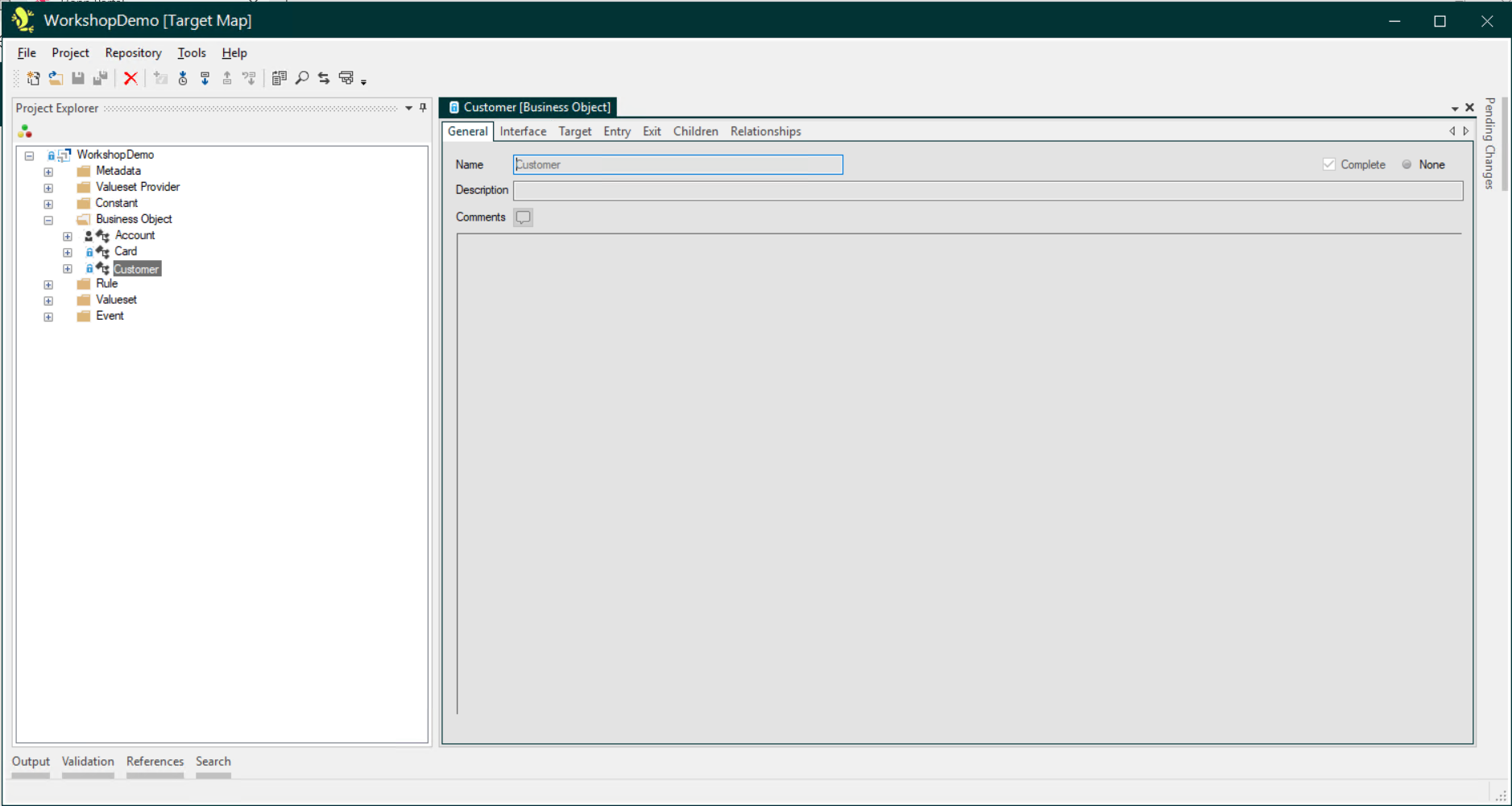
The Name is mandatory in the Target map. As with Description and Comments fields elsewhere in the Studio, it is good practice to use these to record additional informative details about the migration mapping for other users.
Interface Tab
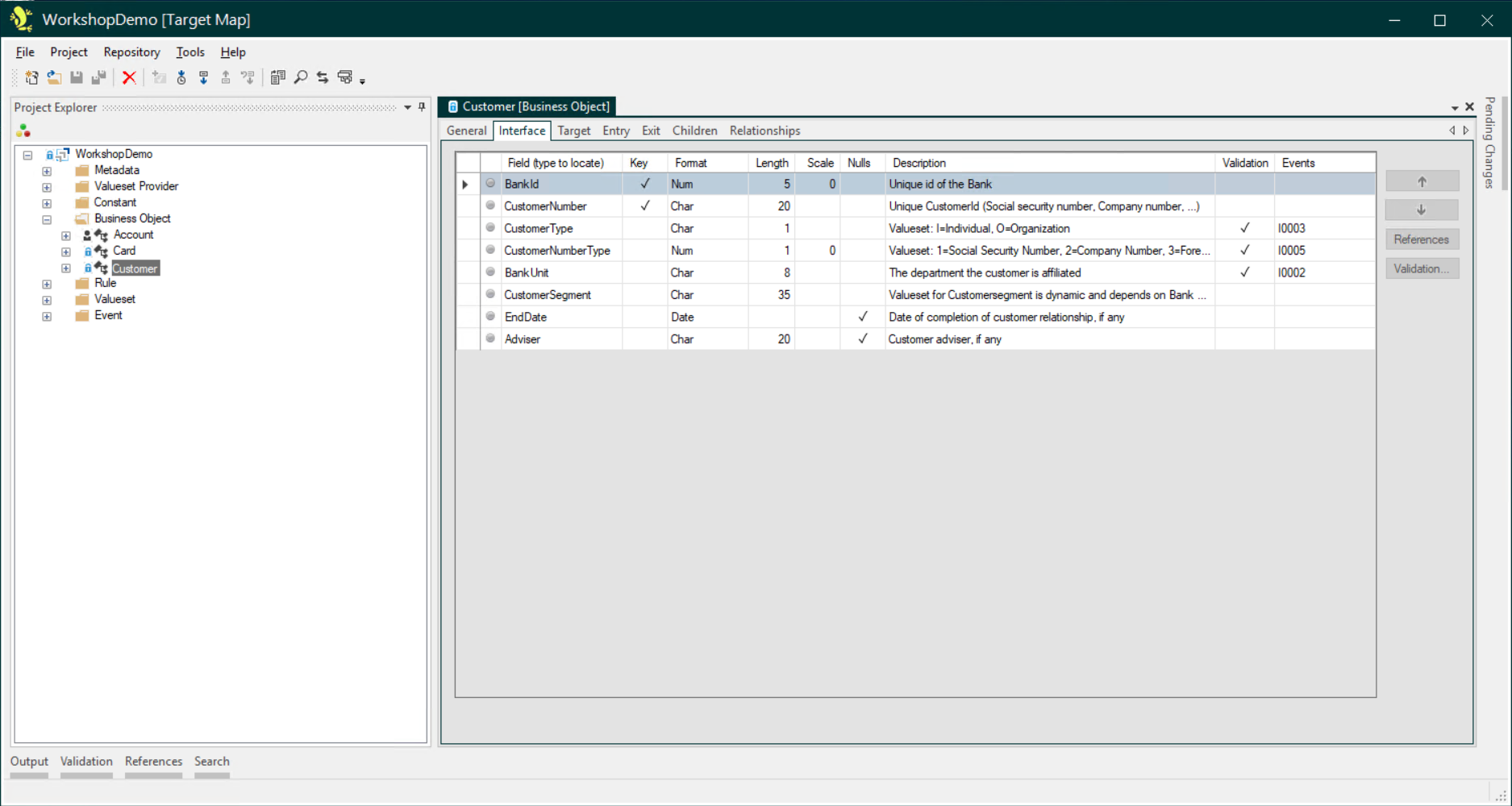
This is where the Target Interface that will be exposed to the Source Map is defined.
Partition Fields
When you create a new root Business Object in the Target Map, the Studio will automatically create an Interface Field called PartitionId on the new Business Object.

This field is special and is marked by a different (light blue) background color than the rest of the fields. While you can modify this field (set Key and change Name, Format, and Description), you cannot delete it.
You can read more about Partition fields here: Partition Fields Discussion
Target Tab
Target Objects from the available metadata structures can be added here.
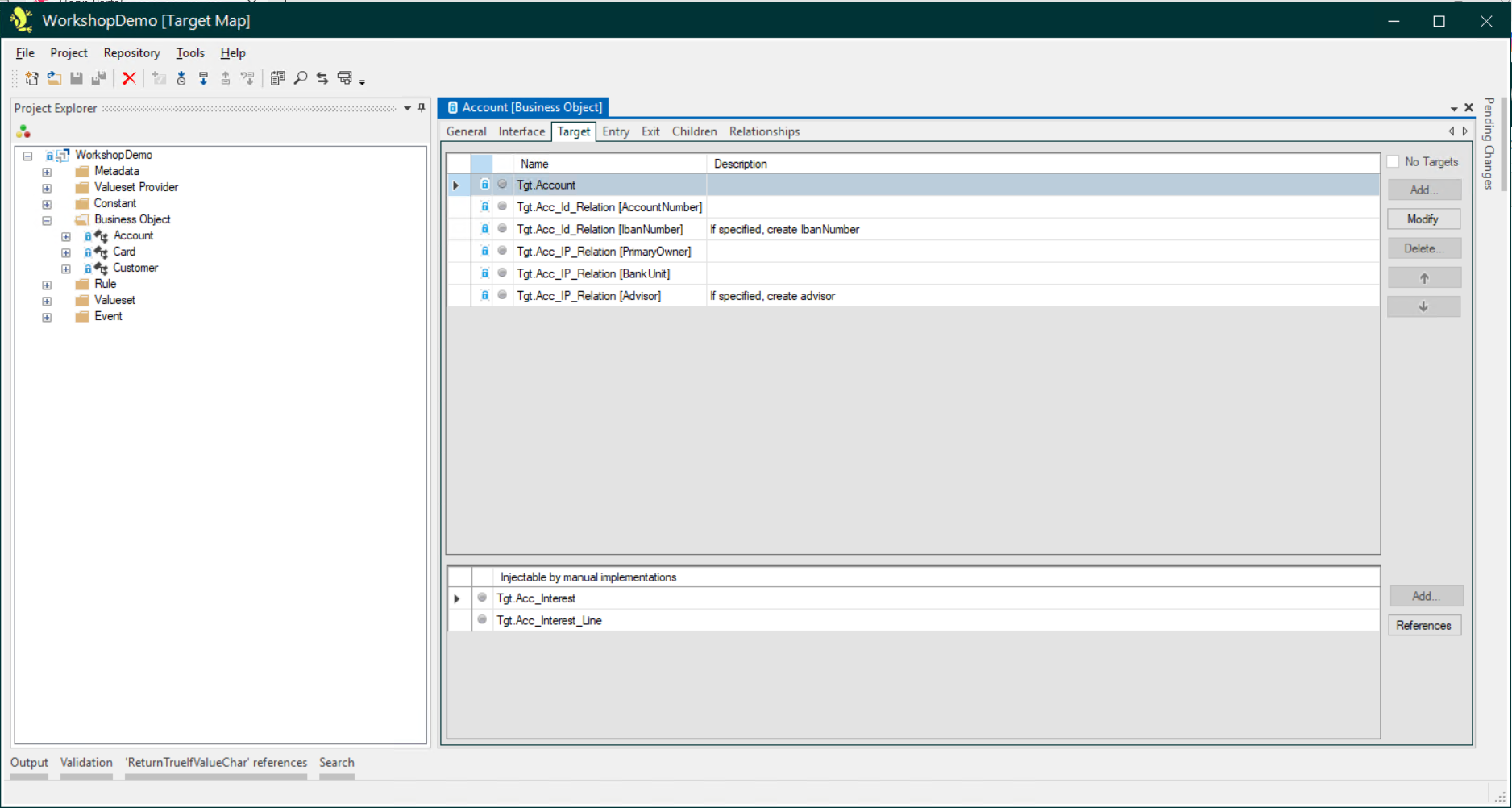
You can read more about how to add a Target Object here: Adding a Target Object to a Business Object
No Targets checkbox
A check box has been added to the Target tab of a Business Object in the Target Map:
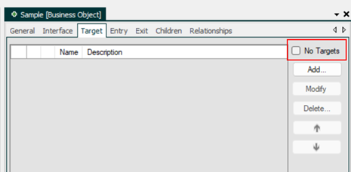
When this box is checked, the validation message 0013 No Target Objects mapped to Business Object is not emitted.
If it is not checked and no Target Objects are mapped, the message 0013 will be fired as an Error.
Validation errors 0013 must be resolved by either mapping a minimum of 1 Target Object or checking the No Targets checkbox.
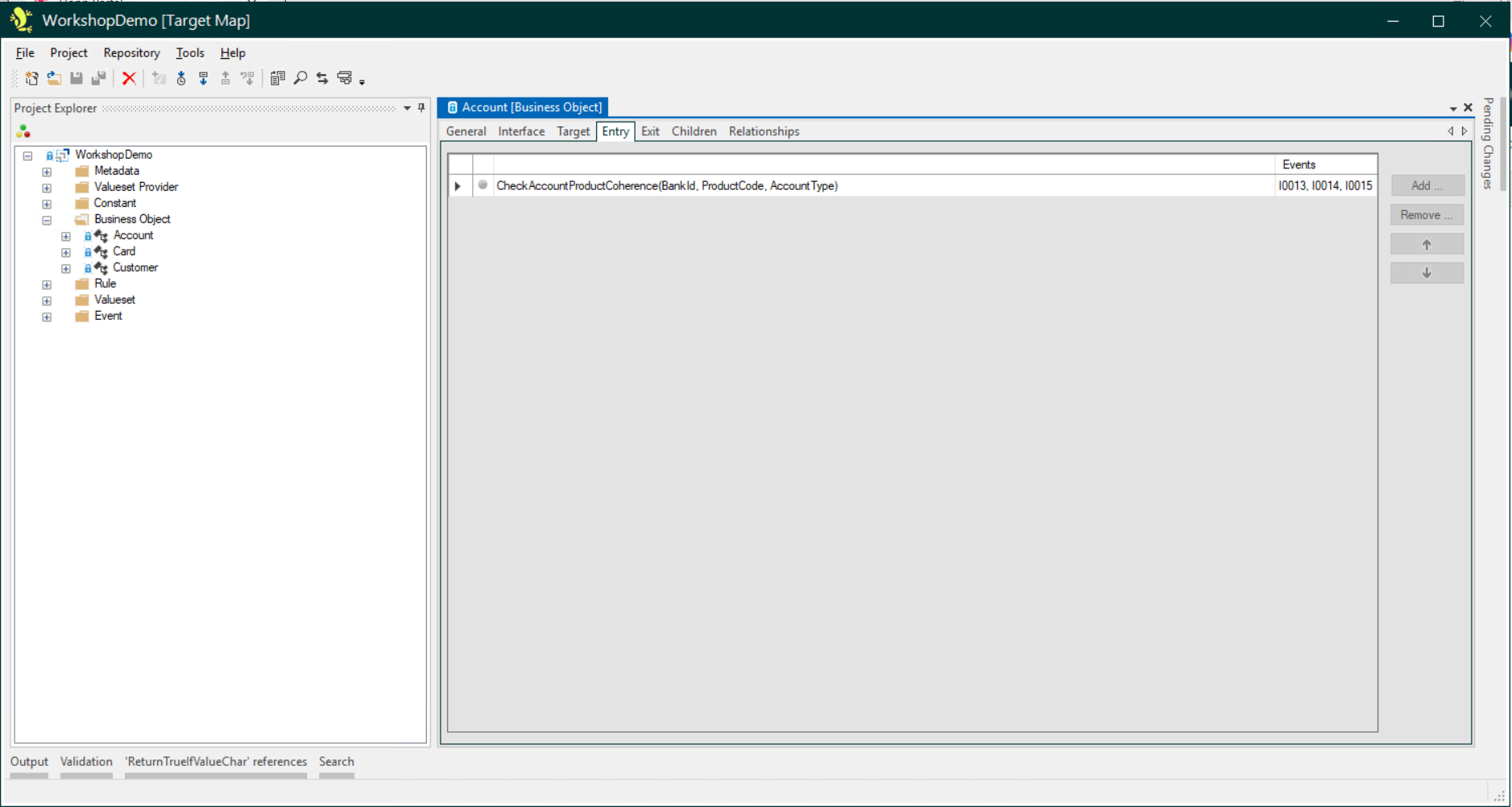
Entry Tab
This is where Entry Rules for the Business Object are recorded.
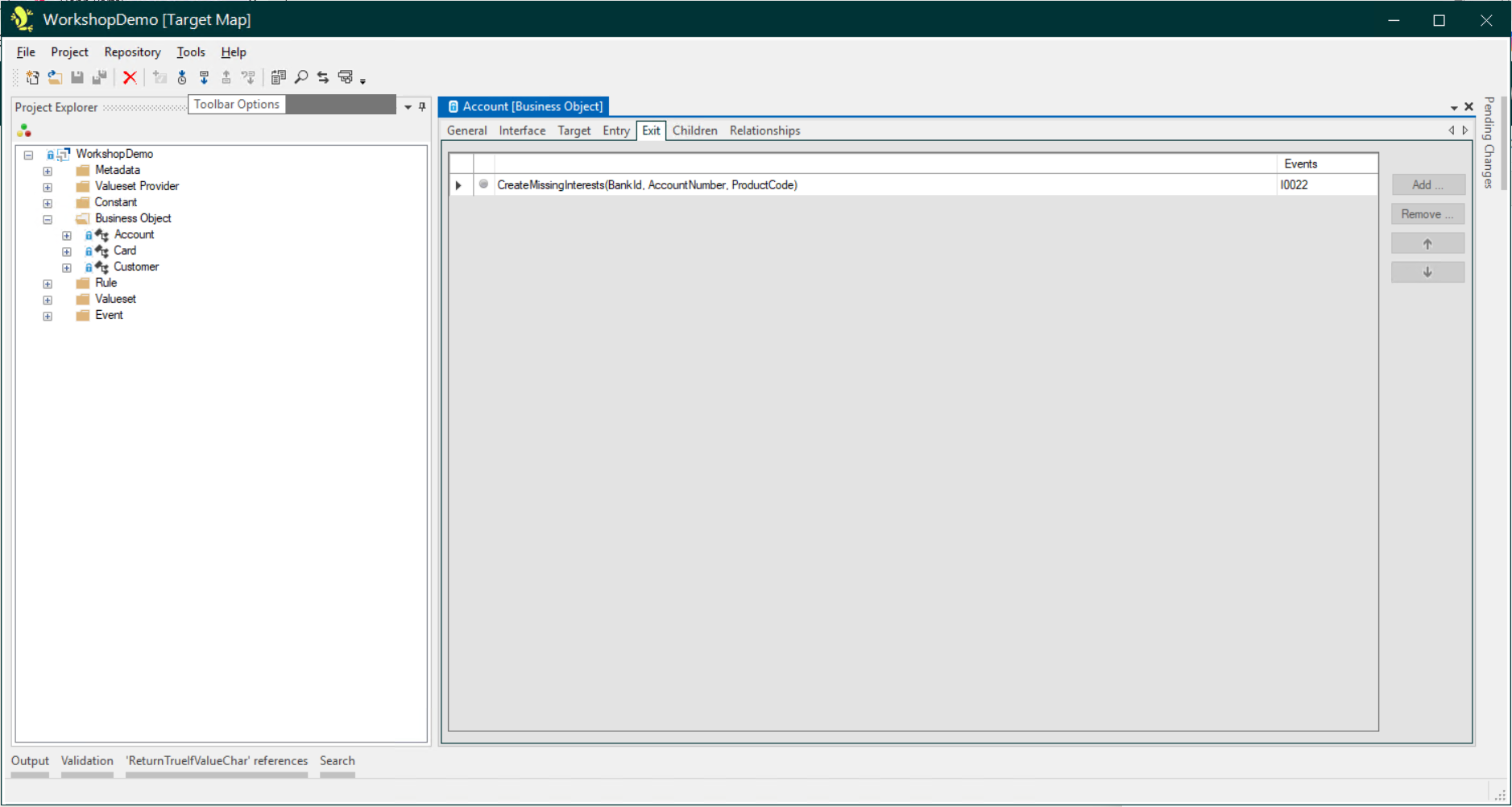
Exit Tab
This is where Exit Rules for the Business Object are recorded.
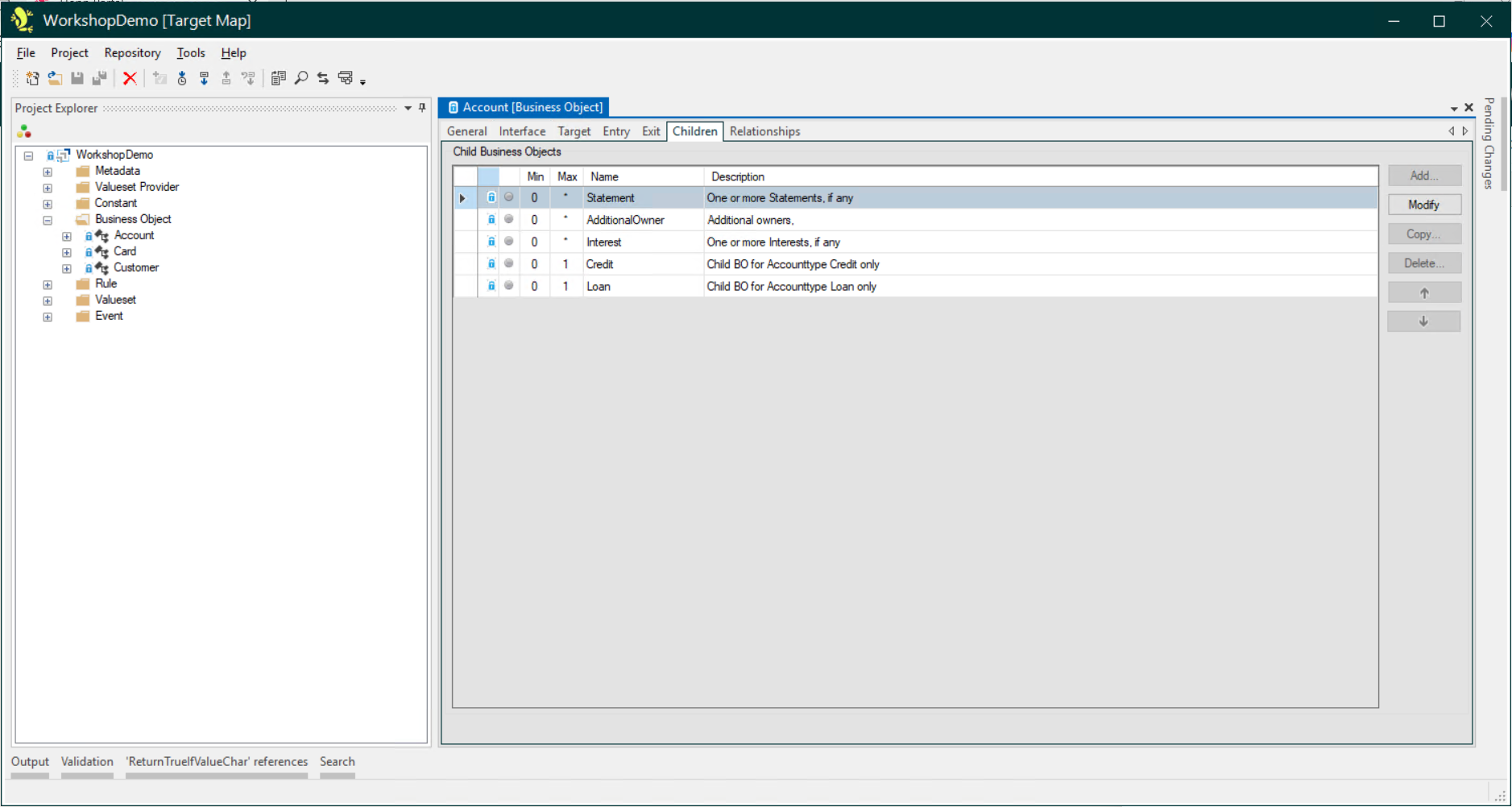
Children Tab
This is where the child Business Objects for the Business Object are usually first specified, to build the hierarchies of root and child Business Objects.
Relationships Tab
Apart from the obvious hierarchic relationship between a Business Object and its children, Business Objects can have relationships to other Business Objects outside own hierarchy. These relationships can be defined on this screen.
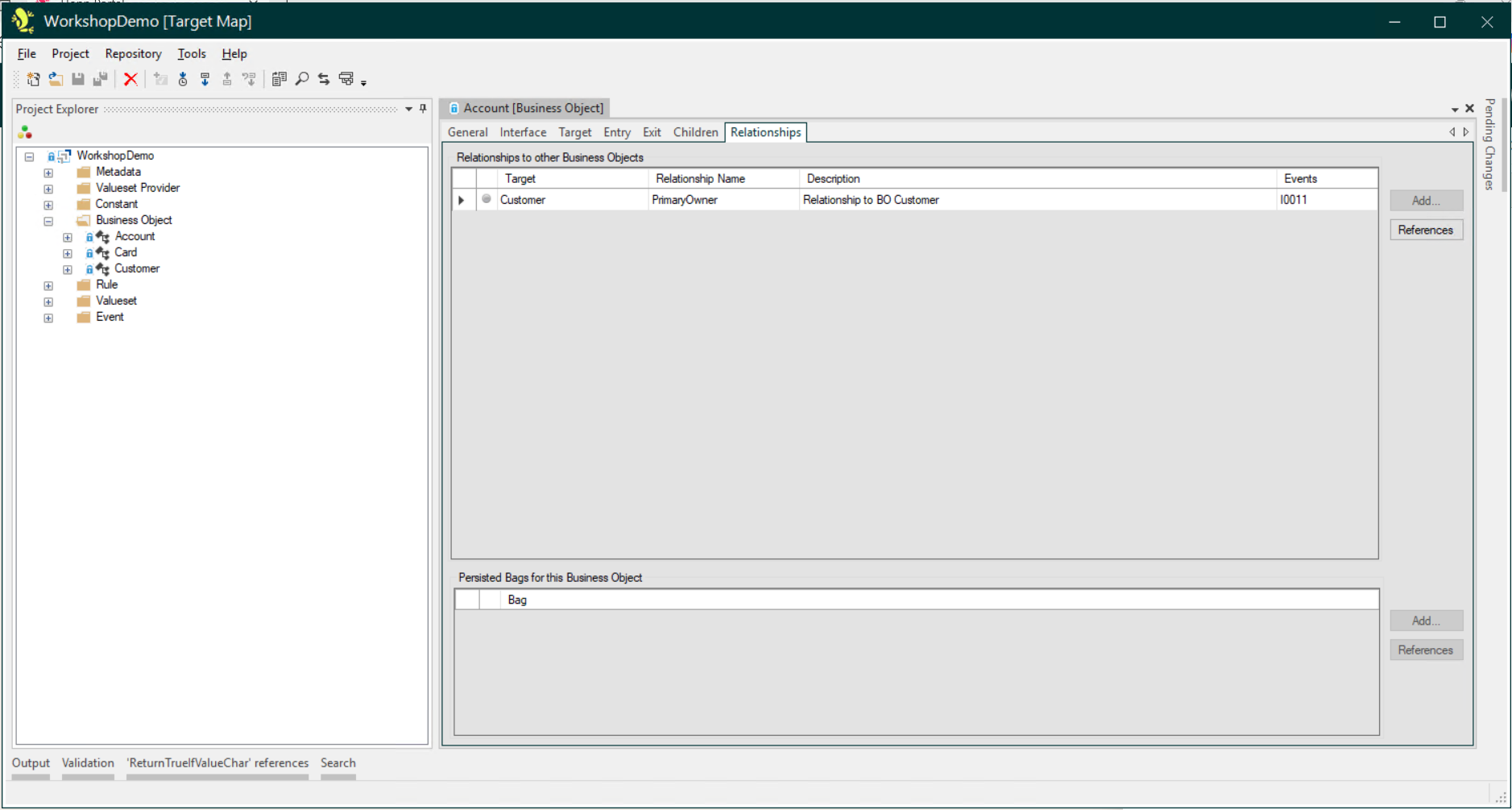
Relationships are not limited to being only between root Business Objects, there is nothing stopping you from creating a relationship from a child Business Object in one hierarchy to a child Business Object in another hierarchy.
Relationships are a very powerful feature of Hopp. From the straightforward and logical way they are defined and used in Studio, to the way they are automatically resolved at runtime and finally how they are presented as links in the Portal web application.
You can read more about Relationships here: Relationships Discussion