Rules and Bags
Overview
Rules are used to assign values to fields. They can target fields in the target map or interface fields in the source map.
There are various types of Rules used at different points, which will be discussed later in more detail.
A Rule has a signature, which means it has a name. It can take zero or more parameters, and it processes the values of its parameters in some way. During processing of the Rule with live data, it may encounter situations where it needs to raise a Flag.
A Rule can raise different types of Flags. Once the Rule has finished processing, it returns a value of a specific type. This is the signature of all rules in Hopp. There are two types of rules: Lookup Rules and Manual Rules.
When using a Manual Rule, you need to provide a name and specify the parameters. For each parameter, you give it a name and specify the data type of the value it will return. You can use a Manual Rule for various purposes, as it needs to be manually implemented in Visual Studio later.
The other type of Rule is a Lookup Rule. Similarly, you need to give it a name, but a Lookup Rule requires a Value Set to function. Once you have identified the Value Set you want to use, you specify the lookup columns within the Value Set that will be used to find a specific row.
Once the Lookup columns are identified, they become the parameters of your Rule. You also need to specify which column should be returned if a row is found. The data type of this column becomes the return type of your rule.
You also need to specify the Flags that the Rule may raise. Finally, you provide the desired behavior of the Rule, typically in the form of code.
You don't have to implement the Manual Rule immediately. You can continue working with the Rule in Studio as if it were already implemented in the code. Once the Rule is defined, you can start using it in other parts of the mapping.
Behind the scenes, Studio will automatically create two flags for you: one to raise if a row is found and another to raise if a row is not found. You don't have to do anything further along the line.
The code generator will handle the implementation of this Rule for you.
Summary
A Rule is something that can be used in different contexts in a Source or Target Map. A Rule does a job and has some basic characteristics:
- It is of a specific type.
- Has a name.
- Needs some parameters to do its job.
- Does its job and (usually) returns a value of a given data type.
- May raise one or more Flags to signal that something happened while doing the job.
All rules can come in 2 different flavors:
- Manual rules: In Studio you specify Name, return type, Parameters and Flags. In addition, you must specify what the rule is supposed to do. You or somebody else will later implement this rule manually (at a well-defined location in the associated Visual Studio C# class library).
- Lookup rules: In Studio you identify a Valueset for the lookup and specify the lookup columns and the return column. Hopp will take care of the rest, including 2 Flags to signal if a row was found or not.
Rule Types
Rule Types are used where we have interface fields to which values need to be assigned.
We have mapping rules for the source objects that point to the metadata of the source system. For each source object, zero or multiple Filter Rules can be called, serving as additional predicates for the link between the source object and its parent. If a Filter Rule returns false, the source object will be discarded and cannot be used in the mapping.
For child Business Objects, we also have Condition Rules. If a Condition Rule returns false, the corresponding Business Object will not be created by the Source Map and will not be sent to the Target Map. These rules are specific to the source map.
In the implementation of Manual Rules, we have access to various features. In Studio, a Rule can raise flags defined on the Rule itself, call other Rules, and access constants and Value Sets. If we are in the target map implementation, we can also access relationships and gain access to the export result or target result of other Business Objects. This allows us to view the export result and target result when a rule is called in the context of a Business Object.
Moreover, as an Exit Rule, the entire target result can be accessed because the Exit Rule is called at the end of processing the Business Objects. In such cases, an Exit Rule can detect missing rows in the target result by examining a value set from the target system.
Furthermore, both Exit Rules and other rules have the capability to inject target objects into the stream and access their own libraries. Therefore, when implementing Manual Rules, there are no limitations to accessing external functionality specific to your installation and system.
Target Map Rule Types
A rule has a type, and this type defines in what context the rule can be used. In the Target Map you can work with the rule types below.
In order to grasp the full meaning of these types, it may help to consider that all this, of course, ends up in the runtime, executing the migration of Business Objects one at a time. And delving deeper, the execution sequence is:
- Business Object
- Interface Fields
- Target Objects
- Target Fields
- Child Business Objects (recurse back to top)
Given this execution sequence, these are the Rule types in the Target Map (the Source Map has other, different, Rule types):

| Type | Description |
| Entry Rule | Called before starting the processing of a Business Object and can only return a Boolean. If the Entry Rule returns false, the Business Object is discarded, and no data will be created for the Target System for this Business Object - including all its children and Target Objects. |
| Exit Rule | Called after ending the processing of a Business Object and can only return a Boolean. If the Exit Rule returns false, the Business Object is discarded and no data will be created for the Target System for this Business Object - including all its children and Target Objects. Exit rules are often used to cross-check the Target data created for the Business Object - and can even inject missing Target data into the migration stream. |
| Validation Rule | Validates the value of incoming Interface Fields. |
| Condition Rule | Called before starting the processing of a Target Object. If the Condition Rule returns false, the Target Object is discarded, and no data will be created for the Target System for this Target Object. |
| Mapping Rule | Calculates the value for a Target Field. |
All (manual) rules have access to a lot of nice stuff:
- The Business Object hierarchy to inspect values of received Interface Fields and created Target Fields.
- Valuesets.
- Constants.
- Other Rules.
- Relationships.
- Functionality to inject Target data into the migration stream.
Skip if Null on Validation Rules
A checkbox is available when assigning a Validation Rule to an Interface Field to specify if the rule should be called if the incoming value is null.
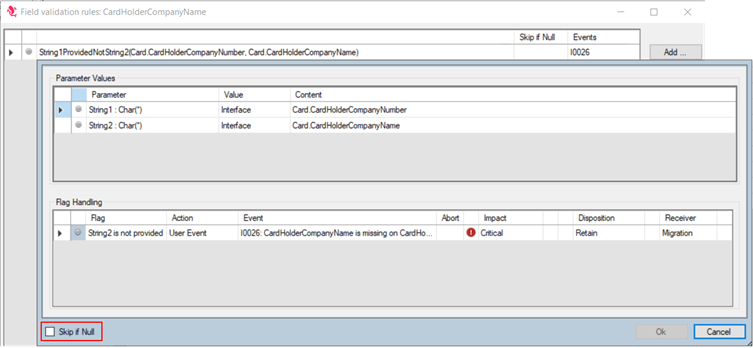
The Skip if Null option on Validation Rules provides the following options:
- Only validate the incoming Interface Field value if it is not Null - check Skip if Null
- Validate if the incoming Interface Field value is Null - do not check Skip if Null
Please note that all Validation Rules are called on all Interface Fields regardless of whether their value is Null or not.
Source Map Rule Types
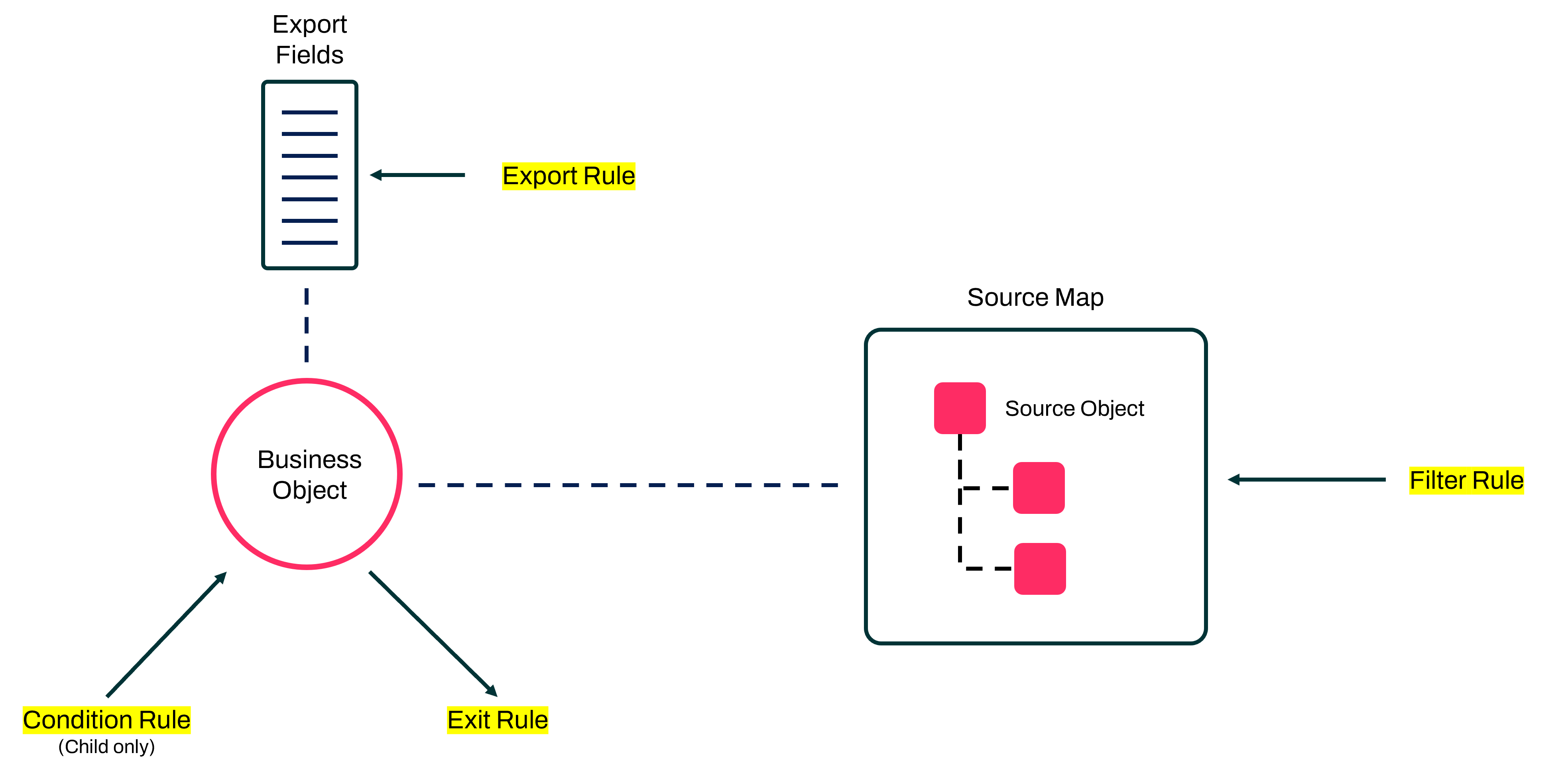
Here are the different types of Rules you have at your disposal in the Source Map:
| Type | Description |
| Condition Rule | Called before starting the extraction of source data for instances of a child Business Object. If the Condition Rule returns false, this child Business Object will be skipped, and no instances will be produced for the child in the Target interface. Note that Condition Rules cannot be called from a root Business Object - only from child Business Objects. |
| Exit Rule | Called after ending the processing of a Business Object and can only return a Boolean. If the Exit Rule returns false, the Business Object is dropped, and no data will be created for this Business Object - including descendants. Unlike a discard, the drop is silent: no Event is fired, and a dropped root Business Object is counted in the Dropped column in Portal Operations, not in the Discarded column (see Events for how Drop differs from the discard dispositions). Exit rules are often used to cross-check the data created for the Business Object. |
| Filter Rule | You can specify one or more Filter Rules to be called for a Source Object. If just one of the Filter Rules returns false, the Source Object will be skipped, and its Source Fields will not be available. If the rejected Source Object is the root, the whole Business Object instance is silently dropped, exactly as when an Exit Rule returns false (see above). |
| Export Rule | Called to calculate the value to be assigned to a Target Interface Field. |
Just like in the Target Map, all these rules can raise Flags, and when a rule is used in a specific context, you can decide how to react to these Flags. Including firing an Event, assign a Severity and a Receiver.
Defining a Lookup Rule
when defining a Lookup Rule, you specify how you want a lookup in a Valueset to take place. Hopp will then automatically generate the Rule implementation.
When defining a Lookup Rule, you specify the following:
- The Valueset the Rule is to lookup a row from
- Identify the columns to use for the lookup. These automatically become input parameters to the Rule
- What the Rule should return. You have these options:
- Return the value of a Column in row that was found by the Lookup.
- Return True if a row was found and False if no row was found.
- Return False if a row was found and True if no row was found.
- If the rule returns the value of a column, you can decide a default value, if no row was found:
- A Lookup value. This allows you to choose one of the Lookup columns. The rule will return the input value for this Lookup column if no row found.
- A Literal
- A Constant
- Null
- If the Column to return is of type Boolean, the options for the default value are instead:
- True
- False
- A Lookup value
- A constant
- Finally, if the rule returns the value of a Column, and this column is of a nullable data type, you can similarly choose what to return if a row was found, but the value of the Return column was null.
All Lookup Rule are automatically created with four flags:
- Found
- Not found
- Not found, all parameters provided
- Not found, some parameters not provided
Let's have a look at some use cases to make this clearer.
A simple Mapping Rule
The simplest use case is a matter of looking up a row using one or more lookup columns and returning the value of another column on the row. If no row is found, then return Null.
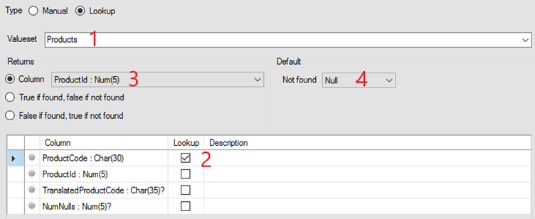
- The Lookup is based on the Valueset Products.
- The Rule looks up a value in the ProductCode column. Hopp will generate an input parameter for the Rule and use the value for this parameter for the lookup.
- If a row is found by the lookup, the rule will raise flag 1 and return the value for the column ProductId
- If no row is found, the rule will raise 2 different flags and return null:
- Flag 2 (Not found): Is always raised.
- Depending on the values of the input parameters either flag 3 or flag 4:
- Flag 3 (Not found, all parameters provided): Raised if no input parameters are null.
- Flag 4 (Not found, some parameters not provided): Raised if one or more input parameters are null.
A Translation Rule
In another use case, the aim is to lookup the row using one or more lookup columns (that become parameters to the rule) and return the value of another column in order to translate the value of one of the input parameters. If no row is found, simply return the value of the input parameter itself. In this way, translation only takes place if a row is found.
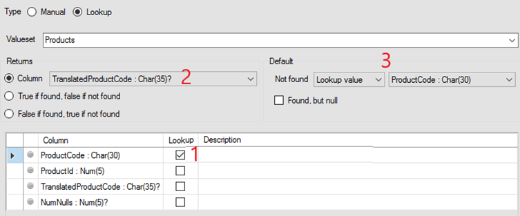
- The Rule looks up a value in the ProductCode column. Hopp will generate an input parameter for the Rule and use the value for this parameter for the lookup.
- If a row is found by the lookup, the rule will raise flag 1 and return the value for the column TranslateProductCode.
- If no row is found, the rule will raise the flag 2 (plus either flag 3 or flag 4) and return the value of the input parameter ProductCode.
When the default Lookup value is selected, the corresponding drop-down will list only the available columns:
- Marked as Lookup.
- With a data type corresponding to the selected Returns column
Found, but null
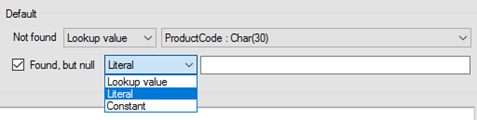
In the above example, if a row is found, but the value of TranslateProductCode in the row is null, the rule will return this null value anyway. If that is not the desired behavior, another default return value can be defined for this situation by checking the Found, but null checkbox:
Boolean Found/Not found rules
It is not necessary to jump through all the hoops above to create a Lookup Rule returning true or false depending on whether a row is found or not. Simply use one of the two other Returns options. Below is the exact same rule as above, but now much simpler and the Found column is no longer required to be present on the Valueset.

Flag Parameters
You can specify Flag Parameters in a manual rule. If you define a Flag Parameter, you enable the rule to pass out information when it raises a Flag. For instance, if a rule injects some Target Object into the migration stream because it figured out it was missing, it would be convenient if the rule could raise a Flag and inform what it created.
When you use this rule, you may attach an Event to the Flag. And then you can use the Flag parameter to merge into the Event text. In this way, the rule can signal that it injected something in the migration stream and indeed - via the Event with the Flag parameter - get this published in the Portal, properly with the Event Severity Information.
Bags
Both in the Target Map and in the Source Map there is a folder node in the Project Explorer tree view - under Rule - called Bag. In addition, when opening the Value drop-down in various places, you can see the value type Bag Property. Bags are very useful but also an advanced subject.
Standard Rules do the following:
- receive some Parameters,
- can raise some Flags,
- and return a value.
They live in the context they are called and then immediately die away. They have no way of storing any state between calls. Imagine, for instance, in some Business Object you wanted to count the number of a certain child Business Object. The rules would have a hard time doing so, because they can't store state - the count - between calls.
Bags can store state. A Bag is created the first time it is used in a root Business Object. While the root Business Object - and all its children - are being processed, the Bag exists and can store state. And it - and its state - is thrown away as soon as the next root Business Object starts processing.
The Bag can have - but does not need to have - one or more Methods, and these Methods can be called anywhere in the mapping you are using rules. In addition to methods, the Bag can have Properties. The properties in turn can be used to assign values to Fields or Parameters. The Methods of the Bag can store state in the Properties.
While you specify the Methods and Properties of the Bag in Studio so you can use them elsewhere, the Bag must afterward always be manually implemented. The manual implementation - as all others - can access Valuesets, Constants, other Rules and indeed other Bags and their Methods and Properties.
Bags are discussed further here: Bags concept.
Copying Rules
You can use drag and drop to copy rules and implicitly change the type of the copy. For instance, if you have created a Validation Rule but later actually want it to be a Mapping Rule instead, you can just copy it - by drag/drop or copy/paste.
You can read more here: Move things around and change rule types
Manual rule implementation
If you are copying a manual rule, you may have to go to Visual Studio and edit/move the manual implementation of the rule too.