Business Object Copies in the Source Map
When working on a given Business Object in the Hopp Source Map, you are asked to provide values for the Interface Fields that have been exposed by the Target Map Interface imported into the Source Map. In order to get a basis for calculating and assigning these values, you will define an Extraction Map on the Business Object. This Extraction Map describes how to extract the data from the Source System, you need in order to calculate the values to assign to the Interface Fields you are sending on to the Target Map.
The entire Business Object hierarchy and the Interface Fields of each Business Object are defined in the Target Map and then imported into the Source Map. To put it another way, the Business Objects, their fields and hierarchy are defined from the standpoint of the Target System. This is with good reason - after all, it is the Target System that will remain after the data migration, whereas the Source System is typically left behind.,
Nevertheless, it can be a challenge to mitigate differences between the Source System and the Target System. As an example, let's say the Target System has one Business Object Account covering different types of Accounts - like Checking Accounts, Guarantees, Portfolio Accounts, etc. But there is no certainty that all Source Systems from which you may need to migrate have the same perception. Maybe in a given Source System, a Checking Account is fundamentally different from a Guarantee - maybe even residing in separate sub-systems.
In that case, when working on the Business Object Account in the Source Map, you are faced with the challenge of creating an Extraction Map for the Account that covers both the Checking Account and the Guarantee. This Extraction Map risks becoming overly complicated.
Luckily, in the Source Map, you can duplicate a Business Object resulting in two (or more) copies of the same Business Object. Each of these copies will have to provide values for the same Interface Fields as defined by the Business Object from the Target Map. But for each copy, you can define different Extraction Maps.
You duplicate a Business Object from the context menu in the Project Explorer. Let's say we have mapped the Business Object Account to produce the Checking Accounts, and now we want to create a copy to handle the Guarantees.
First, you create a copy of the Account Business object from the context menu. You get the choice to create an exact copy with all mapping or just the bare Business Object hierarchy:
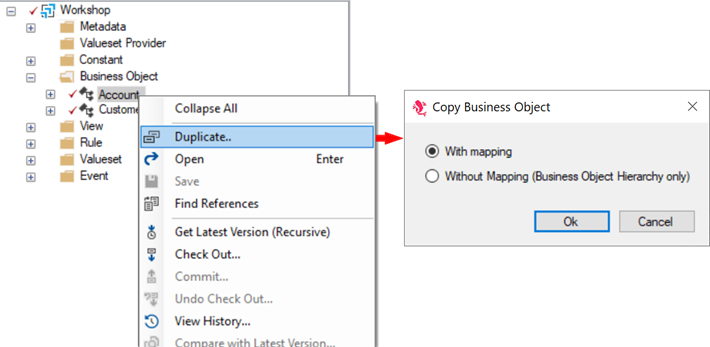
Clicking the Ok button will create the Copy:
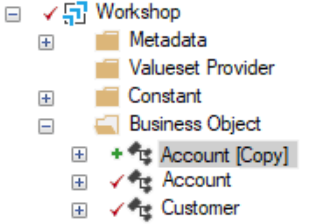
Notice that the new copy has been given the name Copy and now appears in the Project Explorer as Account [Copy]. Opening the new Business Object allows you to rename it on the General tab:
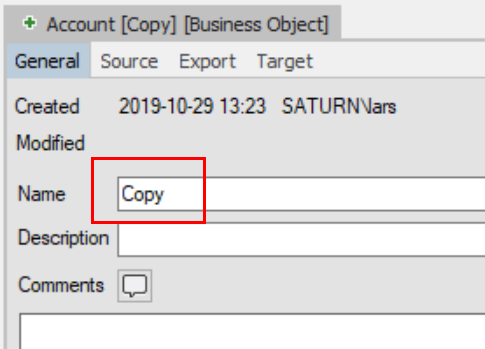
It makes sense to rename the new copy to Guarantee and also give the original the name Checking:
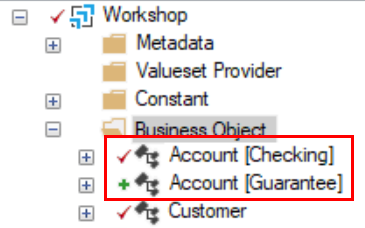
The steps above have resulted in 2 copies of the Business Object Account in the Source Map. Each copy outputs the same Business Object (with child hierarchy and Interface fields) as defined by the Target Map. But each copy can now extract the data needed from the Source System in it own way.
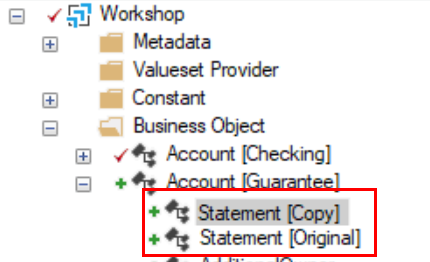
You can create as many copies of a given Business Object as you need. You can even copy a child Business Object if you need to create a separate Extraction Map:
Business Object copies in the Portal
While a copy of a Business Object allows you to define a separate Extraction Map for the copy in Studio, copies of root Business Objects also appear separately in Portal Operations:
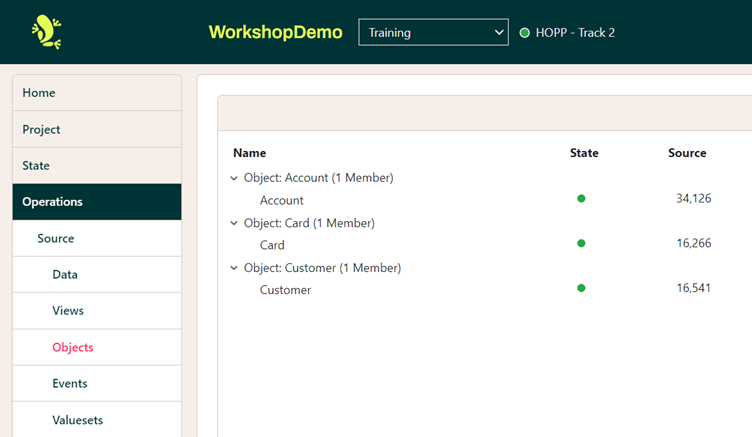
This allows the separate Export and Import of each Business Object copy. Finally, the copies are also separated in Portal.
Summary
The ability to copy Business Objects makes it possible for the Source Map to produce the Business Objects expected by the Target Map in multiple, different ways. This is a powerful way of mitigating structural differences between the Target System and a given Source System.
The copies appear separately in the Portal.