Migration Sign-off
Overview
Data migration sign-off is an essential part of any project. There cannot be a go-live before the data migration has been signed off. This article will examine how to manage data migration sign-off using the Hopp Planning Module. It will assume that the processes outlined in the Hopp Migration Methodology Overview article are being followed, but the Hopp Planning Module is fully configurable.
To use the Planning Module in a Hopp Project, a Planning Template will first need to be created. Guidance for this is contained in Planning - Templates and Planning - Dimensions.
- System suppliers using Hopp to onboard new customers can have detailed templates prepared for each of their products.
- A System Integrator (SI) managing a data migration to a system for the first time may need to create a new template from scratch.
Either way, the rest of this article will assume that a template has been selected after the Hopp Project has been set up. This is described in Planning Module Discussion as determining the scope of the migration, which can be derived from the initial requirements provided at the beginning of migration preparation.
Sign-off Development
Sign-off development will begin during migration preparation. This will involve interviewing the Data Owners to confirm their requirements.
Interview Preparation
After a Planning Template has first been added to a Project, a Snapshot is automatically created.
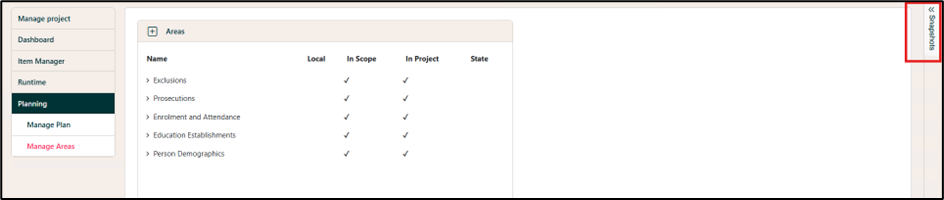
This can be downloaded as a document and shared before a meeting, to support the Data Owner interview.
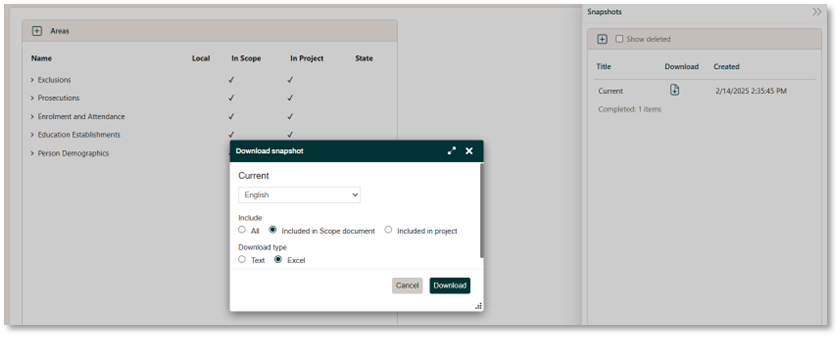
The top-level area in a template will be based on the project decomposition from migration preparation. An individual Data Owner may be responsible for one or more of these areas.
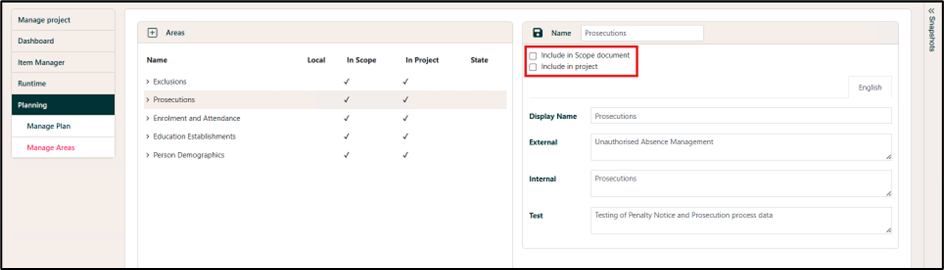
Before the snapshot is downloaded, a system supplier may deselect areas of functionality not purchased by the customer.
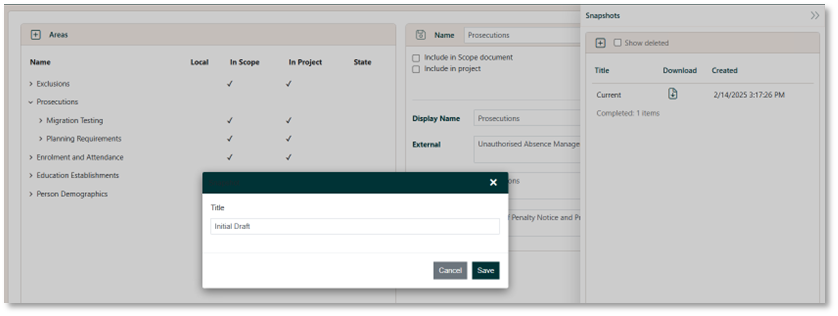
A new snapshot can then be saved before it is downloaded.
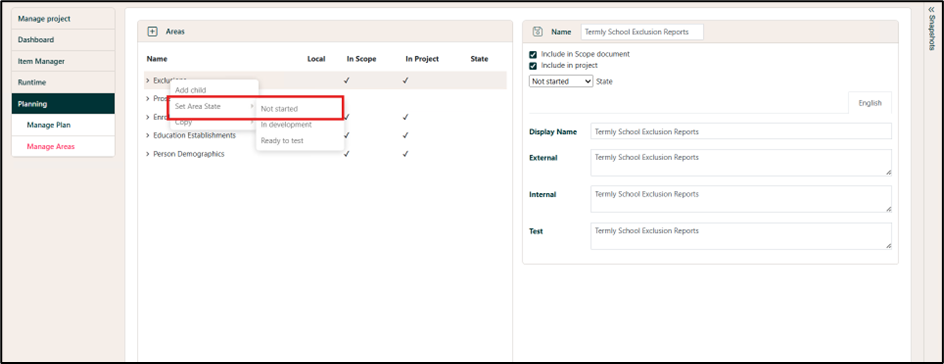
Finally, the test state of each area should be set to Not Started, by right-clicking on each top-level area, selecting Set Area State, then selecting Not Started.
Data Owner Interviews
The aim of the interviews with Data Owners is to confirm their sign-off requirement priorities. A good way to do this is to ask them is “What would stop you from giving your permission to switch off the current system(s)?”
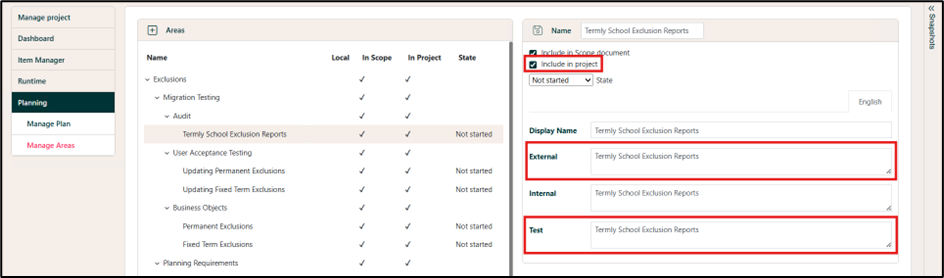
The Data Owner will need to confirm whether each proposed test area in the draft snapshot is relevant. If not, Include in project should be deselected. If the test area is to be included, it can be renamed locally by changing the External label and details of the Data Owner"s requirements can be recorded in the Test text box.
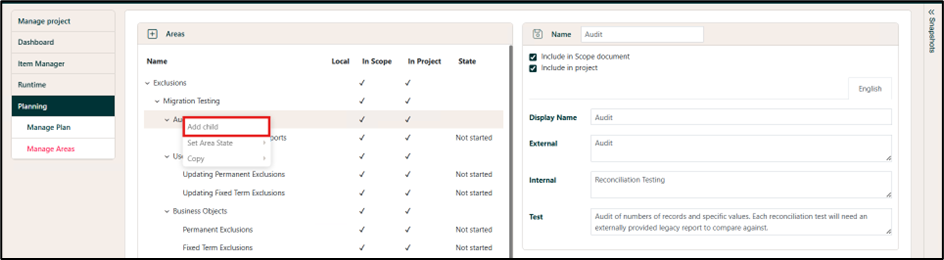
The Data Owner may also have requirements that weren't included in the original snapshot. These can be added to any area, by right clicking on that area and selecting Add child.
Details of the sign-off requirements can be recorded in the same style as those imported from the template.
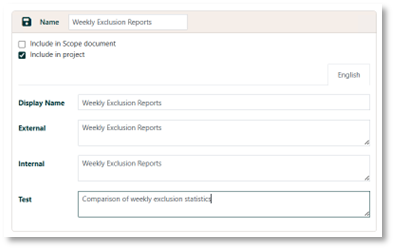
After this has been saved, it appears in the hierarchy of Areas, with a tick in the Local column to indicate that it is a local requirement.
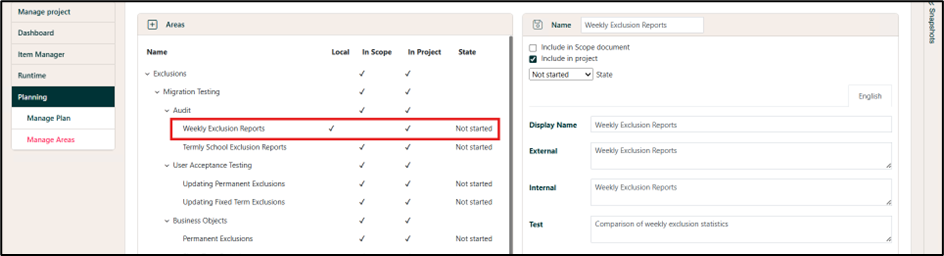
After all sign-off requirements have been confirmed with Data Owners, another snapshot can be saved and downloaded. This can serve as an appendix to the data migration strategy.
Plan Milestones
The other area of preparation is to add plan milestone dates. When a template is first added to a project, a plan with a single milestone called Preparation is created.
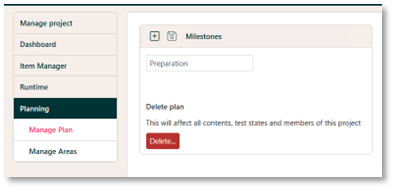
The name of this milestone can be changed and other milestones added. These milestones should align with the milestones for the wider project.
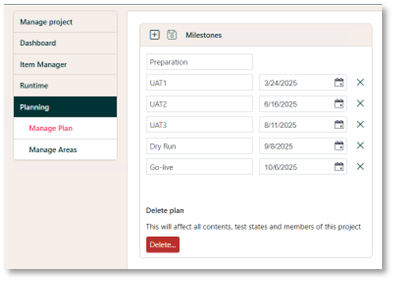
A date needs to be recorded for each additional milestone. This is the date that the milestone starts.
Migration Testing
The test plan becomes visible to all Portal users after the migration runtime starts to execute. It will appear on the Test screen in the State section of the Portal.
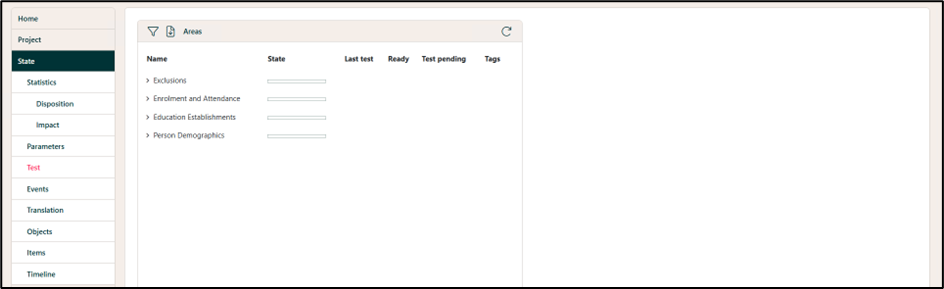
Test Team Preparation
Large projects will usually have a separate Testing workstream that is responsible for all aspects of testing the new system. The Test Manager will need to be set up as an External User of the Portal, together with all testing staff that they nominate. The latest snapshot can also be shared with the Test Manager before the runtime starts to execute, to allow them to start their preparation.
When the test plan is visible in the State section of the Portal, the Test Team can begin to update it. Comments can be added in the Discussion text box, to describe the approach to the test.
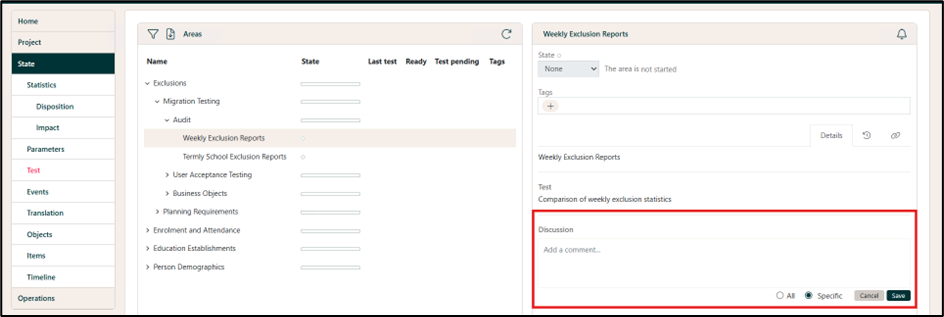
If the project has more than one Partition, comments can be for all, or a specific Partition.
When tests have been defined for the testing requirements, a second Data Owner interview should be arranged, to secure their agreement to the proposed tests. This agreement can be recorded in another Discussion comment.
Optionally, Tags can also be recorded at this interview, to capture the priority that the Data Owner places on each sign-off requirement.
Recommended values are:
- Must Have
- Should Have
- Nice to Have
This prioritization can be very useful when seeking sign-off for the data migration, if the pass rate is less than 100%.
Members of the Test Team can also subscribe to the test areas they are responsible for, by clicking on the bell icon.
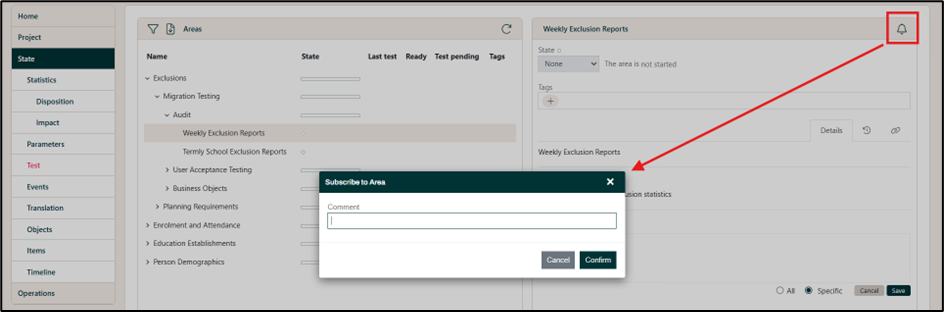
Subscribing to an area will allow a user to be notified of any updates to that area. This can include email notifications, if this has been configured in the Hopp infrastructure.
Further details on managing subscriptions and notifications can be found Subscription and Notifications.
Details of how to configure email notifications are explained Setting up Notification and Email.
Test Recording
The migration team's plan will be organized into Releases, as described in the Hopp Migration Methodology Overview article. At the beginning of each Release, the lead migration analyst will update the state of the areas being worked on in that Release to In development.
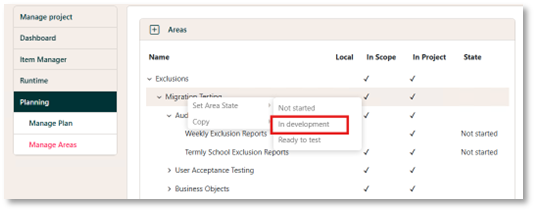
This will generate a notification to relevant test team members, that the area is now being worked on by the data migration team.
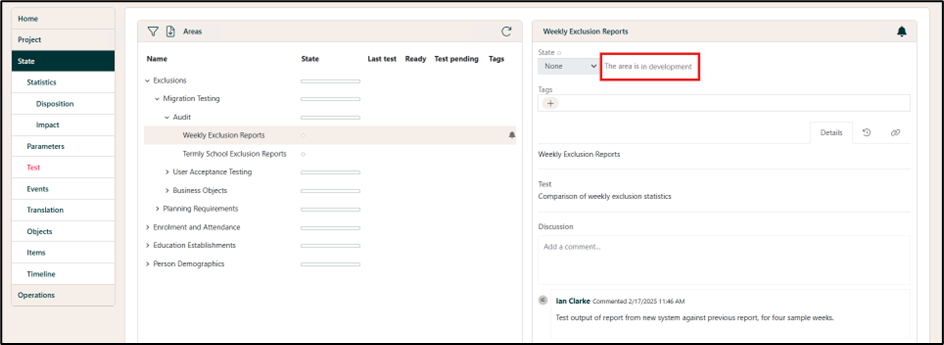
When the migration team's work is ready to test, the state will be updated again. This will generate another notification.
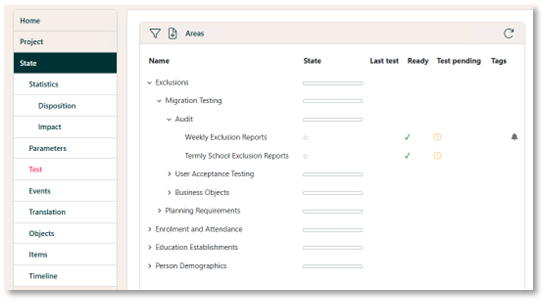
Areas that are ready to test are indicated with a tick in the Ready column and there is a warning icon in the Test Pending column. It is now possible for a test user to update the State of the test area.
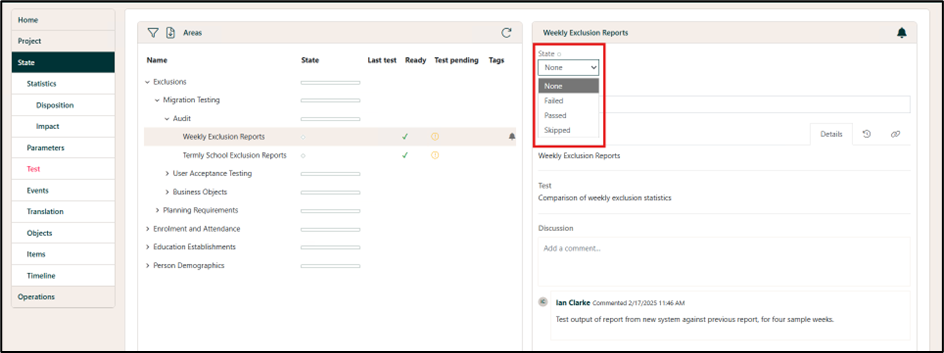
Further comments can be added to the Discussion.
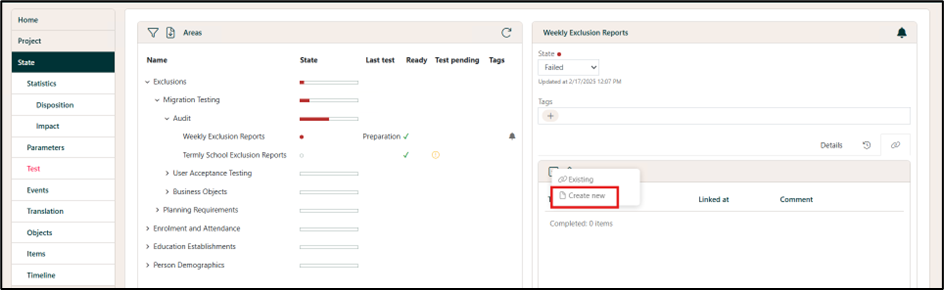
If a test is failed, an Issue should be added to the migration issues log. This can be done directly from the Links tab of the test area and clicking on Create new.
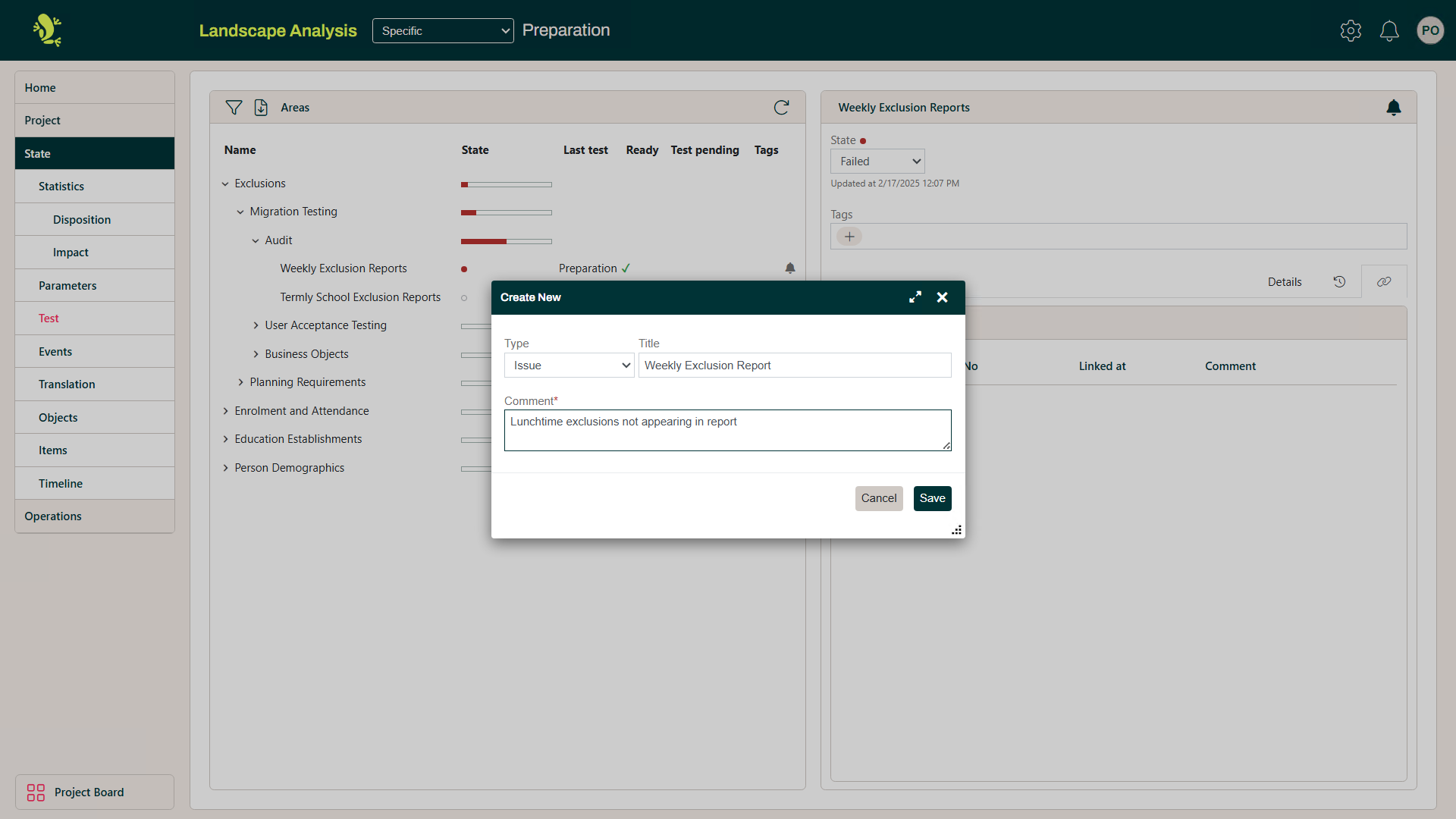
The basic details of the Issue are recorded and saved.
Further information about Issue recording is available in the Migration Issues Management article.
The migration team can be assigned work to address the issue, at which point the state can be reset to In development. When this work is complete, the state will again be updated to Ready to test.
Testers can receive notifications to tell them that the area is ready to test again. After completing the testing again, they can update the state to either "Passed" or "Failed (retested)". After completing the testing again, they can update the state to either Passed or Failed (retested).