Issue Management Using the Item Manager
Overview
Management of migration issues is central to the successful delivery of any data migration. Hundreds of migration issues will be identified in any implementation project and the data migration workstream needs a way to manage them. The Hopp Item Manager module provides the functionality required to manage migration issues and is fully integrated with the rest of the Hopp migration software.
These pages show how the Hopp Item Manager can be configured and used. This is illustrated with practical examples of to support the processes outlined in the Hopp Migration Methodology.
There are alternatives to using the Item Manager, but the migration issues log needs to be separate from the project risks and issues log and from any corporate IT issue management. If the migration issues were recorded together with the project risks and issues log, their sheer volume would almost certainly overwhelm it. One of the biggest disadvantages of using corporate IT issue logging systems is that they necessarily tend to prioritize technical issues, whereas many migration issues will be more of a business priority that a technical one. The management of the migration issues log is the primary control of the migration workstream, so needs to be directed by it. The Item Manager is ideally placed to support this, being fully integrated into Hopp.
Applying the Item Manager to a Project
The Hopp Item Manager is completely configurable. For this example, it has been configured to support the processes outlined in the Hopp Migration Approach. This section examines the configuration and discusses the choices made.
Further details of how to configure the Item Manager are provided in the following pages:
Four types of Item are being used in this configuration:
- Issues
- Tasks
- Milestones
- Releases
Issues and Tasks are used to record details of the issues identified and to manage their resolution.
Issues are the main type of Item used for this. Tasks are used to manage elements of the resolution of a complex Issue, which requires more than one person assigned to it.
Milestones and Releases are used to link issue management to wider project management.
Key project dates, such as the end of each round of User Acceptance Testing and the planned go-live date, are recorded as Milestones.
The detailed plan for the data migration workstream is recorded as a series of Releases.
Issue Management Items
Two types of Items are required to support issue recording in our methodology.
The first of these and the main one used is the Issue:
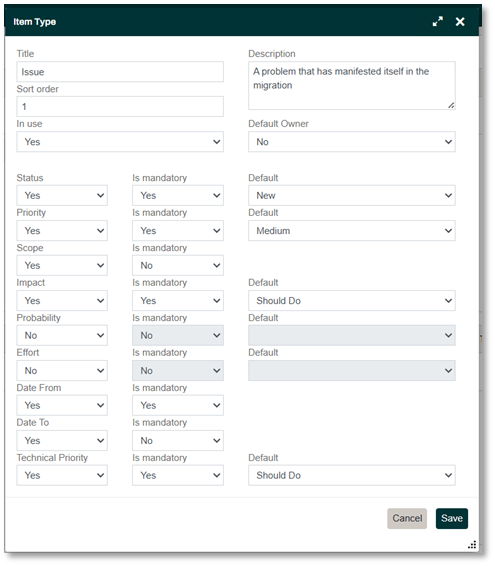
The fields used by the Issue Item include:
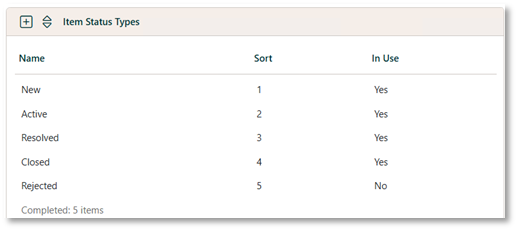
Status – only four of the five default values are being used for this field:
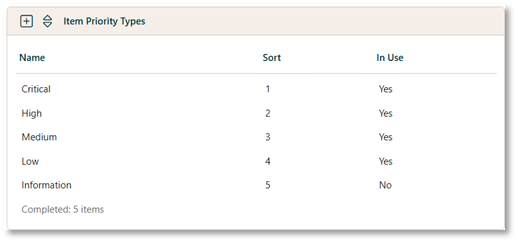
Priority – this also uses four of the five default values:
Scope – this is retained as an optional field, giving an additional free-text field that can be used.
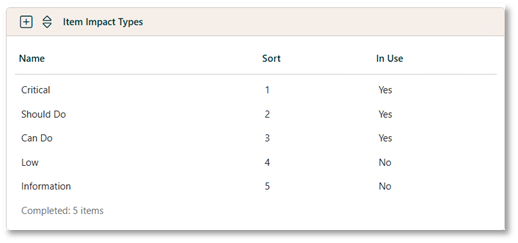
Impact– this field is used to record the Business Priority for the issue. It is one of two fields used to determine the overall priority of the issue and modifies the default values as follows:
Date From and Date To are used to record the start and end dates for the issue.
Technical Priority – this field is used to record the Technical Priority for the issue. It is the second of two fields used to determine the overall priority of the issue and modifies the default values as follows:
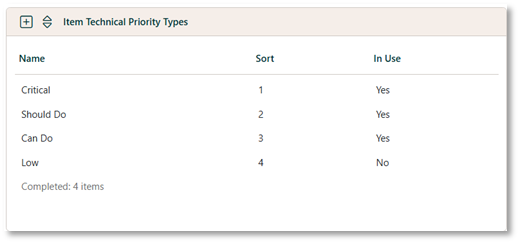
The second type of Item used to support issue recording is the Task. This type of Item is used for recording optional sub-tasks for Issues.

The fields used by the Task Item include:
Status – this shares the same configuration as the Issue:
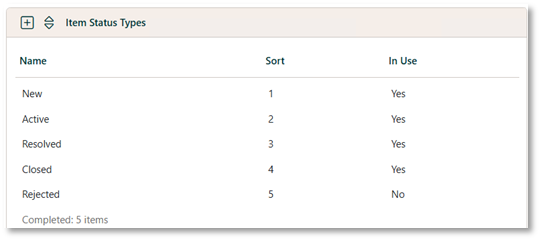
Scope – as with the Issue, this is retained as an additional, optional free-text field.
Effort – this optional field can be used to record the estimated amount of time the task will take. The default unit types have been retained:
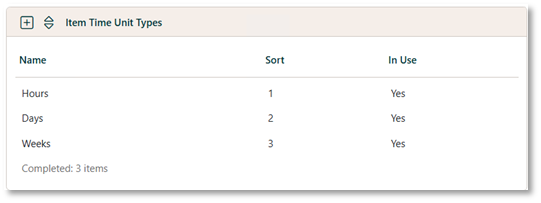
Date From and Date To are used to record the start and end dates for the task.
Project Management Items
Two more types of Items are required to support the recording of the data migration plan that has been specified in the data migration strategy. The first of these is the Milestone:
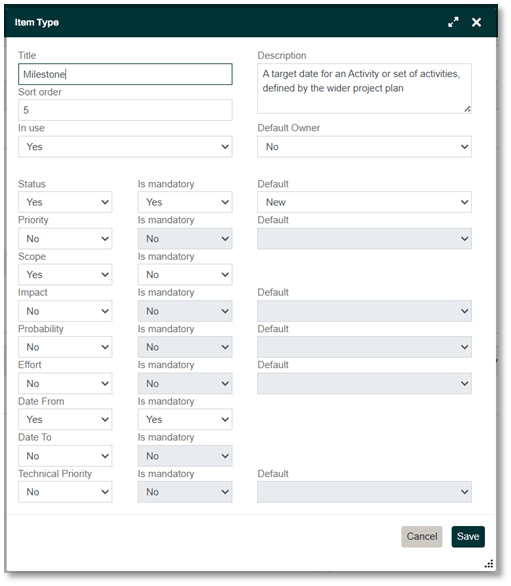
Milestones are used to record the main stages of the wider project, which the migration plan needs to align with. They use the following fields:
Status – this shares the same configuration as the Issue and Task Items:
Scope – as with the Issue and Task Items, this is retained as an additional, optional free-text field.
Date From – this is used to record the date of the Milestone.
The second type of planning Item is the Release. This is the main unit of organization used in the data migration plan and in many respects is analogous to an Agile Sprint:
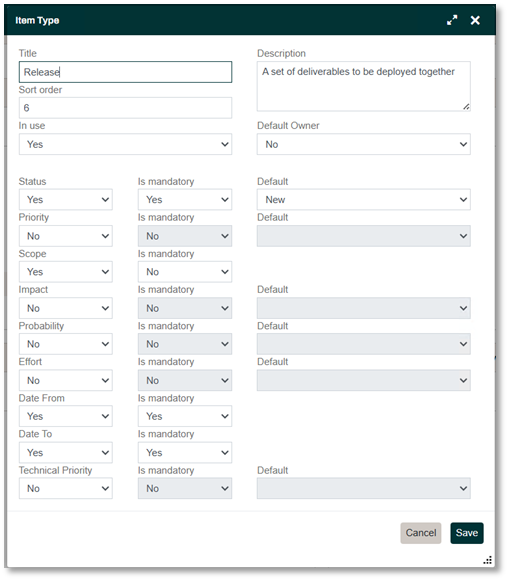
Releases are used to schedule the work of the data migration workstream and use the following fields:
Status – this shares the same configuration as the other Items:
Scope – as with the other Items, this is retained as an additional, optional free-text field.
Date From and Date To are used to record the start and end dates for the Release.
Initial Hopp Project Preparation
Among the first Items that can be recorded during migration preparation will be the Project Milestones.
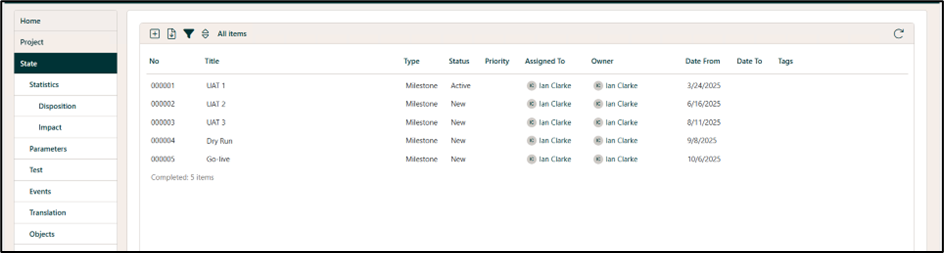
These can be taken from the outline project plan and if necessary, can be easily updated when the project plan is finalized. The first Milestone Status can be updated to Active when the project moves from initiation to implementation.
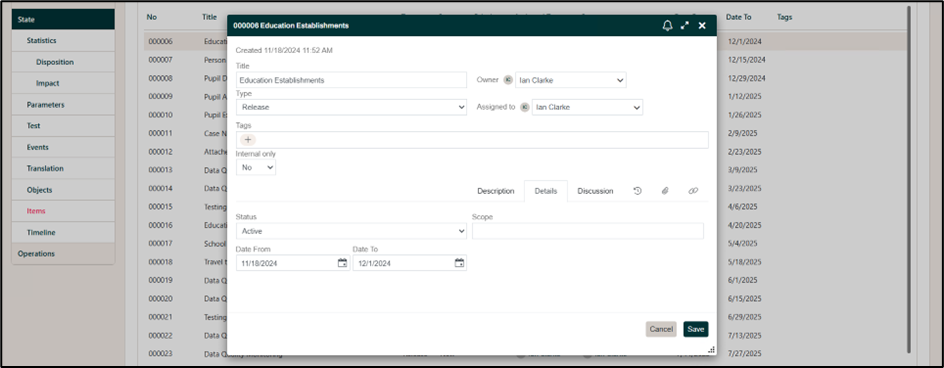
When the migration plan has been defined in the data migration strategy, the Release Items can be added.
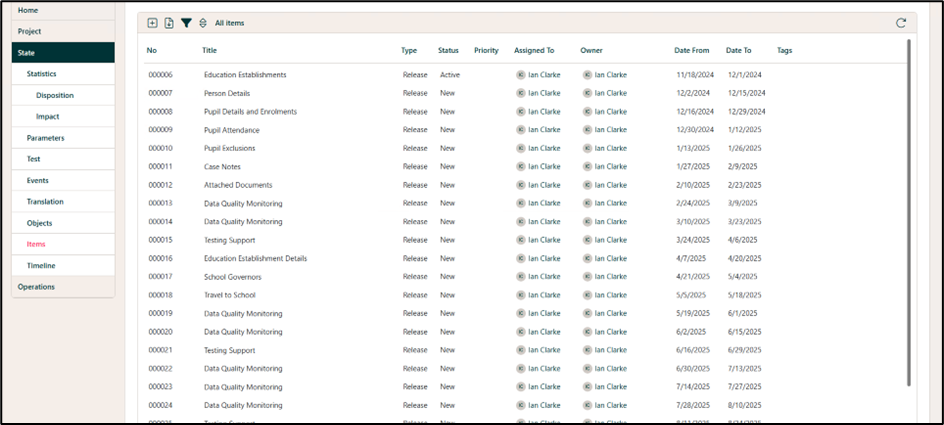
The specific aspects of the required mapping can be described in more detail in the Description field.
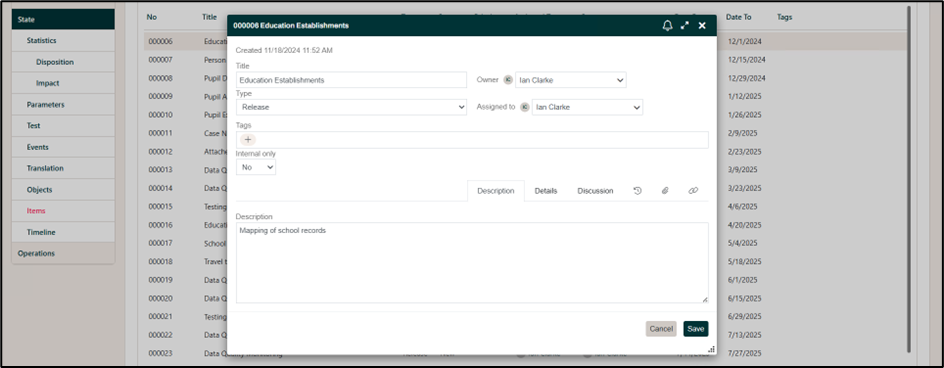
The Status of the first Release can be updated to Active.
The Project Dashboard configuration can also be updated to include the Items and Timeline widgets, if these are not part of the default Dashboard configuration. This is explained in detail in Dashboard Configuration.
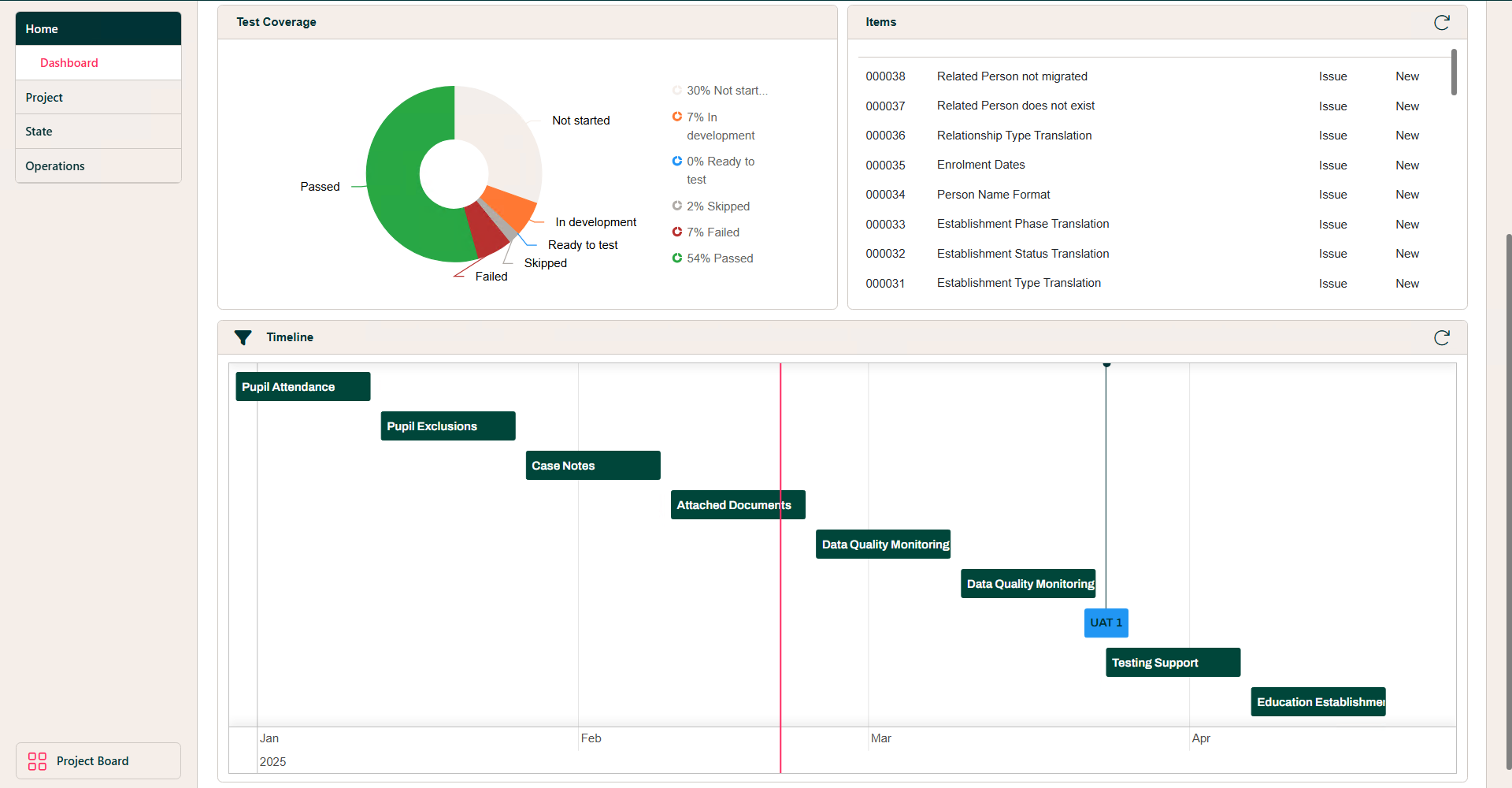
- The Items widget displays a list of all Items in descending order.
- The Timeline widget provides a timeline view of all Items that include the Date From and/or Date To fields, and users can filter it by Item Type.
Clicking on the widget title also directly opens the State Items screen or State Timeline screen, respectively.
Sources of Migration Issue
Migration Issues can originate from many different sources. Anyone who has a concern relating to the data migration will need to raise a Migration Issue to ensure that it is addressed. This section considers some of the different ways that Migration Issues are discovered and raised. Before that, the following general guidance applies to the recording of Issues wherever they originate from.
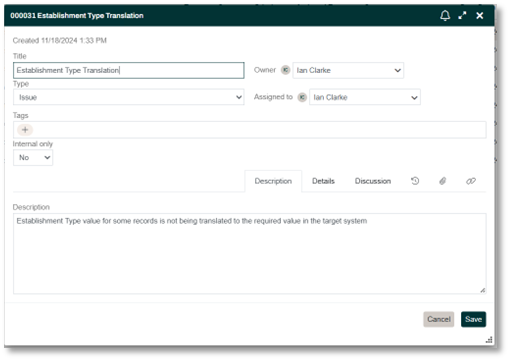
- The Title should be a short description of the issue
- The Owner and Assigned To can initially be set to be the senior migration analyst
- The Description should be used to record as much detail as possible for the issue
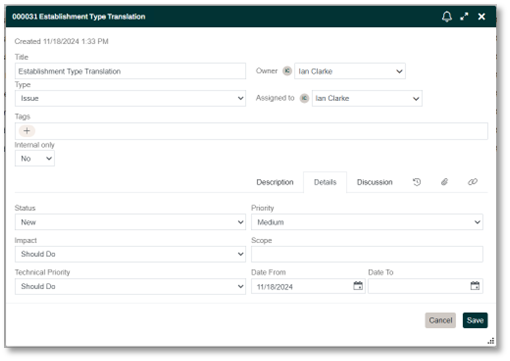
- Status should be left with the default value of New
- Priority, Impact and Technical Priority should also be left with their default values
- Date From should be set to the date the Issue is being recorded
Directly Added Issues
Issue Items can be directly added on the State Items screen. This will usually be the most common way that Issues are recorded during migration preparation. Data quality issues may be mentioned anecdotally by Business Domain Experts during landscape analysis or uncovered directly by the data migration analysts undertaking this work. Other issues may be reported by Data Owners during migration sign-off development, where their resolution may become one of the sign-off requirements.
Adding an Issue on the Items screen is explained in Creating an Item.
Testing Issues
The majority of Issues raised during migration delivery will probably be identified by testing, as described in the Migration Sign-off article. Issue Items can be added directly from the Test screen when the details of the failed test are being recorded for the Area. This is done from the Links tab, by clicking on the Plus icon and selecting Create New.
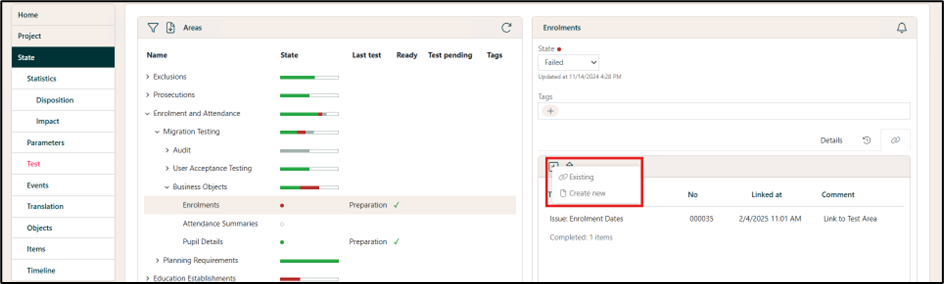
When the Type of ‘Issue’ has been selected, the Title of the Item can be recorded. A comment can also be added, which will be shown on the Links tab for the link record.

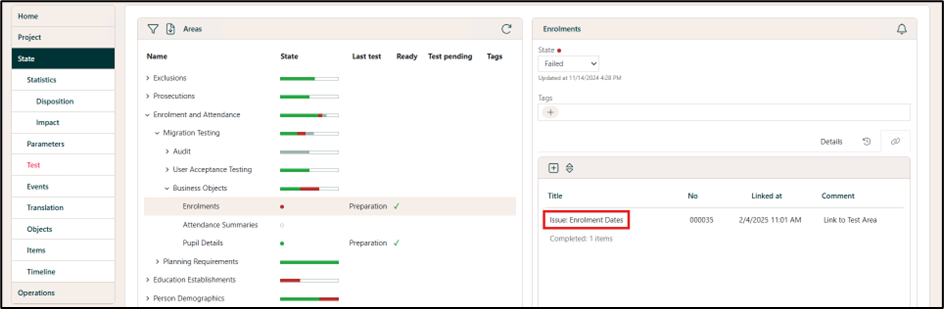
Once the link to the new Item has been saved, clicking on the link to the Issue will open it directly on the Items screen.
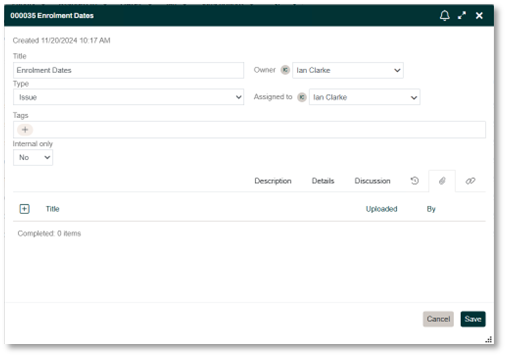
At this point, details of the Issue may be recorded as described previously. In addition, the testers may wish to attach supporting documents, such as screenshots, etc. These can be added on the Attachments tab of the Item, as described in Adding a document to an Item.
Event Issues
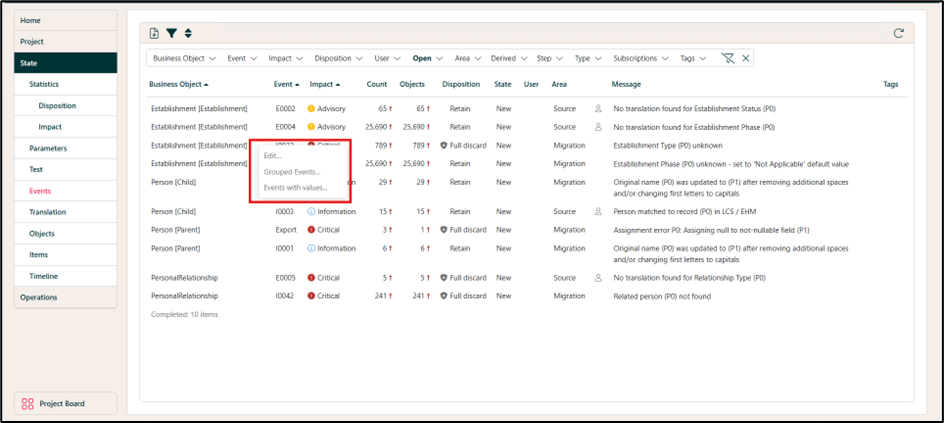
Many Issues raised during migration delivery will initially be flagged up by the Events that have been built into the Hopp mapping to validate data. Issue Items can be directly recorded from the records on the Events screen, by clicking on the context menu for the Event (the three dots) and selecting Edit.
A new Item can be added by opening the Links tab, clicking on the Plus icon and selecting Create New.
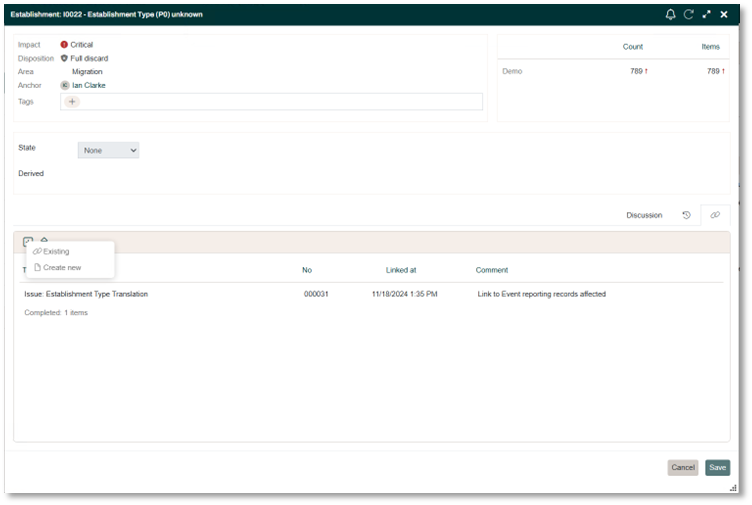
The same options for adding an Item from Test Areas described above are available here.
Management of Migration Issues
This section provides a description of the processes used by our methodology to manage migration issues and how the Hopp Item Manager functionality supports this.
The Data Task Group
One of the tasks required by the methodology during migration preparation is the establishment of a Data Task Group. The membership of the Data Task Group consists of relevant Key Data Stakeholders, including Data Migration Analysts, Business Domain Experts and Technical System Experts. Other Key Data Stakeholders will be invited as required. Data Task Group meetings will be held at least weekly during migration delivery.
The purpose of the Data Task Group meetings will be to decide what actions to take (if any) to address the issues recorded on the Migration Issues Log. They will also need to monitor the progress of the actions being taken. Therefore, the Key Data Stakeholders will need the delegated responsibility to take the necessary decisions (in line with Golden Rules 1 and 2, “Data Migration is a business not a technical issue” and “The business knows best”). The lead data migration analyst should chair the Data Task Group meetings.
The standard agenda for Data Task Group meetings should consist of the following items:
- Evaluate New Migration Issues
- Report on progress of current Migration Issues
- Re-plan future Releases
The Migration Issue Log can be updated directly in the Hopp Item Manager during Data Task Group meetings, so all Data Task Group members will need to be set up as users of the Portal.
Prioritization and Planning
The Data Task Group will need to prioritize and plan each new Migration Issue presented to them. When the Data Task Group is evaluating new issues, the filters can be used to display these issues on the Items screen during the meeting.
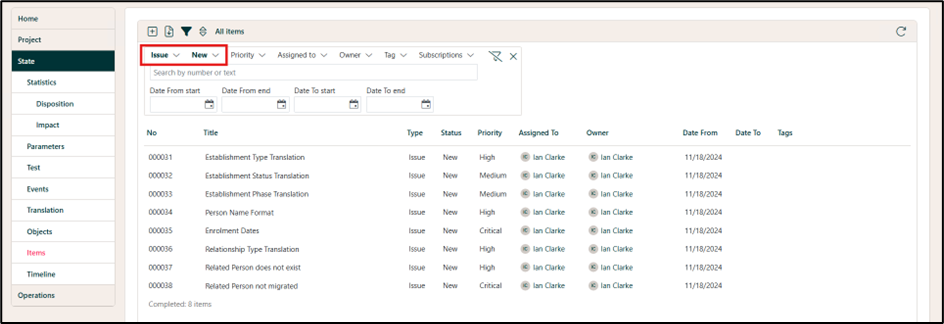
Each issue can now be evaluated in turn. The Data Task Group will need to decide on the priority of the issue.
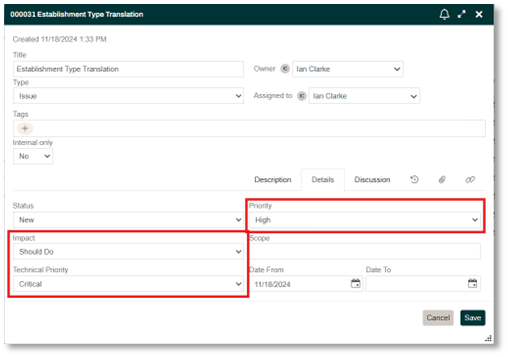
The methodology requires both the Business Priority (recorded in the Impact field) and the Technical Priority to be considered.
Each of these fields has three possible values:
- Critical
- Should Do
- Can Do
The combination of these two priorities is used to decide the overall priority (recorded in the Priority field):
- If both Business and Technical Priorities are Critical, overall Priority will be Critical
- If one of Business or Technical Priorities are Critical, overall Priority can either be Critical or High
- If both Business and Technical Priorities are Should Do, overall Priority will be High
- If one of Business or Technical Priorities are Should Do and the other is Can Do, overall Priority can be Medium or Low
- If both Business and Technical Priorities are Can Do, overall Priority will be Low
Assigning a priority to each issue helps the Data Task Group to decide where the project’s limited resources need to be focused (in line with Golden Rule 3, "No organization needs, wants or will pay for perfect quality data").
The three most common options that the Data Task Group will choose are:
- Ignore
- These are generally low-level reality issues (such as missing or incorrect telephone numbers) that the business never found caused enough problems for them to be fixed in the legacy system. They will be carried across into the target system due to higher priority issues that need to be addressed.
- Fix in flight
- Enriching the data from another source, for example, coded transformations such as defaulting a Y in a Yes/No field where it is blank or importing from a spreadsheet or alternative data source. This will probably be the second most common plan after Ignore, and all fixes will be implemented in Hopp.
- Fix in source
- This is often the most common first suggestion for any issue. However, it is not always technically possible and where it is, available resources may limit the effectiveness of this solution. If sufficient resource is available, it could tie as the second most common plan.
The generic type of plan can be recorded as a Tag on the Issue Item.
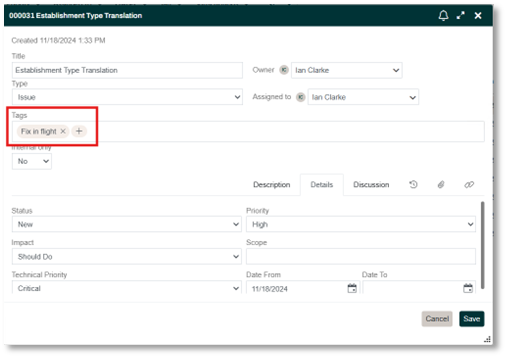
The details of the Data Task Group’s decision should be recorded as a Discussion comment, and the users responsible for the issue need to be recorded.
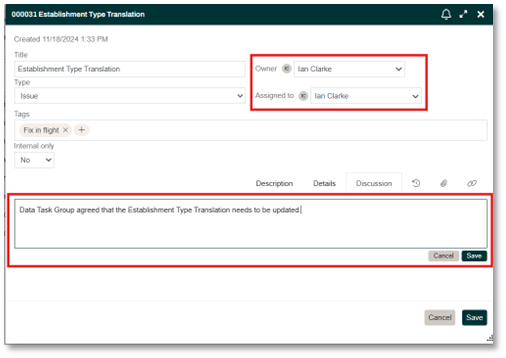
- The Owner should be a member of the Data Task Group, who will be responsible for reporting back to the group on progress.
- Assigned To is used to record the user who will be responsible for implementing the Data Task Group’s instructions. They do not need to be a member of the Data Task Group.
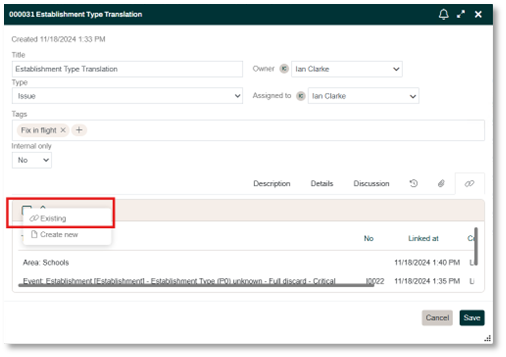
The Data Task Group also needs to decide when the work should be undertaken. This is done by assigning the Issue to a Release by adding a Link. On the Links tab, click on the Plus icon and select Existing.
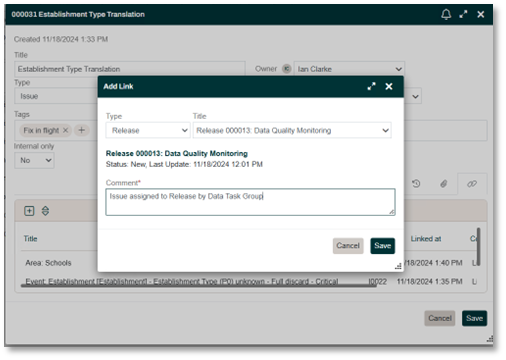
The relevant Release is selected and a comment added to the link.
Finally, the Status of the issue needs to be updated.
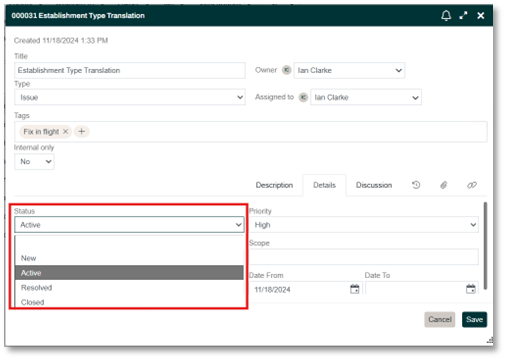
If the plan is to Ignore the issue, then the Status will be updated to Closed and the Date To will be recorded, otherwise the Status will be updated to Active.
It should be noted that sometimes the Data Task Group will be unable to decide on a priority and plan until they understand the scale of the issue (in line with Golden Rule 4, “If you can’t count it, it doesn’t count”). Where the issue is already linked to an Event, this should not be a problem. However, where there is no Event, the Data Task Group may decide to add a new Task to the Issue Item from the Links tab.
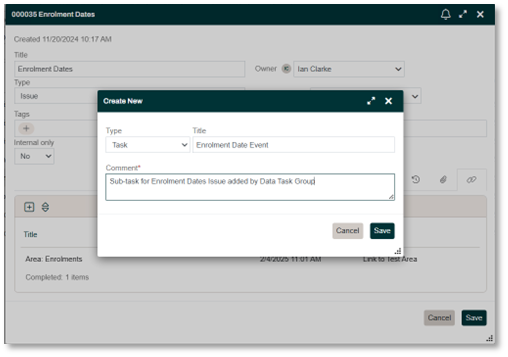
The new Task Item can then be opened on the Items screen and updated.
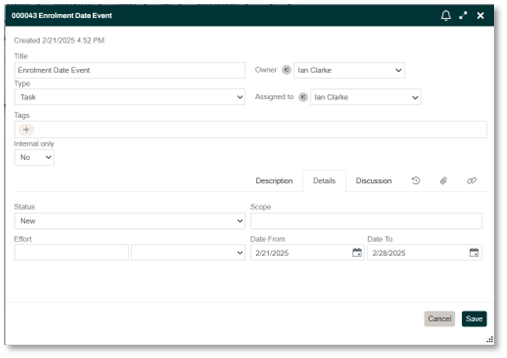
- The Owner and Assigned to needs to be recorded (Owner should be the same person as the Owner of the parent Issue)
- Date From and Date To should also be added
- The Status should be updated to Active
Detailed instructions are recorded in the Description field.
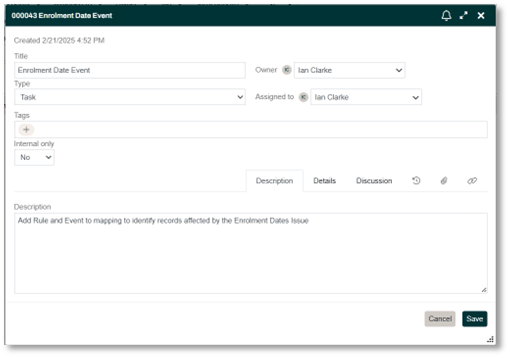
Task Items can also be used where the detailed plan to resolve an Issue is complex and requires different actions from various people.
Monitoring Progress
After the Data Task Group has decided the plan for an Issue, it will have been given an Owner, who is a member of the Data Task Group and will be responsible for reporting progress back to them. It will also have been assigned to a User to carry out the necessary work (this may be the same person as the Owner). Where more than one person will be working on and updating an Issue record, they can subscribe to it by clicking on the bell icon.
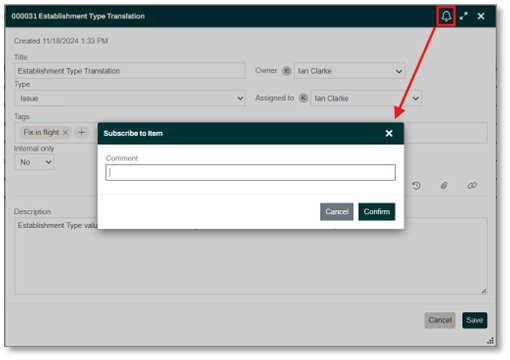
Subscribing to an Item will allow the user to be notified of any updates to that Item. This can include email notifications, if this has been configured in the Hopp infrastructure.
Further details on managing subscriptions and notifications can be found Subscription and Notifications.
Details of how to configure email notifications are explained Setting up Notification and Email.
The second item on the Data Task Group meeting agenda is Report on progress of current Migration Issues. As shown in the previous section, new Issues that need to be addressed will be assigned to a Release. The current Release can easily be identified on the Timeline screen, as the vertical red line representing the current date will pass through it.
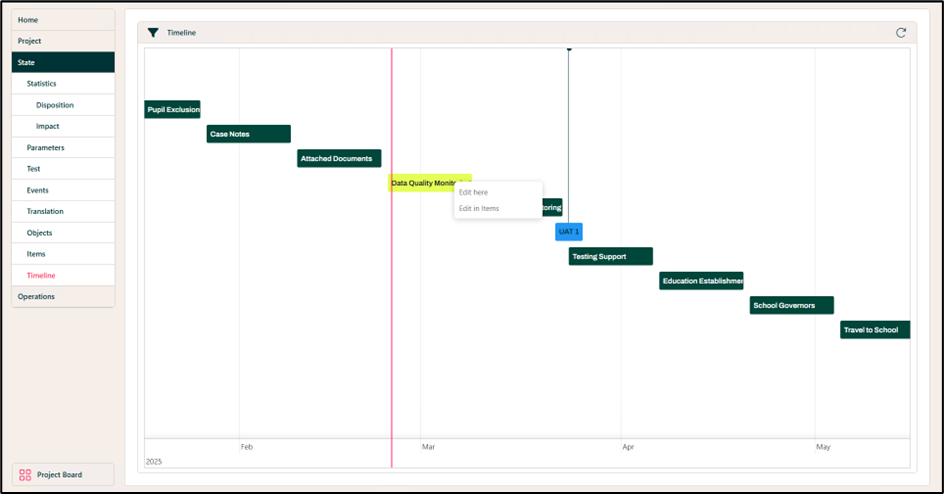
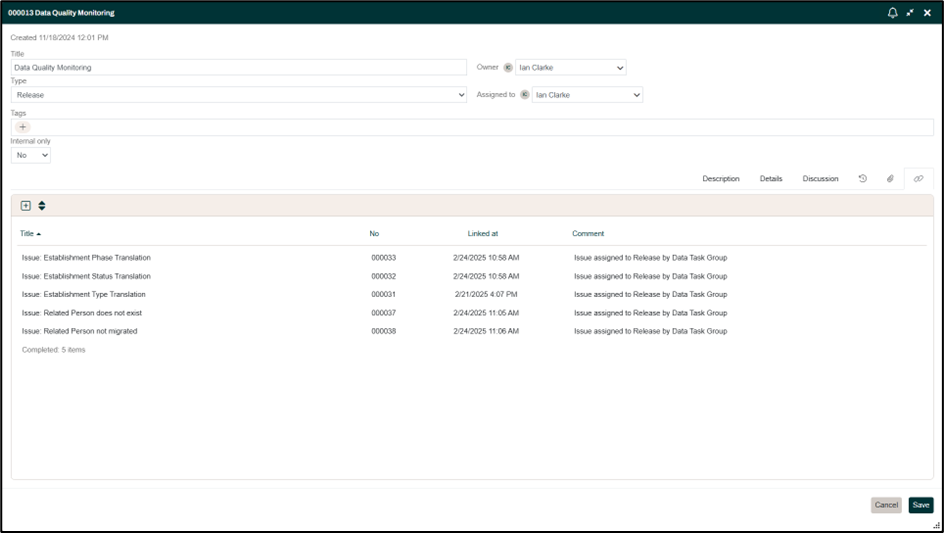
Right-clicking on the Release and selecting either option will open the Item. Expanding the size and clicking on the Links tab will display a list of the Issues that need to be reviewed in the current meeting.
The Issue Items can be updated during the meeting.
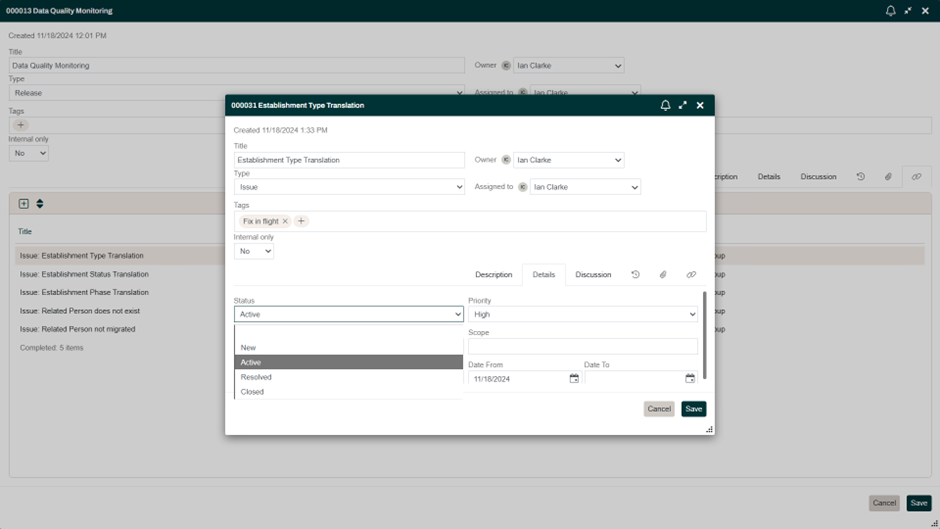
- If the Issue has been successfully addressed, the Status can be updated to Resolved and the Date To recorded.
- Additional comments can be added in the Discussion tab.
- If the Issue remains open, the Item can be assigned to another Release on the Links tab.