Creating New Visual Studio Library Projects
Adding new Engines projects is done through the normal Add Project... wizard in Visual Studio. Right-click the solution node or any solution folder in the Solution Explorer and choose Add -> New Project...
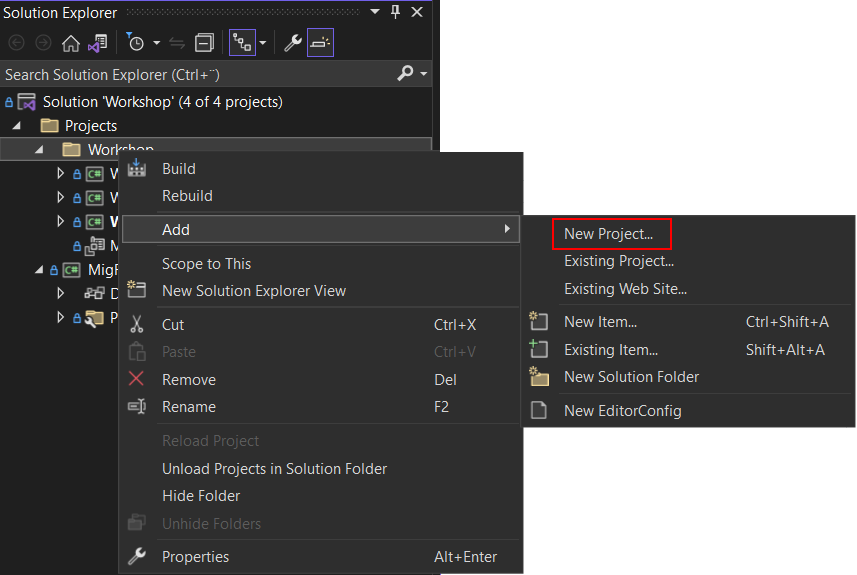
This will open the Add project wizard. Choosing Hopp in the Project Type dropdown will quickly locate the templates provided by Hopp for creating a new Source Engine or a new Target Engine.
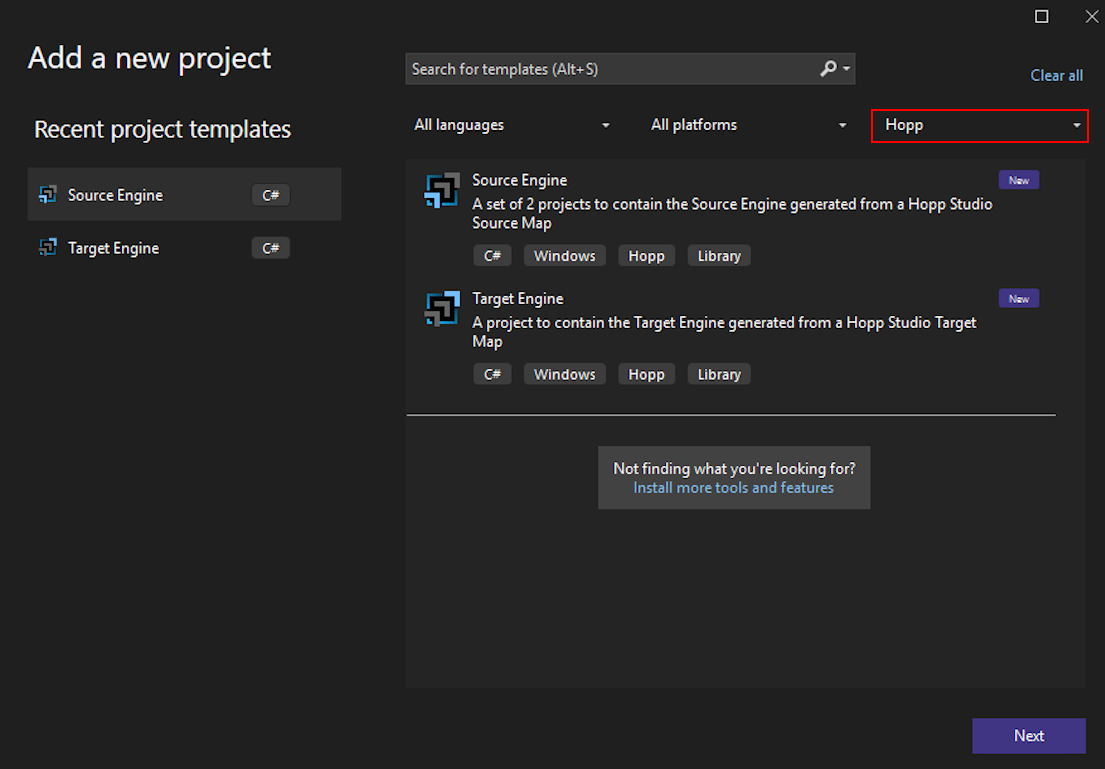
Select the Source Engine template or the Target Engine template and click next.
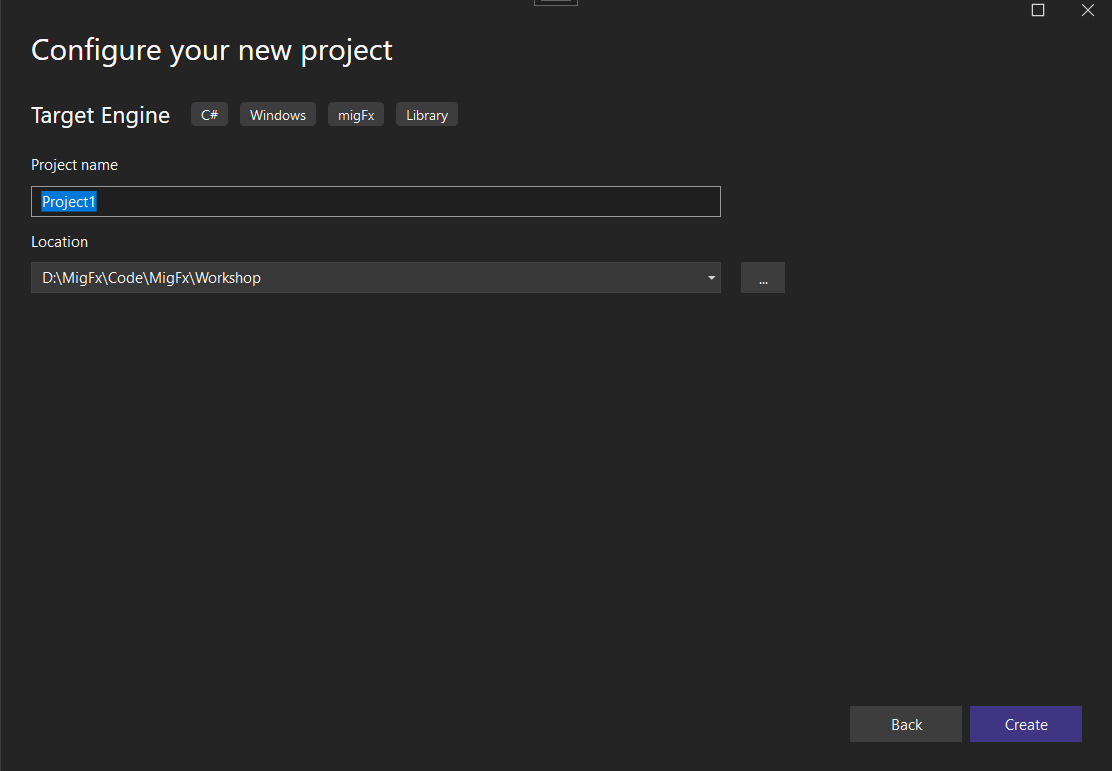
Provide the Project name and the Location and click Create. The wizard will create the selected engine in the location folder provided.
Only supply the project name itself. The TargetEngine or SourceEngineCustom / Generated project suffixes will be added by the wizard.
For the Target Engine the template will create just one project:
-
(ProjectName).TargetEngine
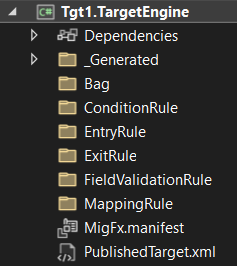
For the Source Engine the template will create 2 projects
-
(ProjectName).SourceEngineCustom
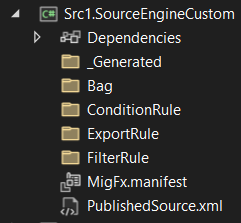
-
(ProjectName).SourceEngineGenerated
