Connecting to the Portal
Before any commands can be issued in the Automation module, it is necessary to connect to the Hopp Portal and to a specific track. Connection is done by the Connect-Hp cmdlet.
Connection can be done by either using an API key / client secret from an application or interactively by a specific user. Once signed in, Automation commands can be issued until the connection is dropped by running the Disconnect-Hp cmdlet or the PowerShell session is closed.
Interactive sign in
To connect to the Portal as a user, you supply the Portal Url and the TrackID to the Connect-Hp cmdlet:
Connect-Hp -portalUrl https://portal.url -trackID -1234-1234-1234-123456789012
The track Id can be found in the Portal Operations under Execution/Track:
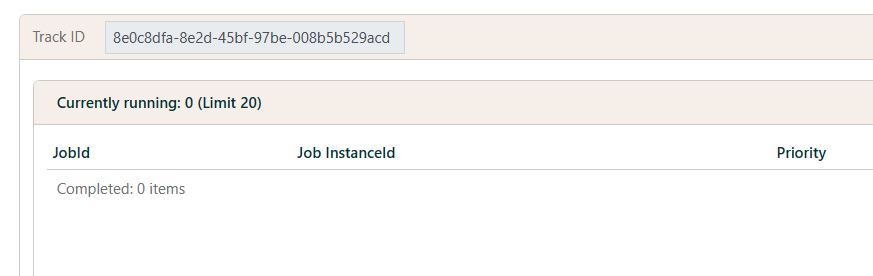
The connect cmdlet will open your browser to facilitate the normal sign in experience according the way the Portal is configured. It will wait for your sign in for 30 seconds and fail after that if no sign in is provided.
Application sign in
An application - typically an orchestration solution like Octopus Deploy, Control-M, Tivoli or similar - can be added to the Portal configuration to allow it to sign in using a Client Id and a Client Secret. If necessary, contact your Hopp administrator in order to configure a client application.
In this case, the Client Id and the Client Id must be passed to the Connect-Hp cmdlet:
Connect-Hp -portalUrl https://portal.url -trackID 12345678-1234-1234-1234-123456789012 -clientId "(client id)" -clientSecret "(client secret)"
Application sign in will happen silently and the PowerShell session will be available for further input without any user interaction required.