Visual Studio Extension Installation
Visual Studio must be closed before installing the extension. The VSIX installer for the Hopp Visual Studio Extension is made available by Hopp Tech as part of your Hopp license agreement on the current download page.
Options
In order to create new engine projects and to deploy the engine projects to the Hopp Runtime, you need to set a few options in Visual Studio after installing the extension.
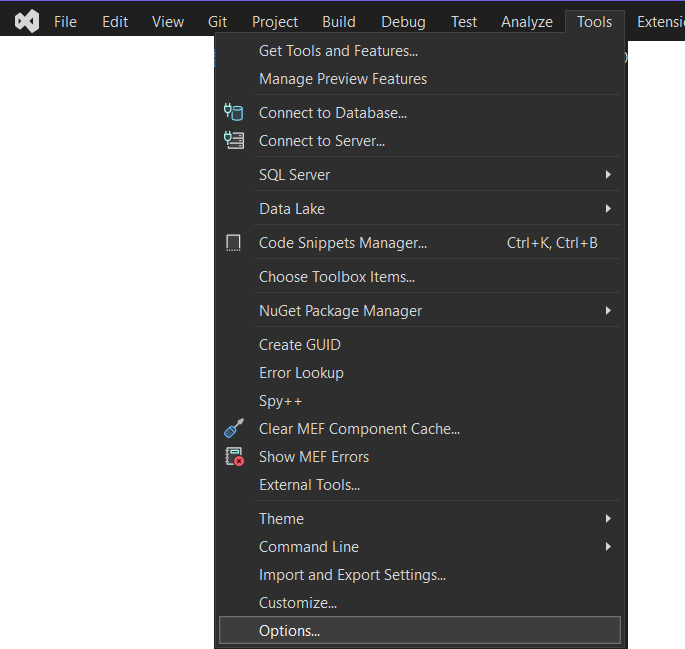
Open the Visual Studio Options dialog from the Tools -> Options menu:
In the Options dialog, locate the Hopp -> General options
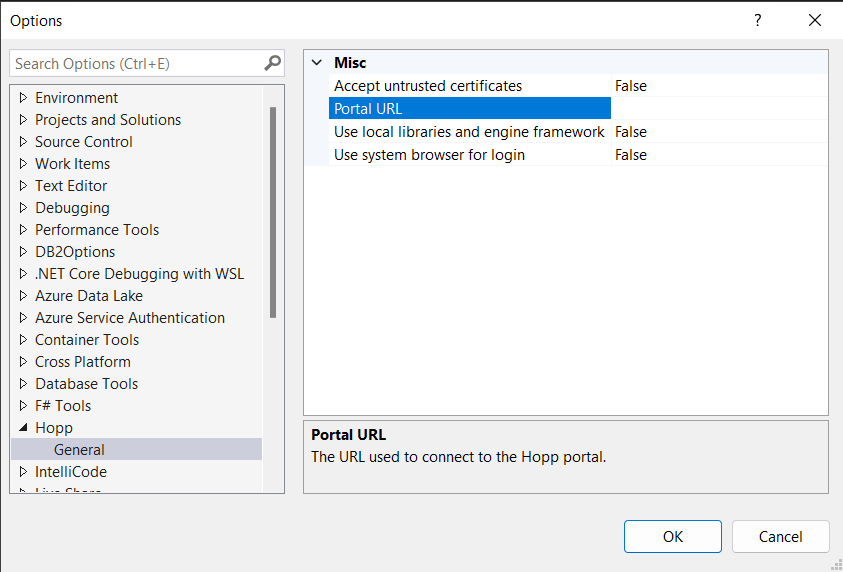
Provide the values for the options:
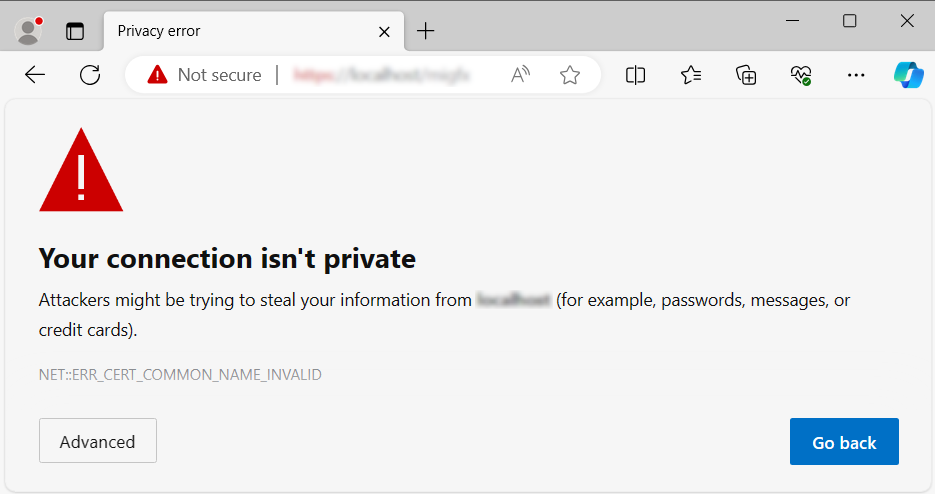
| Accept untrusted certificates | Set to True, if your installation has not provided a trusted SSL (https) certificate for the Portal. If you see certificate warnings like below in the browser, when you access the Portal, you need to set this option to True.
|
| Portal URL | This is the URL you type in the browser to access the Hopp Portal |
| Use local libraries and engine framework | Hopp provides the Engine Generator as well as the libraries used by the Migration Engine projects on NuGet. In some installations, Hopp runs in a ringfenced environment without access to the internet and thus git. If this is the case, you can set this option to True. When the option is set to True, you must install the Hopp Libraries and the engine framework locally on your workstation. These are available from the Hopp download page When the option is set to False, you must install the Hopp Generator tool from NuGet. This can be done from PowerShell with the command:
|
| Use system browser for login | By default, the Visual Studio extension will use an embedded browser to sign you in to the Hopp Portal. In rare cases this can cause problems. Set this option to True to use your default system browser instead |
The migFx.manifest
The migFx.manifest file in the TargetEngine project and the SourceEngineCustom project respectively contains information for the Hopp to call the engine generators correctly.
The manifest is an xml file containing these elements:
| ProjectType | The type attribute marks this to be a Target Engine or a Source Engine |
| PublishedXml | The path to the xml file containing the xml of the corresponding map published from Studio. When the generation is launched from Visual Studio, this information is used to check out the PublishedXml file from source control - if required. |
| Generate | Contains a collection of Cmd elements, each defining a generator to be executed on generation. The manifest is created by Hopp with the Cmd element to run either the Source- or the Target Engine generator according to project type. |
| Project | A Project element for each project of the engine. 1 for the Target Engine and 2 for the Source Engine. |